
How to Combine Multiple Photos Side-by-Side or Vertically into One Image
Need to combine the front and back of your Driver's License or ID card onto a single image for an online application? Or want to create a side-by-side 'Before & After' picture for social media without fiddling with complex graphic software? EditPDFKit's Merge Images tool lets you stitch 2 or more photos horizontally, vertically, or in a grid with customizable borders, spacing, and background colors.
A lot of online forms ask for 'both sides of your ID' but only give you a single file upload field, which leaves applicants stuck photographing the front and back of their license or ID card separately and then having no obvious way to submit both as the one file the form actually wants. The same mismatch shows up outside government forms too — a fitness coach wants to post one clean before-and-after image rather than two separate posts, or someone needs a quick side-by-side comparison for a report without opening a full graphic design program just to place two pictures next to each other.
Open Combine Photos & Merge Images now
Step by step
4 steps- 1
Add the Photos You're Combining
Drop two or more images into the Merge Images tool's upload area.
Open Combine Photos & Merge Images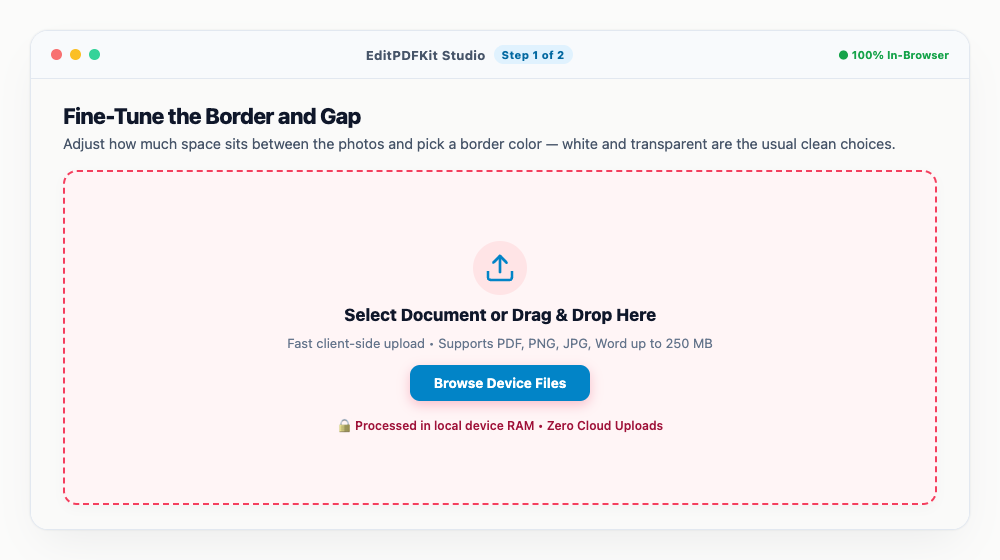
Reorder thumbnails by dragging them left or right until the first photo you want is actually first.
- 2
Decide Side-by-Side or Stacked
'Horizontal' lines photos up next to each other — a natural fit for before/after shots — while 'Vertical' stacks them, which works well for a 2-sided ID card.
Turning on 'Match Dimensions' scales both images to the same height or width automatically, so nothing looks mismatched.
- 3
Fine-Tune the Border and Gap
Adjust how much space sits between the photos and pick a border color — white and transparent are the usual clean choices.
A thin 10px white border tends to look the most polished when splitting two images cleanly.
- 4
Save the Combined Image
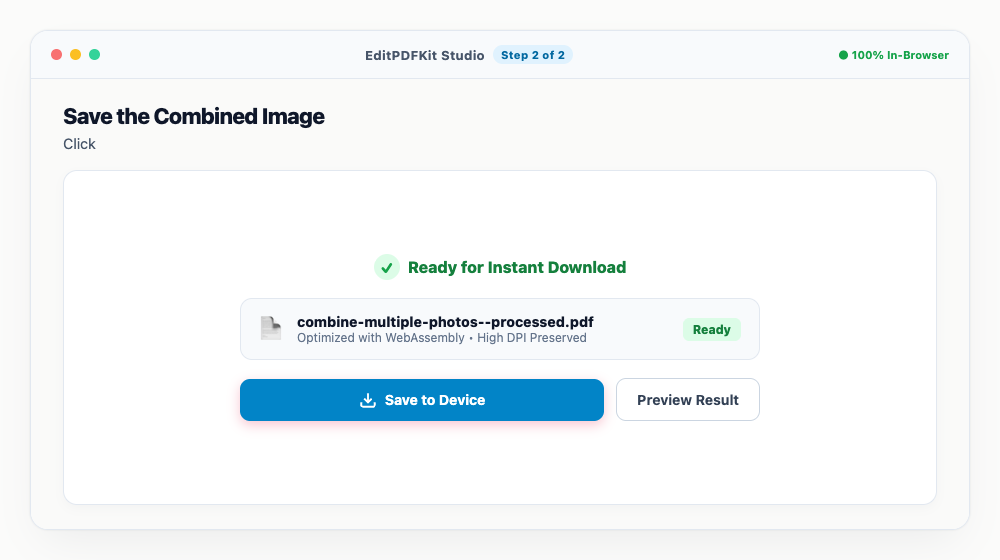
Click 'Merge & Download' and the combined graphic saves as a high-resolution JPG or PNG.
It's ready either for an identity verification portal upload or just to post as one image online.
Why use EditPDFKit for this
- Side-by-Side & Vertical Stitching: combine photos horizontally (side-by-side) or vertically (stacked)
- ID Proof Combiner: perfect for placing front and back of National ID, National ID, or Driver's License onto one sheet
- Custom Borders & Spacing: adjust margins, padding gaps, and background color (white, black, transparent)
- Auto-Height Alignment: automatically normalizes photo dimensions so both images align symmetrically
What Is Side-by-Side Image Stitching?
Image stitching means combining two or more separate photos into one single image file, arranged horizontally side-by-side, stacked vertically, or in a grid, with consistent borders and spacing between them. Most ID verification and application forms that request 'front and back of your ID' genuinely mean one combined image showing both sides, even though the upload field itself is just a standard single-file uploader with no indication of that beyond the label text. EditPDFKit's Merge Images tool produces exactly that single combined file without needing a full graphic design program.
Common Use Cases
Job seekers uploading 2-sided ID proofs are the most common case, stacking the front and back of a driver's license or national ID into one file for a form that only accepts a single upload. Fitness coaches making before/after pictures need a clean side-by-side comparison without fiddling with layers in a photo editor, while real estate agents creating photo collages and crafters combining reference images both need a quick way to place multiple pictures into one coherent layout.
In every case, the task is the same small but genuinely annoying problem: joining separate images into one file without opening a full design application.
Key Features That Make This Easy
Side-by-Side & Vertical Stitching covers both common layouts — horizontal for before/after comparisons, vertical for a 2-sided ID card — and the ID Proof Combiner use case specifically is built around exactly this kind of national ID or driver's license submission. Custom Borders & Spacing let you adjust margins, padding, and background color (white, black, or transparent) to match whatever the final destination expects.
Auto-Height Alignment automatically normalizes photo dimensions so both images align symmetrically, since two photos taken moments apart rarely come out at identical pixel dimensions on their own.
Why It's Simple to Use
The process is four steps: add your photos, choose horizontal or vertical layout, fine-tune the border and gap, then save. No account or software install is needed, and because the stitching happens entirely through your browser's own canvas rendering, sensitive documents like ID cards and licenses never have to pass through a third-party server just to get combined into one file.
Frequently asked questions
How do I combine the front and back of my ID card onto one photo for an application?
Upload the front photo and the back photo into the Merge Images tool. Select 'Vertical' layout and set background to white. Both sides will be cleanly stitched into a single image accepted by all verification portals.
Can I create a Before & After comparison picture?
Yes! Select 'Horizontal' layout to place your 'Before' photo on the left and 'After' photo on the right. Both images will automatically align to the same height.
Are my sensitive ID card pictures uploaded to your servers?
No. The image stitching is rendered 100% client-side via HTML5 Canvas in your browser memory. Your ID cards, licenses, and passports never leave your computer or phone.
Do I need to install any software to combine multiple photos side-by-side or vertically into one image?
No installation is required. This entire workflow — combine multiple photos side-by-side or vertically into one image — runs directly inside your web browser using our merge images tool, powered by WebAssembly. There's nothing to download, no browser extension, and no account sign-up.
Is this approach suitable for job seekers uploading 2-sided id proofs?
Yes. This exact workflow is built for job seekers uploading 2-sided id proofs, fitness coaches making before/after pictures, real estate agents creating photo collages, and crafters. Every file stays on your own device, and the same workflow works on desktop, Android, and iOS.
What if my two photos are different sizes or resolutions?
Enable 'Match Dimensions' before merging — it automatically scales both images to a common height (for horizontal layouts) or width (for vertical layouts) so the final combined image lines up evenly instead of looking lopsided.
Combining images is one of those small tasks that's genuinely annoying to do by hand in a general-purpose photo editor but takes seconds with a tool built specifically for it — pick horizontal or vertical, set a clean border, and the two images snap together evenly regardless of their original dimensions. And because the stitching happens entirely via your browser's own canvas rendering, sensitive documents like ID cards and licenses never have to pass through a third-party server just to get combined into one file.
Pairs well with
Barcode Generator
Generate a Code 128, EAN-13, UPC-A or Code 39 barcode as a PNG, with the number printed beneath.
Photo Collage Maker
Drop photos into a grid, filmstrip, spotlight, mosaic or tilted polaroid layout and export one picture.
Compress Image to 200KB
Bring a JPG or PNG under 200 KB without the face going blotchy — sized for exam-form photos and portal uploads.
Related posts
Image Cropping
How to Crop Photos into Perfect Circles and Profile Avatars
Image Resizing
How to Resize Photos & Signatures for Online Applications (US Visa, Passports & Forms)
Passport Photo Maker
How to Make Passport Size Photos with Clean White Background at Home Free
Image Orientation & Correction
How to Rotate Sideways Photos & Scanned Certificates Upright Permanently
Image Compression
How to Compress Images to 200KB (or Any Target Size) Without Quality Loss