
How to Compress Images to 200KB (or Any Target Size) Without Quality Loss
Many government job portals, university admissions, and online forms strictly enforce file size limits like 200KB, 100KB, or 50KB. With EditPDFKit's client-side solver, you can dial in an exact KB target and let our smart algorithm find the optimal compression ratio with zero server uploads.
Most people's first instinct when a photo upload gets rejected for being "too large" is to drag the JPEG quality slider in Preview, Paint, or a phone's built-in editor down to 50% and hope for the best. That approach treats every pixel in the image identically, which is exactly backwards: it smears detail evenly across the whole frame, including the parts a human eye actually cares about (skin tone, text, edges) while barely touching the flat background areas that already compress well. The result is a photo that is technically under the KB limit but visibly blotchy, especially around faces and fine text — a common reason passport-style photos bounce back from government portals a second time even after the applicant "compressed" them.
The core problem is that "get this file under 200KB" and "pick a JPEG quality percentage" are two different questions, and manual tools only let you answer the second one. You're guessing at a quality number and checking the resulting file size after the fact, repeating that loop by trial and error. A dedicated target-size solver flips the problem around: you tell it the KB ceiling you actually need, and it works backwards to find the highest-fidelity encoding that fits under that ceiling — which is what the steps below walk through.
Open Compress Image now
Step by step
4 steps- 1
Add Your Photo or Graphic
Drop a JPG, PNG, WEBP, or HEIC file straight onto the Compress Image page, or tap to browse for it on your computer or phone.
Open Compress Image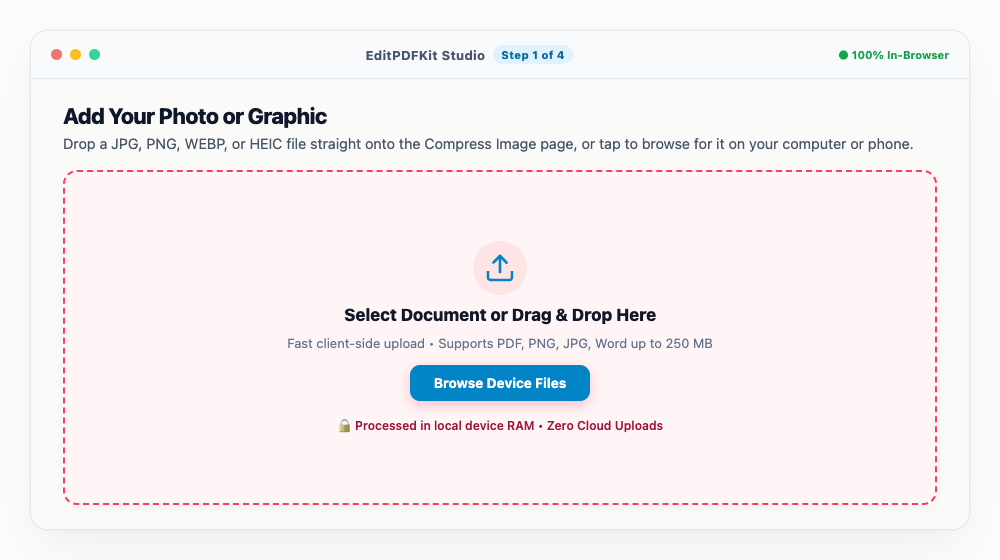
Queue up several photos at once — batch mode applies the same KB target to every file you add.
- 2
Dial In Your Target File Size
Switch the sidebar to 'Target Max Size' and pick the '200 KB' chip, or type any figure you actually need — say, 150 KB — straight into the field.
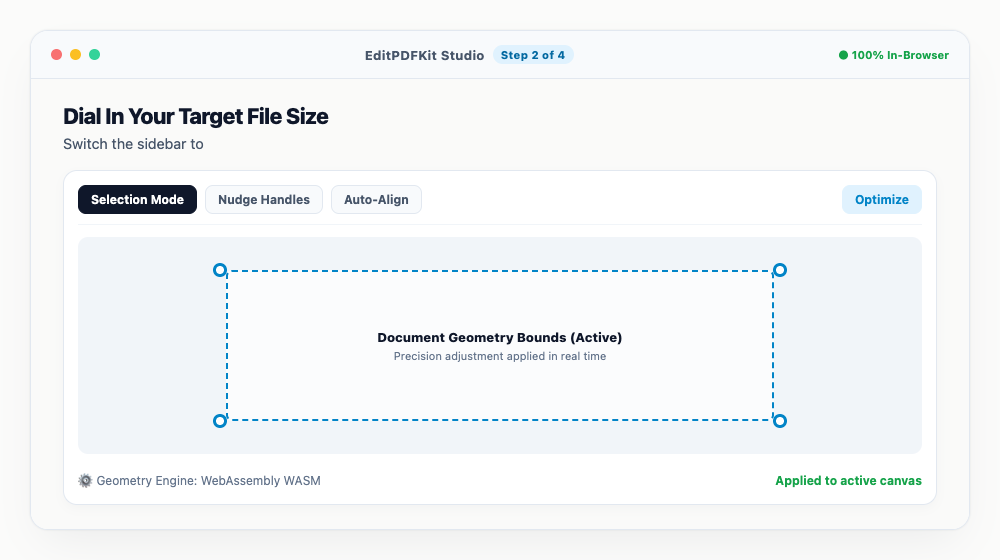
Under the hood, a binary search narrows in on the highest-fidelity encoding that still clears your chosen limit.
- 3
Compare Before and After with the Split View
Slide the handle across the preview to see the original sitting next to the compressed version, while the live KB counter updates in the corner.
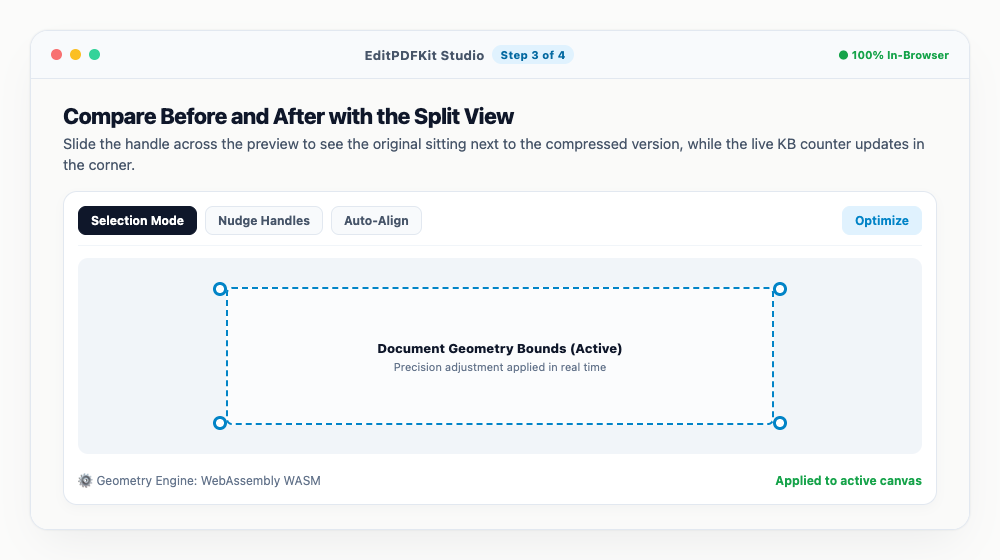
Hold 'Hold for Original' or flip to side-by-side mode when you want to scrutinize fine detail before committing.
- 4
Save Your Compressed File
Hit 'Save Compressed Image' to pull the result onto your device, or 'Save All as ZIP' when you've compressed a whole batch together.
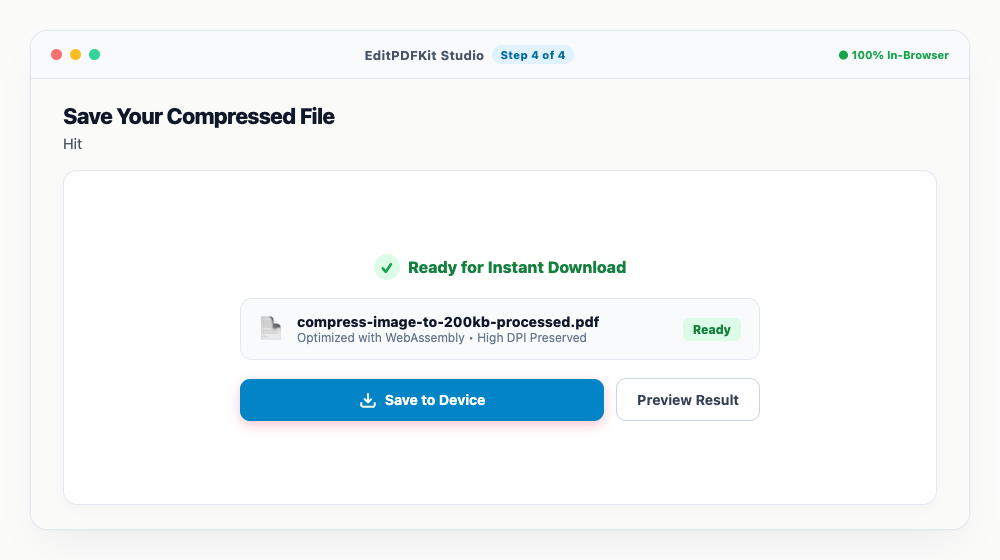
'Save to Privacy Vault' tucks an encrypted copy away in your browser for later, no re-download needed.
Why use EditPDFKit for this
- Target Max File Size solver: input 200KB and the tool calculates the optimal quality instantly
- Interactive Split Slider allows you to inspect original vs. compressed side-by-side
- 100% Client-Side Privacy: your photos never leave your device or touch a cloud server
- Supports batch compression: compress up to 30 photos simultaneously and save as a ZIP
What Is Compressing an Image to a Target KB Size?
Compressing an image to a target KB size means re-encoding a JPG, PNG, or WebP photo so its final file size lands at or under a specific number — 200KB, 100KB, 50KB — rather than just "smaller than before." That distinction matters because most basic photo editors only let you pick a quality percentage (say, 70%) and see what file size comes out the other end, which forces you to guess, check, and re-export repeatedly until you happen to land under the limit.
A target-size approach flips that: you state the actual ceiling a portal enforces, and the tool works backward from there, testing different compression levels internally until it finds the highest-quality result that still clears your number. For anyone who has ever had a passport photo or ID scan bounce back from a government form for being "too large," this is the difference between fighting the upload limit and simply meeting it on the first try.
Common Use Cases
This comes up constantly for applicants for online visas, remote jobs, corporate onboarding, and web developers — anywhere a form enforces a hard byte ceiling instead of just "reasonable file size." A visa applicant uploading a passport photo to a government portal that caps uploads at 200KB needs the image small enough to accept but still sharp enough to pass photo-quality checks. A remote job applicant filling out an HR onboarding form often hits the same wall with a headshot or signature scan, where the platform silently rejects anything over its byte limit without explaining why.
Web developers run into a related but distinct version of this problem: optimizing hero images, product photos, or blog thumbnails to hit a specific size budget for page-speed reasons, where every extra KB directly slows down load time for visitors. In all of these cases, the goal isn't "make it smaller" in the abstract — it's "get it under this exact number, as cleanly as possible," which is exactly what a target-size solver is built for.
Key Features That Make This Easy
The Target Max File Size solver is the core of the workflow: instead of hunting for the right quality percentage yourself, you type in 200KB (or any custom number) and the tool runs a binary search across compression levels internally, landing on the highest-fidelity encoding that still clears your limit — automatically, in well under a second.
The interactive Split Slider lets you drag a handle across the preview to compare the original and compressed versions side by side before committing, so you're never downloading a result you haven't actually inspected. And because the whole engine runs 100% client-side, your photos never leave your device or touch a cloud server — a meaningful detail when the file in question is a passport photo or signed ID document. Batch support rounds it out: queue up to 30 photos at once and apply the same KB target across all of them, then download everything together as a ZIP.
Why It's Simple to Use
There's no account to create and nothing to install — the Compress Image tool runs directly in your browser tab, and the entire workflow is only four steps: add your photo, dial in the target size, check the before/after with the split slider, and download. Most people are done in under a minute, even on a first try with no prior experience compressing images.
Because it's drag-and-drop from the start, it works the same way on a laptop, an Android phone, or an iPhone browser, which matters when you're filling out a form on whatever device happens to be in front of you. If the result isn't quite right, there's no penalty for trying again — just adjust the target size and re-run it instantly.
Frequently asked questions
Will compressing an image to 200KB make it look blurry?
Not with our smart perceptual algorithm. Rather than brutally downscaling resolution, EditPDFKit utilizes perceptual chroma subsampling and WebP/MozJPEG quantization to shave off unnecessary metadata and subtle color variations imperceptible to the human eye.
Is it safe to compress sensitive documents like ID cards and passports?
Yes, 100%. EditPDFKit processes every image locally inside your web browser via WebAssembly and Canvas APIs. Unlike other online converters, your documents are never uploaded to any remote server.
What image formats can I compress to 200KB?
EditPDFKit supports JPG, JPEG, PNG, WEBP, BMP, GIF, TIFF, and Apple HEIC/HEIF formats.
Do I need to install any software to compress images to 200kb (or any target size) without quality loss?
No installation is required. This entire workflow — compress images to 200kb (or any target size) without quality loss — runs directly inside your web browser using our compress image tool, powered by WebAssembly. There's nothing to download, no browser extension, and no account sign-up.
Is this approach suitable for applicants for online visas?
Yes. This exact workflow is built for applicants for online visas, remote jobs, corporate onboarding, and web developers. Every file stays on your own device, and the same workflow works on desktop, Android, and iOS.
Can I hit an exact size like 50KB or 100KB instead of 200KB?
Yes. Type any custom KB value into the Target Max Size input — the binary search quantization engine works identically for 50KB, 100KB, 200KB, or any other number, not just the preset chips.
What if 200KB still looks too compressed for my photo?
Use the split slider to inspect the exact tradeoff before downloading, and if the quality isn't acceptable, raise the target size slightly (e.g. to 250KB) if your portal's upload limit allows it.
Hitting an exact file-size target without wrecking visual quality isn't really about finding the "right" slider position — it's about using a tool that treats "under 200KB" as the actual goal instead of a side effect of a quality percentage you picked by guessing. Once you've run a photo through the Target Max File Size solver once, the whole process collapses into upload, pick your KB target, download — no repeated trial-and-error exports, and no risk of a visibly blotchy result just to squeak under a portal's size limit. Open the Compress Image tool whenever your next application form bounces a photo for being too large.
Pairs well with
Barcode Generator
Generate a Code 128, EAN-13, UPC-A or Code 39 barcode as a PNG, with the number printed beneath.
Photo Collage Maker
Drop photos into a grid, filmstrip, spotlight, mosaic or tilted polaroid layout and export one picture.
Compress Image to 200KB
Bring a JPG or PNG under 200 KB without the face going blotchy — sized for exam-form photos and portal uploads.
Related posts
Image Resizing
How to Resize Photos & Signatures for Online Applications (US Visa, Passports & Forms)
Image Cropping
How to Crop Photos into Perfect Circles and Profile Avatars
Format Conversion
How to Convert iPhone HEIC and JPG Photos to PDF Documents
Image Compression & Quality
How to Reduce Image Quality and File Size Online (Free Image Quality Reducer)
Image Converter
How to Convert WEBP and iPhone HEIC Photos to JPG Online Without Quality Loss