
How to Convert iPhone HEIC and JPG Photos to PDF Documents
iPhone camera photos are saved by default in Apple's proprietary HEIC format, which many government websites, school portals, and Windows computers fail to open. Learn how to package your HEIC and JPG pictures into standard, universal PDF files in seconds.
Every photo an iPhone takes by default saves in Apple's HEIC format, which compresses more efficiently than JPEG at the same visual quality — great for saving storage space on the phone, but a real compatibility problem the moment that photo needs to go somewhere outside Apple's ecosystem. Older Windows PCs, many government and school web portals, and plenty of third-party upload forms simply don't recognize the .heic file extension at all, producing a confusing "unsupported file type" error for a photo that opens perfectly fine on the iPhone that took it.
Converting into a universal, paginated PDF sidesteps the compatibility question entirely: a PDF is one of the few formats essentially guaranteed to open identically on any device, operating system, or browser, which is exactly why document submission portals that reject raw HEIC uploads almost always accept a PDF instead.
Open Images to PDF now
Step by step
4 steps- 1
Pick the Photos to Pack Into a PDF
Open Images to PDF and choose your pictures — .heic, .jpg, .png, or .webp — straight from a phone gallery or desktop folder.
Open Images to PDF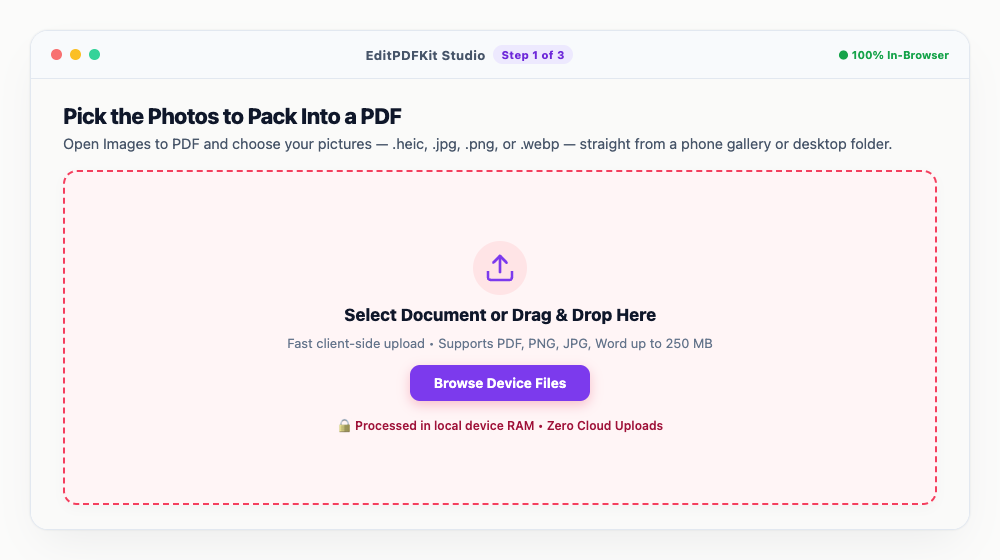
iPhone users can pull images directly out of their iOS photo library without exporting them anywhere first.
- 2
Set the Page Format and Margins
Pick a paper size (A4 or US Letter), orientation (portrait or landscape), and margin width (none, small, or big) for the pages you're about to generate.
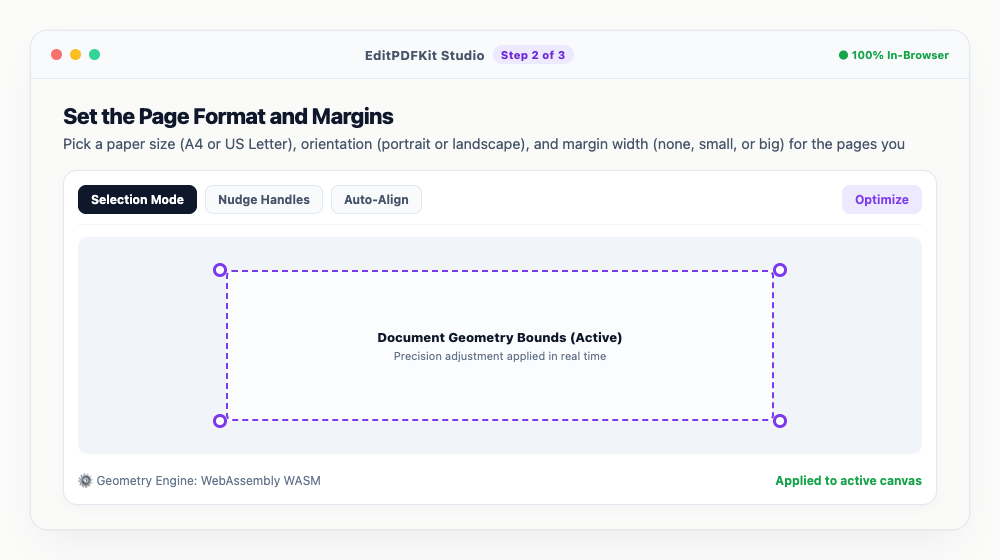
Going with 'Small Margin' leaves enough bleed room if the document is destined for a home or office printer.
- 3
Arrange the Page Order
Drag the thumbnail cards into whatever sequence the final PDF should follow.
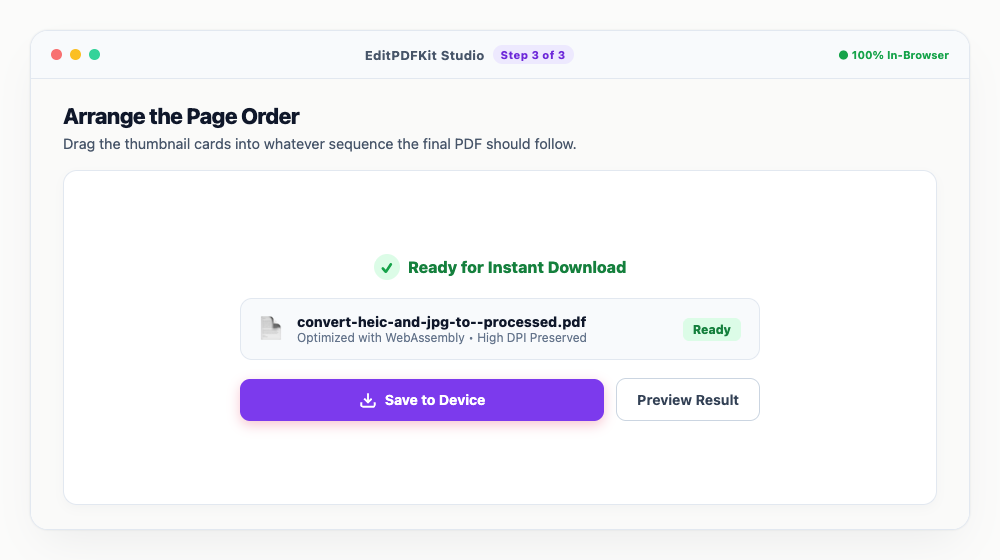
Double-check the order lines up with the original document or chronology before you move on to exporting.
- 4
Build and Download the PDF
'Process & Save' compiles everything into one lightweight, universally-readable PDF file.
That output opens identically on any phone, tablet, Windows PC, or Mac — no format guessing required on the receiving end.
Why use EditPDFKit for this
- Native HEIC & HEIF decoding: convert Apple photos without pre-converting to JPG
- Page sizing options: standard A4, US Letter, or Auto-fit to image dimensions
- Orientation & margin controls: portrait or landscape, with custom padding
- Batch compilation: combine multiple photos into a single paginated PDF document
What Is Converting HEIC/JPG Photos to PDF?
Converting HEIC or JPG photos to PDF means packaging one or more images into a single, universally-readable paginated document instead of leaving them as standalone image files. This matters specifically for iPhone photos because HEIC, Apple's default camera format, uses newer, more efficient encoding that many Windows PCs, government portals, and school upload forms simply don't recognize — producing an "unsupported file type" error for a photo that opens perfectly fine on the phone that took it.
A PDF sidesteps that compatibility problem entirely, since it's one of the few formats essentially guaranteed to open identically on any device, operating system, or browser — which is exactly why portals that reject raw HEIC uploads will almost always accept a PDF instead.
Real-World Scenarios
iPhone users, students submitting homework assignments, and professionals compiling photo reports all hit this same compatibility wall from different directions. An iPhone user trying to submit a photographed document to a government or school portal gets rejected because the site doesn't recognize .heic, with no obvious fix unless they know to convert first. A student photographing handwritten homework pages on their phone needs all the pages combined into one submittable file instead of several loose image attachments.
A professional compiling a damage report or site inspection needs multiple photos — sometimes a mix of HEIC from an iPhone and JPG from an Android device or older camera — combined into one organized, paginated document rather than a folder of separately-named image files the recipient has to open one at a time.
What Makes This Possible
Native HEIC and HEIF decoding means you don't need to pre-convert your iPhone photos to JPG in a separate app first — the tool reads Apple's format directly. Page sizing options (standard A4, US Letter, or auto-fit to the image's own dimensions) and orientation/margin controls let you produce a document that looks intentional rather than an image awkwardly stretched onto a mismatched page size.
Batch compilation is what makes multi-photo documents practical: every selected photo becomes its own page inside one PDF, in whatever order you arrange via drag-and-drop, with consistent formatting applied across the whole set — turning a folder of loose images into one coherent file.
What Makes This So Straightforward
The process is four steps — pick your photos, set the page format, arrange the order, and build the PDF — with iPhone users able to pull images directly from their iOS photo library without exporting them anywhere first. No account, no app install, and no need to understand what HEIC even is to get a working result.
Because the output opens identically on any phone, tablet, Windows PC, or Mac, there's no second compatibility check needed on the receiving end — the recipient just opens the PDF the same way they'd open any other document.
Frequently asked questions
Why won't my Windows PC open my iPhone HEIC files?
Windows does not include native HEIC codecs out of the box. Converting your HEIC images to PDF or standard JPG solves all compatibility issues across all operating systems.
Can I combine 10+ photos into one PDF?
Yes. You can upload dozens of photos and EditPDFKit will compile each photo onto its own neatly formatted page inside a single PDF file.
Do I need to install any software to convert iphone heic and jpg photos to pdf documents?
Nothing to install — this workflow — convert iphone heic and jpg photos to pdf documents — runs directly inside your web browser using our jpg to pdf tool, powered by WebAssembly. No extension, no sign-up, and nothing to install beforehand.
Is this approach suitable for iphone users?
Yes, this workflow is commonly used by iphone users, students submitting homework assignments, and professionals compiling photo reports. Nothing is uploaded, and the workflow is identical across desktop, Android, and iOS.
Does converting HEIC to PDF reduce my photo's resolution?
No. The HEIC decoder reads the full-resolution pixel data before placing it on the PDF page, so your photo keeps its original clarity — the only change is the container format and page layout, not the underlying image quality.
Can I mix HEIC, JPG, and PNG photos into the same PDF?
Yes. The tool decodes each format independently before compiling pages, so you can freely combine iPhone HEIC shots alongside JPG and PNG screenshots in a single document without converting them individually first.
A HEIC compatibility error is almost never actually about the photo itself — it's a format recognition problem that a universal PDF sidesteps completely, whether you're converting a single iPhone photo or compiling a full multi-page document from a batch of HEIC, JPG, and PNG images together. Open the Images to PDF tool next time a portal rejects a photo upload with an unrecognized file type error.
Pairs well with
AI to PDF
Pull the PDF document that Adobe Illustrator already wrote inside your .ai file back out as a standalone PDF.
ARW to PDF
Build a PDF proof sheet from Sony Alpha frames — and find out why the .ARW itself has to be developed before any PDF can hold it.
AVIF to PDF
Put AVIF images on PDF pages, with a straight account of what the re-encoding step costs — transparency, extra bit depth and HDR all go.
Related posts
Image Compression
How to Compress Images to 200KB (or Any Target Size) Without Quality Loss
PDF Management
How to Merge Multiple PDF Files into One Document Online
Image Resizing
How to Resize Photos & Signatures for Online Applications (US Visa, Passports & Forms)
PDF to JPG
How to Convert PDF Pages to High-Resolution JPG Images (300 DPI)
Image Converter
How to Convert WEBP and iPhone HEIC Photos to JPG Online Without Quality Loss