
How to Convert PDF Pages to High-Resolution JPG Images (300 DPI)
Need to insert a PDF flyer into a PowerPoint slide, post a certificate on social media, or submit single-page images on an exam portal? EditPDFKit converts PDF pages into crisp, ultra-high-resolution JPG images with selectable DPI and zero watermarks.
A PDF is a vector-and-font-driven document format, not a picture — which is exactly why so many tools choke when you try to drop one into a PowerPoint slide, a social media post, or an image-only upload field. Most people's workaround is a screenshot: open the PDF, zoom to fit, hit Print Screen, and crop. That produces a flat, low-resolution JPEG riddled with screen glare artifacts, scrollbar fragments, and a resolution capped at whatever your monitor happens to be running — typically far below what's needed if the image ever gets printed or zoomed in on.
Rendering a PDF page directly to an image at a chosen DPI sidesteps all of that. Instead of capturing pixels off your screen, the renderer draws the page's actual vector paths and embedded fonts straight into a raster canvas at whatever resolution you specify — 150 DPI for a crisp web share, or a full 300 DPI print-ready output where even small-print signatures and fine seal stamps stay legible.
Open PDF to JPG & PNG now
Step by step
4 steps- 1
Add the PDF You're Converting
Open PDF to JPG and drag your document into the workspace.
Open PDF to JPG & PNG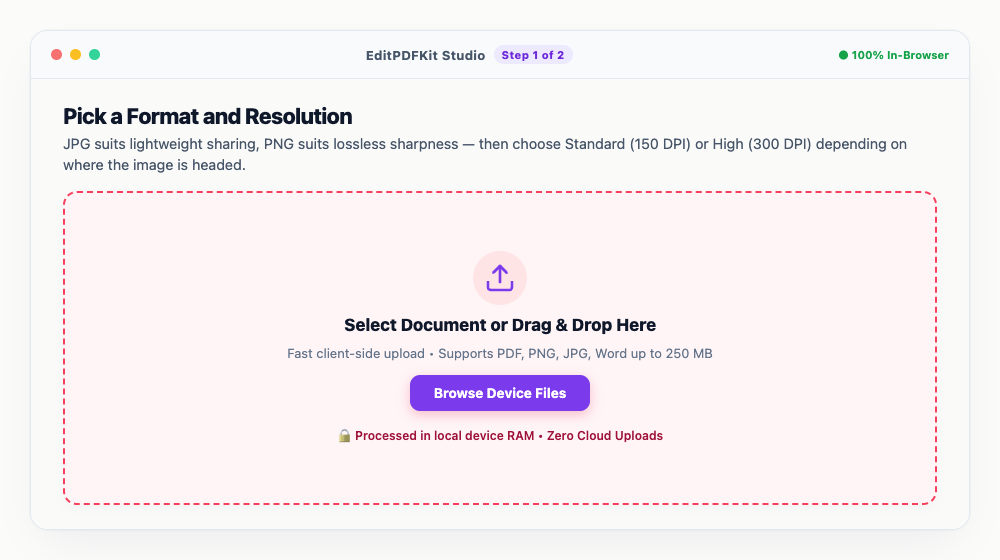
Color brochures, scanned paperwork, posters, and multi-page manuals all convert the same way.
- 2
Pick a Format and Resolution
JPG suits lightweight sharing, PNG suits lossless sharpness — then choose Standard (150 DPI) or High (300 DPI) depending on where the image is headed.
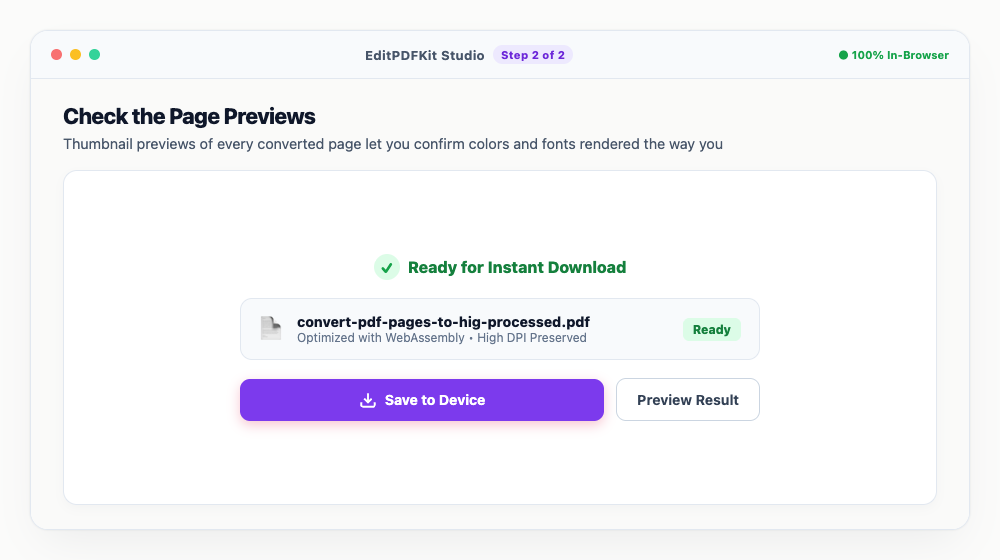
Reach for 300 DPI whenever fine print or a signature needs to stay legible after export.
- 3
Check the Page Previews
Thumbnail previews of every converted page let you confirm colors and fonts rendered the way you'd expect.
Any single page can be downloaded straight from the preview grid without waiting on the rest.
- 4
Grab the Images
'Download All as ZIP' bundles every numbered page together, or 'Save Image' pulls down just one page at a time.
Need these resized for an exam portal afterward? Run the output through Resize Image next.
Why use EditPDFKit for this
- Render at 150 DPI for web sharing or 300 DPI for ultra-sharp print-ready clarity
- Extract single pages or batch convert all pages into high-resolution JPG/PNG images
- Download full document as a structured ZIP archive with one click
- Completely private: processed directly on your GPU/CPU with no server uploads
What Is Converting a PDF Page to a High-Res Image?
Converting a PDF page to a high-resolution image means rendering its actual vector content and embedded fonts directly into a raster image at a chosen DPI, instead of taking a screenshot of the page on your monitor. A screenshot is capped at your display's resolution and often picks up scrollbar fragments or screen glare; a true render draws the page's own paths and fonts straight into the output canvas at whatever sharpness you specify.
DPI (dots per inch) controls that sharpness directly: 150 DPI is plenty for web sharing since most screens can't resolve more detail than that anyway, while 300 DPI is the print-ready standard where even fine print or a signature stays legible once it's on paper.
Common Use Cases
Designers, educators, job applicants, and students needing image copies of PDF documents all run into platforms or workflows that specifically want an image file, not a PDF. A designer inserting a PDF flyer or logo sheet into a PowerPoint slide needs it as a crisp image rather than an embedded, awkwardly-resizing PDF object. An educator posting a certificate or diploma template to social media needs a shareable image format.
A job applicant submitting single-page image uploads on an exam portal that rejects PDF files needs each page converted individually, and a student capturing a diagram or page from a PDF textbook for a presentation needs it at a resolution that still looks sharp when projected on a screen.
Key Features That Make This Easy
Rendering at 150 DPI for web sharing or 300 DPI for ultra-sharp print-ready clarity covers both ends of the resolution spectrum without guessing at a percentage or pixel count. Extracting single pages or batch-converting an entire document into JPG or PNG images means you're not stuck waiting for a full document render just to grab one page.
Downloading the full document as a structured ZIP archive with one click keeps a multi-page conversion organized, and because everything processes directly on your own GPU/CPU, there's no server upload involved at any point.
Why It's Simple to Use
The process is four steps: add your PDF, pick a format and resolution, check the page previews, and grab the images. Thumbnail previews let you confirm colors and fonts rendered correctly before committing to a download, and any single page can be saved straight from the preview grid without waiting for the rest of the document to finish.
There's no software to install and no account required, and if the resulting images need to be resized afterward for something like an exam portal upload, running them through Resize Image next is just as quick.
Frequently asked questions
What is the difference between converting to JPG vs PNG?
JPG produces smaller file sizes ideal for web uploads and social media, whereas PNG preserves crisp vector line art and text without compression artifacts.
Can I convert just one specific page of a PDF to an image?
Yes. Once the PDF loads, you can click 'Download JPG' on the specific page thumbnail you need, without waiting for the rest of the document.
Does the converted JPG include a watermark?
No. All conversions generated by EditPDFKit are 100% clean, watermark-free, and suitable for official and commercial use.
Converting a PDF page to an image only looks complicated the first time — after that it's upload, pick a DPI and format, and download. Because the render happens by drawing the PDF's actual vector content rather than capturing a screenshot, you get a result that's exactly as sharp as you tell it to be, from a lightweight 150 DPI JPG for a quick social post to a full 300 DPI PNG ready for professional printing. Open the PDF to JPG tool the next time a platform insists on an image instead of a document.
Pairs well with
AI to PDF
Pull the PDF document that Adobe Illustrator already wrote inside your .ai file back out as a standalone PDF.
ARW to PDF
Build a PDF proof sheet from Sony Alpha frames — and find out why the .ARW itself has to be developed before any PDF can hold it.
AVIF to PDF
Put AVIF images on PDF pages, with a straight account of what the re-encoding step costs — transparency, extra bit depth and HDR all go.
Related posts
Format Conversion
How to Convert iPhone HEIC and JPG Photos to PDF Documents
Image Compression
How to Compress Images to 200KB (or Any Target Size) Without Quality Loss
Image Cropping
How to Crop Photos into Perfect Circles and Profile Avatars
Document Conversion
How to Convert PDF to Editable Word (DOCX) Without Losing Formatting
OCR & Text Extraction
How to Extract Text and Tables from Scanned PDFs with Free OCR