
How to Convert PDF to Editable Word (DOCX) Without Losing Formatting
Converting complex PDFs to Microsoft Word often breaks columns, mangles tables, and loses embedded images. This guide demonstrates how to use EditPDFKit's layout reconstruction engine to generate crisp, editable .docx documents while keeping your confidential contracts and reports private on your own device.
Anyone who has pasted a PDF's text into Word manually knows the usual failure modes: multi-column layouts collapse into one long run-on paragraph, table borders disappear and cell contents scramble into the wrong order, and embedded charts or logos vanish entirely. Even Word's own built-in "Open PDF" feature, which does attempt a real conversion rather than a plain copy-paste, frequently misreads column boundaries on resumes and financial statements, producing a document that needs as much manual cleanup as starting from scratch would have.
The underlying reason is that a PDF doesn't actually store "paragraphs" or "table cells" the way Word does — it stores individual positioned text fragments and vector drawing instructions, with no explicit structural markup saying "this is a table" or "this is a two-column layout." Reconstructing that structure correctly means analyzing the geometric position of every text fragment and inferring the layout from spacing patterns, which is exactly the harder problem a layout-reconstruction engine is built to solve, rather than a flat text dump.
Open PDF to Word (DOCX) now
Step by step
4 steps- 1
Bring Your PDF into the Studio
Head to PDF to Word Studio and drop your file onto the canvas — page 1 renders in the preview the moment it loads.
Open PDF to Word (DOCX)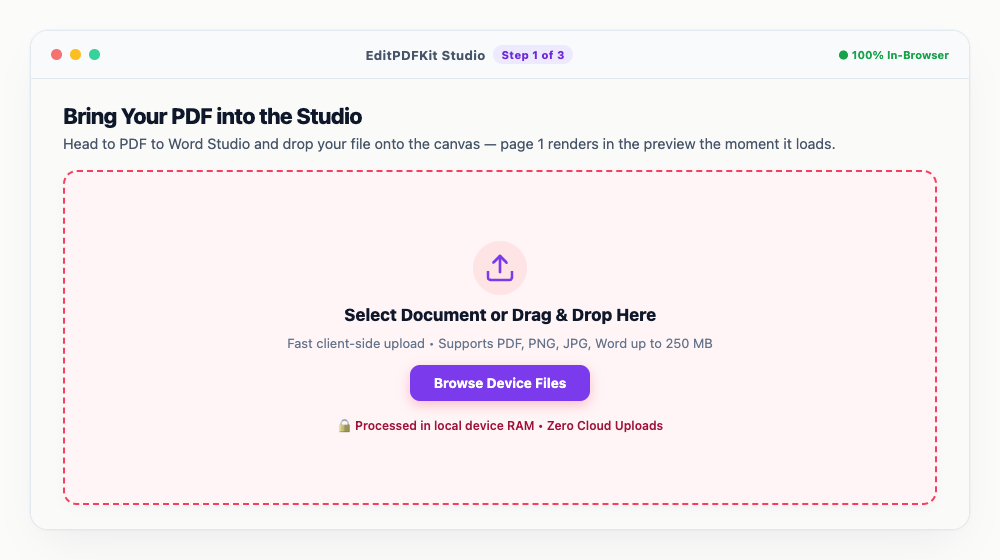
Queue the whole document set at once; batch conversion handles several PDFs in a single pass.
- 2
Pick a Layout Reconstruction Mode
The Conversion Engine panel on the right offers 'Preserved Grid' (keeps tabular borders, headers, and column positions locked in place) or 'Flowing Text' (better suited to essays and articles).
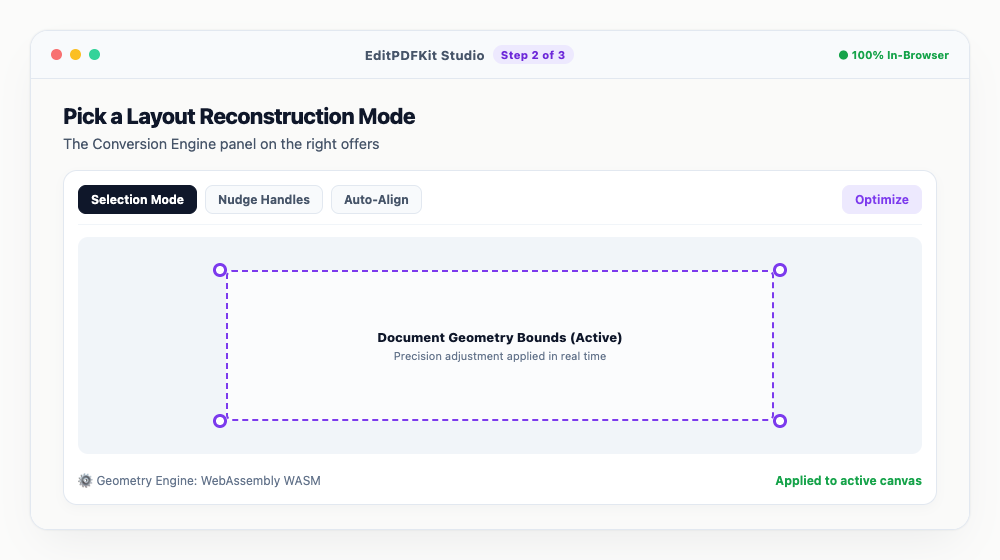
Reach for 'Preserved Grid' whenever you're converting invoices, financial statements, or a resume with a sidebar column.
- 3
Set Font Matching and Media Handling
Choose 'Standard Match' (Arial, Calibri, Times New Roman) or 'Native Modern' (Segoe UI, Aptos), then tick 'Extract and embed photos & diagrams' so charts and logos make the trip across.
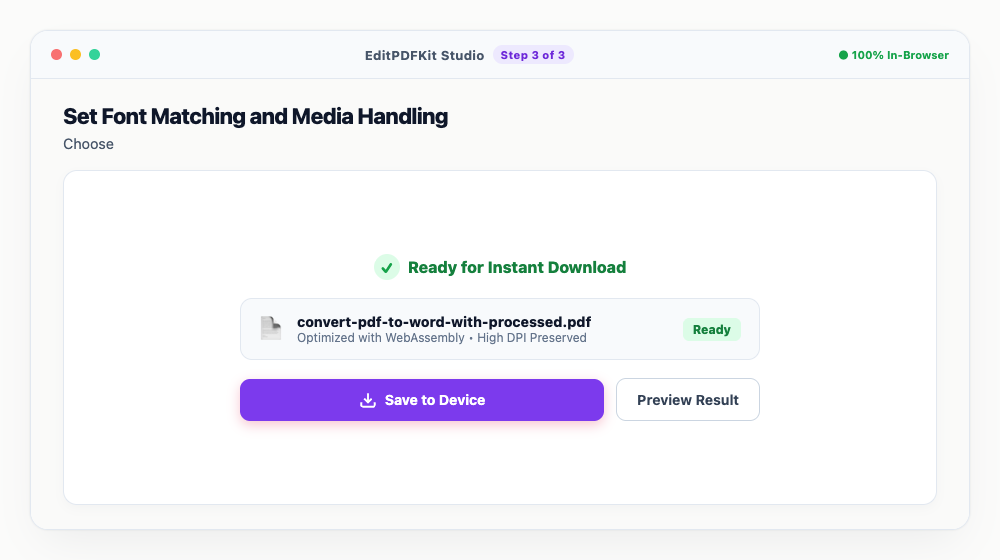
Turning on 'Rebuild data tables with native borders' makes Word treat the result as a genuine editable grid, not just tab-separated text.
- 4
Export Your Editable DOCX
'Process DOCX' lets you preview the result first; 'Save DOCX' sends the finished Word file straight to your downloads folder.
Rename the output file before saving using the inline filename field, right there in the export panel.
Why use EditPDFKit for this
- Preserved Grid Mode: accurately extracts native Word tables and multi-column magazine layouts
- Flowing Text Mode: reformats dense documents into continuous editable paragraphs
- Embedded image retention: high-resolution pictures and diagrams are preserved in-line
- Zero cloud upload: 100% client-side compilation ensures privacy for sensitive agreements
What Is Converting a PDF to Editable Word?
Converting a PDF to editable Word means turning a fixed, print-oriented file into an OpenXML .docx document where you can actually click into the text and retype it, like any normal Word file — as opposed to copy-pasting content that arrives as one mangled paragraph with no structure. The reason this is harder than it sounds is that a PDF doesn't store "paragraphs" or "table cells" internally; it stores individually positioned text fragments and drawing instructions with no explicit markup saying "this is a table" or "this is a two-column layout."
A real conversion engine has to analyze the geometric position of every fragment and infer the original structure from spacing patterns — which columns line up, which rows share a baseline — before it can rebuild genuine Word paragraphs, tables, and embedded images rather than a flat, structureless text dump.
Who Typically Uses This
This matters most for legal professionals, students, researchers, and office workers needing editable Word files out of documents that were never meant to be edited again. A legal professional might need to redline a contract that only exists as a signed PDF scan, which means first getting it back into an editable format without scrambling the clause numbering or table of defined terms. A researcher converting a PDF-only journal article wants to quote and restructure passages without retyping them from scratch.
Office workers run into this constantly with financial statements and invoices that arrive as PDFs but need to be repurposed into a new report, and students converting lecture-note PDFs or old assignment templates into something they can actually fill in and edit. In every one of these cases, the value isn't just "get the words out" — it's "get the words out with the tables, columns, and images still intact and editable."
The Features Behind This Workflow
Preserved Grid Mode is built specifically for documents where layout carries meaning: it analyzes column alignment and row spacing to rebuild genuine Word table objects — not tab-separated text pretending to be a table — so invoices, financial statements, and multi-column resumes keep their actual structure. Flowing Text Mode handles the opposite case, reformatting dense or multi-column documents into clean, continuously editable paragraphs for essays, articles, and contracts where positional accuracy matters less than readable, reflowing prose.
Embedded image retention means charts, logos, and diagrams make the trip across in-line rather than vanishing, which most basic converters fail to do. And because the entire compilation runs client-side, a confidential contract or unpublished research draft never has to leave your device just to come out the other end as an editable file.
Why This Workflow Just Works
The whole conversion is four steps: bring your PDF into the studio, pick Preserved Grid or Flowing Text depending on what kind of document you're converting, set your font-matching and image preferences, and export the finished .docx. There's no account to set up and no software to install — it runs in the same browser tab you're already using.
Because the two layout modes map cleanly onto "does this have tables/columns" versus "is this mostly prose," you don't need any technical background to pick the right one — if you're unsure, Preserved Grid is the safer default for anything with a table or sidebar, and Flowing Text for straightforward documents.
Frequently asked questions
Can I edit the converted document in Microsoft Word or Google Docs?
Yes! The output is a standard OpenXML (.docx) file fully compatible with Microsoft Word 2013+, Microsoft 365, Google Docs, LibreOffice, and Apple Pages.
Does this work on scanned PDFs or photographed papers?
For digital PDFs with selectable text, the PDF to Word engine reconstructs everything directly. For scanned physical papers, we recommend running the OCR PDF tool first to extract raw text, or converting to Word which embeds the scanned pages alongside extracted text blocks.
Are my contracts and private documents safe?
Completely safe. EditPDFKit runs the entire conversion inside your browser sandbox using WebAssembly. Your files are never uploaded to any remote server.
Do I need to install any software to convert pdf to editable word (docx) without losing formatting?
No download is needed. The whole process — convert pdf to editable word (docx) without losing formatting — runs directly inside your web browser using our pdf to word tool, powered by WebAssembly. No browser extension or account is needed — just open the tool and go.
Is this approach suitable for legal professionals?
Yes — this is a common use case for legal professionals, students, researchers, and office workers needing editable word files. The file never leaves your device, and this works the same on desktop, Android, and iOS.
Which mode should I pick for a resume with a two-column layout?
Use 'Preserved Grid' mode — it keeps multi-column positioning and table borders intact, which matters for resumes, invoices, and financial statements where the visual layout carries meaning.
Will the fonts in my converted DOCX match the original PDF exactly?
The engine maps to the closest available system font family using 'Standard Match' (Arial, Calibri, Times New Roman) or 'Native Modern' (Segoe UI, Aptos) presets — an exact byte-for-byte font match isn't possible since Word requires installed fonts, but visual spacing and style are preserved closely.
The right conversion mode depends entirely on what you actually need the Word document for: pick Preserved Grid when the original layout's structure carries meaning (tables, multi-column resumes, financial statements), and Flowing Text when you just need clean, continuously editable prose. Either way, the conversion happens entirely inside your browser, so a confidential contract or an unpublished manuscript never has to leave your device just to become an editable .docx file. Try the PDF to Word tool on your next document to see which mode fits.
Pairs well with
AI to PDF
Pull the PDF document that Adobe Illustrator already wrote inside your .ai file back out as a standalone PDF.
ARW to PDF
Build a PDF proof sheet from Sony Alpha frames — and find out why the .ARW itself has to be developed before any PDF can hold it.
AVIF to PDF
Put AVIF images on PDF pages, with a straight account of what the re-encoding step costs — transparency, extra bit depth and HDR all go.
Related posts
OCR & Text Extraction
How to Extract Text and Tables from Scanned PDFs with Free OCR
PDF Editing
How to Edit Existing Text in a PDF and Add a Digital Signature
PDF Management
How to Merge Multiple PDF Files into One Document Online
Format Conversion
How to Convert iPhone HEIC and JPG Photos to PDF Documents
PDF to Excel
How to Convert PDF Tables to Editable Excel (XLSX) Without Messy Formatting