
How to Edit Existing Text in a PDF and Add a Digital Signature
Need to correct a typo in a contract, update a date, or sign an agreement without printing and scanning? EditPDFKit's Edit PDF Canvas Studio lets you edit text directly on the page, draw vector signatures, and stamp documents with zero cost.
The traditional way to fix a typo in a signed-looking contract or add a signature to an agreement involves printing the document, physically signing or correcting it with a pen, then scanning it back in — a process that degrades image quality with every generation and is awkward or impossible for anyone without easy printer/scanner access. The common digital shortcut, drawing a signature image on top of a flattened PDF screenshot, works for signatures but doesn't help at all if you need to actually correct existing text, like a wrong date or a misspelled name in a contract clause.
In-place text editing solves the harder half of that problem: instead of covering the whole page with a new flattened image, it lets you click directly on existing PDF text and retype it, with the edit compiled back into the document as real vector text — not a picture of text — so the result stays sharp at any zoom level and remains searchable.
Open Edit PDF now
Step by step
4 steps- 1
Load the Document into the Edit Studio
Pick the PDF you need to modify and bring it into the Edit PDF tool — the canvas renders every page with full zoom and navigation ready to go.
Open Edit PDF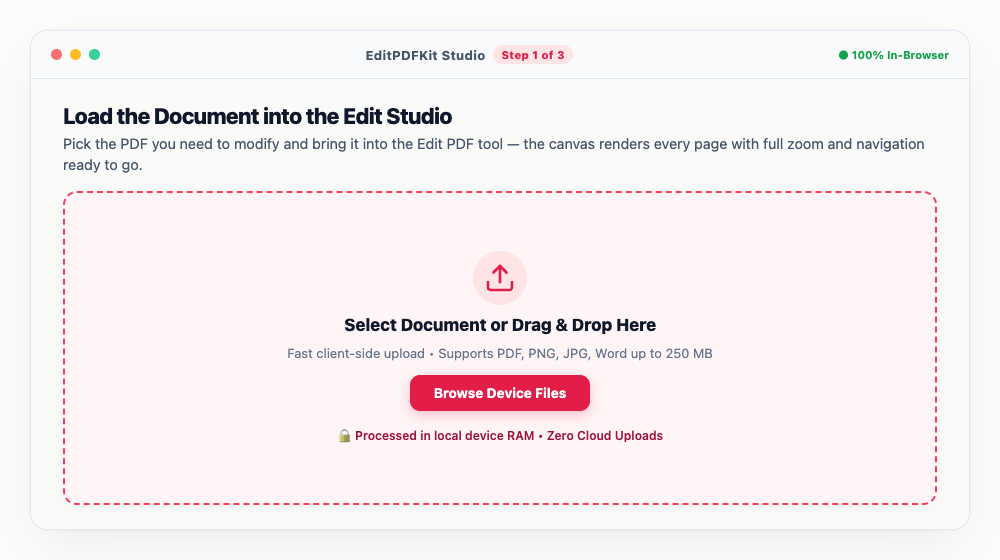
Jump between pages quickly in longer documents using the thumbnail drawer along the left edge.
- 2
Click Into Existing Text or Drop In New Text
Switch to the 'Edit Text' tool and click directly on any text block to retype it in place, or choose 'Add Text' to plant a brand-new text box anywhere on the page.
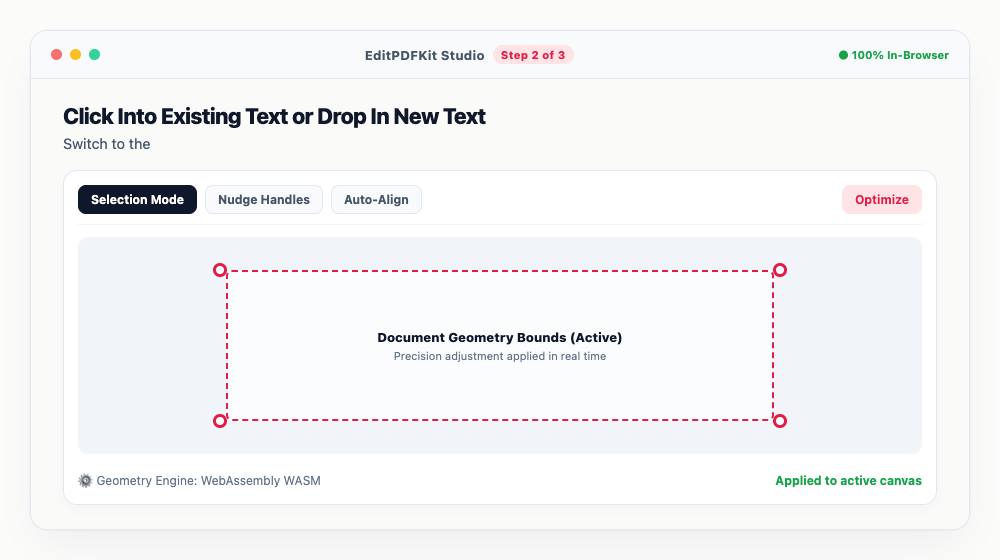
A floating typography ribbon appears right above whatever you're editing — font family, size, color, and bold all live there.
- 3
Sign It or Stamp It
Tap 'Sign' to draw with your finger, stylus, or mouse, or upload a transparent PNG of your signature, then scale and drop it onto the signature line.
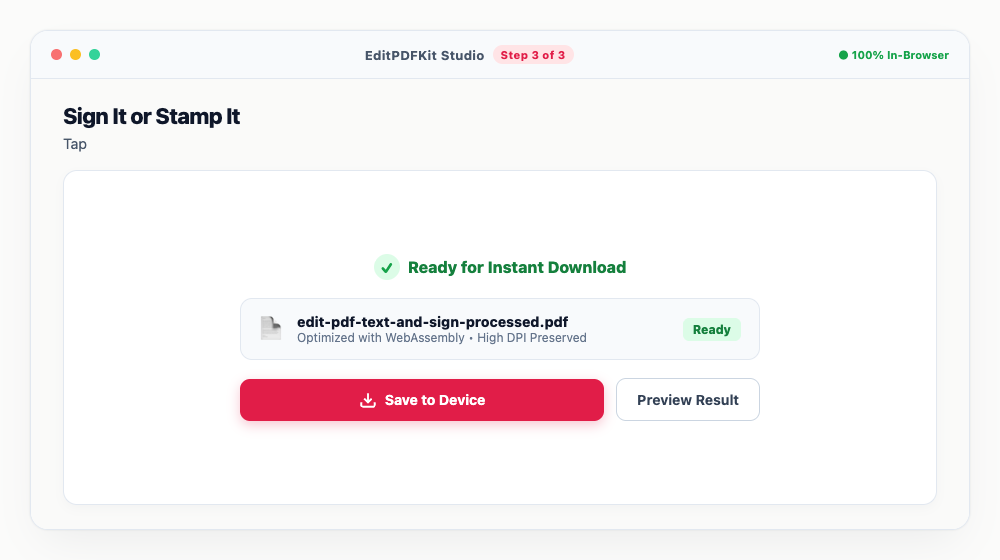
'Stamp' is sitting right next to it if you also need an APPROVED, RECEIVED, or CONFIDENTIAL badge on the page.
- 4
Compile and Download the Result
'Download Pdf' folds every annotation and vector shape you've added back into a clean, standard PDF — no watermark tacked on.
Nothing gets rasterized in the process; your edits land in the PDF's own byte-stream alongside the untouched original pages.
Why use EditPDFKit for this
- In-place text editing: edit existing text directly on your PDF pages
- Full typography ribbon: customize fonts (Arial, Times, Courier), font size, bold, color, and alignment
- Digital signature pad: draw your signature with mouse, stylus, or touch screen, or upload an image
- Professional stamps: pre-made APPROVED, PAID, CONFIDENTIAL stamps with dynamic timestamps
What Is In-Place PDF Text Editing?
In-place PDF text editing means clicking directly on text that already exists in a PDF — a date, a name, a typo in a contract clause — and retyping it right where it sits, with the correction compiled back into the document as real vector text rather than a flattened image stamped on top. That distinction matters: a vector-text correction stays crisp at any zoom level and remains searchable and selectable, exactly like the rest of the untouched page, while an image-based "fix" just covers the old text with a picture that looks fine until you zoom in or try to search the document.
This is the harder half of PDF editing compared to just adding a signature or new text box, since it requires understanding the PDF's existing font, color, and position well enough to seamlessly replace what was already there.
Typical Situations This Solves
Business owners, remote workers, freelancers, and students handling agreements run into this constantly: a business owner catches a wrong date or dollar figure in a vendor contract minutes before it needs to go out, and reprinting the whole document isn't practical. A freelancer needs to correct a client's misspelled name in a signed-looking invoice template without redoing the whole layout from scratch.
Remote workers and students handling agreements from a laptop (often without easy access to a printer or scanner) need to both fix text and add a signature in the same session — correcting a clause, then signing the corrected version, all without ever touching paper. In every case, the alternative — print, correct by hand, scan back in — degrades document quality and assumes equipment that isn't always available.
Features Worth Knowing About
In-place text editing lets you click directly on existing PDF text and retype it, with a full typography ribbon — font family (Arial, Times, Courier), size, bold, color, and alignment — appearing right above whatever you're editing, so the correction can match the surrounding document's style. The digital signature pad supports drawing with a mouse, stylus, or touchscreen, or uploading an existing signature image, covering however you prefer to sign.
Professional stamps round out the toolkit with pre-made APPROVED, PAID, and CONFIDENTIAL badges that include dynamic timestamps automatically, so an approval stamp shows today's date without you typing it in manually — useful for business approvals and invoice processing where a signature alone doesn't communicate a document's status at a glance.
Why It Takes Almost No Effort
Loading a document, clicking into text or adding a signature, and downloading the result is a four-step flow with no software install and no account required — the canvas renders your PDF with full zoom and page navigation the moment you bring it in. Because edits compile back into the PDF's own byte-stream rather than rasterizing the whole page, there's also no quality-loss penalty for making several small corrections in one session.
It works the same whether you're fixing one date in a one-page agreement or signing and stamping a multi-page contract, with thumbnail navigation making it easy to jump between pages in longer documents.
Frequently asked questions
Does editing a PDF flatten the text into an image?
No. EditPDFKit compiles vector text overlays directly into the PDF syntax using pdf-lib, preserving clean, sharp typography that remains searchable and printable at 300+ DPI.
How do I add a signature and official stamp on the same PDF document?
Select the 'Sign' tool to draw, type in cursive script, or upload your signature onto the signature line, then click 'Stamp' to drop an APPROVED, CONFIDENTIAL, or OFFICIAL badge onto the document with automatic timestamps.
Can I insert new blank pages to write extra notes or clauses?
Yes! Click the 'Add Page' button in the toolbar to insert blank white or ruled pages anywhere inside your PDF. You can then use the text, shape, and pen tools to write extra content.
Can I export all edited PDF pages as photos inside a ZIP archive?
Yes! In the export modal, switch from 'PDF Document' to 'Photos in ZIP' to render every edited page as crisp high-resolution JPEG or PNG images bundled in a single ZIP file.
Is my signature or contract uploaded to any cloud server?
Never. All vector rendering, text modification, and signature placement execute 100% locally in your browser memory. Zero bytes of your confidential documents are ever transmitted over the network.
Can I whiteout errors or redact sensitive numbers before sending?
Yes. Use the Whiteout tool to cover typos with a paper-matched background color, or use Redact to permanently obscure private bank details, phone numbers, or addresses.
Do I need to install any software to edit existing text in a pdf and add a digital signature?
There's no app to install. This workflow — edit existing text in a pdf and add a digital signature — runs directly inside your web browser using our edit pdf tool, powered by WebAssembly. No sign-up wall, no extension, and nothing additional to install.
Is this approach suitable for business owners?
Yes, this is commonly used by business owners, remote workers, freelancers, and students handling agreements. This runs the same way on desktop, Android, and iOS, with the file staying on your device the entire time.
Whether you're correcting a single wrong date in a contract clause or finalizing an agreement with a signature and an approval stamp, doing it directly on the PDF's own text and vector layers avoids both the quality loss of a print-sign-scan cycle and the limitation of signature-only tools that can't touch existing text. Open the Edit PDF tool next time a document needs a quick correction before it goes out.
Pairs well with
Bates Numbering
Burn a prefixed, zero-padded number like DOC-00001 into a corner of every page, one increment per page.
Compare Two PDFs
Extract the text from an original and a revised PDF and read the line-by-line differences in one highlighted stream.
Compress PDF to 100KB
Reduce PDF file sizes under 100KB for government portals, exams, and job applications.
Related posts
Document Security
How to Password Protect and Encrypt a PDF Document
Document Conversion
How to Convert PDF to Editable Word (DOCX) Without Losing Formatting
PDF Management
How to Merge Multiple PDF Files into One Document Online
Digital Signatures
How to Sign PDF Contracts and Forms Electronically Without Printing or Scanning
PDF Redaction & Sanitization
How to Black Out and Redact Sensitive Information in PDF Documents Permanently