
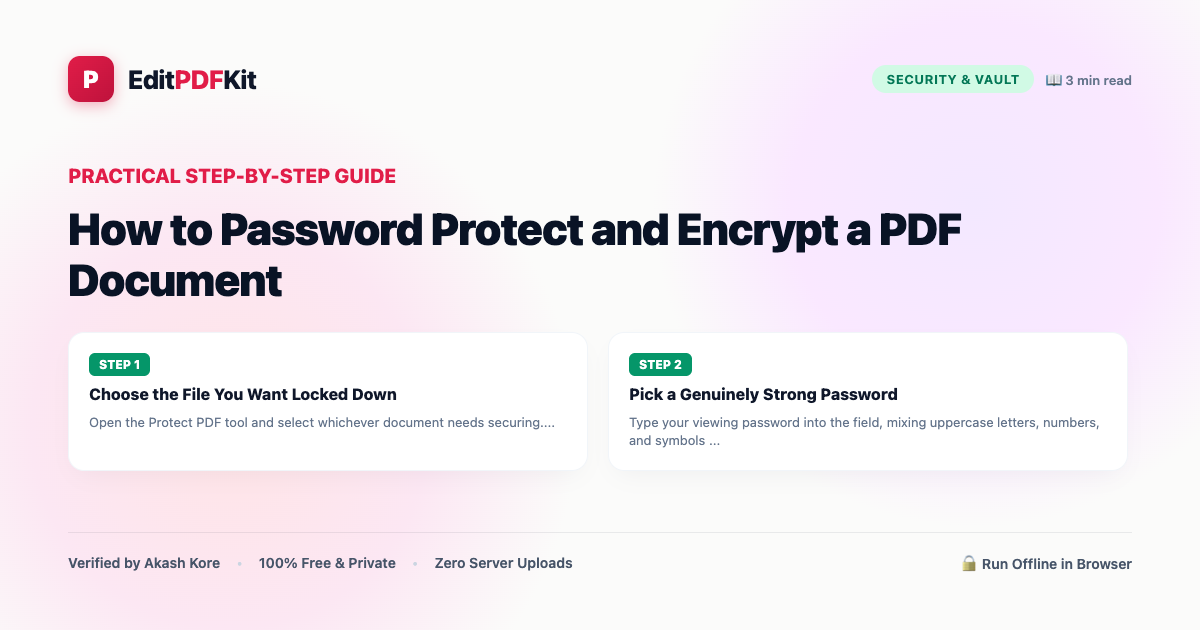
How to Password Protect and Encrypt a PDF Document
Sharing sensitive bank statements, tax returns, healthcare records, or employee contracts over email? Protect your PDF with military-grade AES encryption so only authorized recipients with the correct password can view or print the content.
Emailing a bank statement, tax return, or medical record as a plain PDF attachment means anyone who gains access to that email thread — a compromised inbox, a misdirected forward, a shared family email account — can open and read the entire document with no barrier at all. Password protection with real AES encryption changes that: instead of relying on the recipient's good judgment or hoping the email stays private, the file itself is mathematically locked and unreadable without the correct password, regardless of where a copy of it ends up.
The distinction that matters here is between a PDF viewer simply hiding content behind a password prompt (which some lightweight tools do, and which is trivial to bypass) versus true AES-128/256 encryption, where the document's actual byte content is encrypted and cannot be read by any PDF reader — including a modified or hacked one — without the password.
Open Protect PDF (Encrypt) now
Step by step
4 steps- 1
Choose the File You Want Locked Down
Open the Protect PDF tool and select whichever document needs securing.
Open Protect PDF (Encrypt)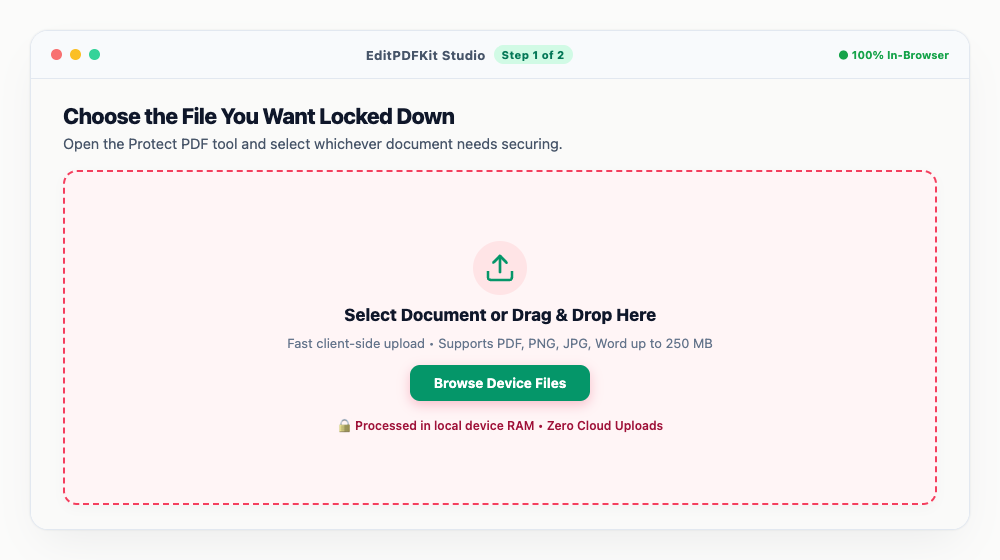
Encrypting a whole folder of similar records? Batch them through with the same security settings in one pass.
- 2
Pick a Genuinely Strong Password
Type your viewing password into the field, mixing uppercase letters, numbers, and symbols so it holds up against brute-force attempts.
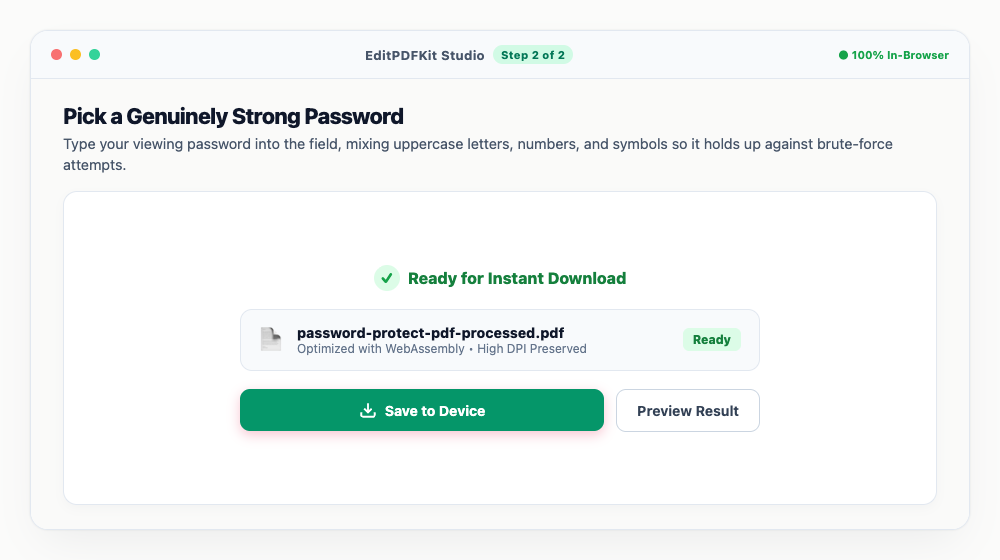
Watch the strength meter as you type — it flags when your password's entropy is still too low.
- 3
Decide What Recipients Can and Can't Do
Optionally toggle off printing or clipboard copying for anyone who opens the document, independent of the viewing password itself.
Blocking text copying is a simple way to slow down unauthorized redistribution of proprietary content.
- 4
Encrypt and Download
'Protect & Save' downloads the locked file right away — open it in Adobe Acrobat or your browser afterward to confirm the password prompt appears.
Send the password itself through a different channel than the file — a text message or Signal, not the same email thread.
Why use EditPDFKit for this
- Industry-standard 128-bit / 256-bit AES encryption compatible with all PDF readers
- Dual password support: User viewing password + Owner master permission password
- Granular permission controls: restrict printing, text copying, and page extraction
- 100% Client-Side Privacy: encryption keys are generated locally — passwords are never sent over the internet
What Is Password-Protecting a PDF?
Password-protecting a PDF means encrypting its actual content with AES-128 or AES-256 encryption so the document is mathematically unreadable without the correct password — not just hidden behind a login prompt that a modified PDF reader could bypass. There's a real difference between those two approaches: a basic "viewer lock" some lightweight tools apply is trivial to strip away, while genuine AES encryption locks the document's byte content itself, so no PDF reader anywhere can render it without the password, period.
This matters anywhere a PDF might end up somewhere you didn't intend — a compromised inbox, a misdirected forward, shared storage — since encryption protects the file itself rather than relying on the recipient's inbox staying private.
Common Use Cases
Law firms, HR professionals, medical clinics, and anyone sharing confidential records reach for this specifically when a document's contents would cause real harm if the wrong person opened it. A law firm emailing a client a settlement agreement needs the file locked so an intercepted email doesn't expose privileged terms. An HR professional distributing an employee's contract or performance review needs it readable only by the intended recipient.
A medical clinic sending test results or a billing statement containing protected health information has a legal obligation to keep that content secure in transit, not just at rest on a server. In each case, the password isn't a formality — it's the actual barrier standing between the document and anyone who isn't supposed to see it.
Key Features That Make This Easy
Industry-standard 128-bit or 256-bit AES encryption, compatible with every standard PDF reader, means the recipient doesn't need any special software to open a correctly-shared, password-protected file — just the password itself. Dual password support separates "can this person open the file at all" (the user password) from "what can they do once it's open" (the owner password governing printing, copying, and page extraction), letting you grant viewing access while still restricting redistribution.
Granular permission controls mean you can allow a recipient to read a confidential report while blocking them from copying its text into another document or printing physical copies — two separate, independently toggleable restrictions for two different sharing concerns.
Why It's Simple to Use
Locking down a file is four steps: choose the document, set a strong password (the built-in strength meter tells you when it's not strong enough), decide on printing/copying permissions, and download the encrypted result. There's no certificate to manage and no account needed — the encryption key is generated entirely inside your browser the moment you type your password.
Because everything happens client-side, your password itself is never transmitted anywhere — which also means there's no password-recovery option if you forget it, so write it down somewhere safe before closing the tab.
Frequently asked questions
Can someone open an encrypted PDF without the password?
No. Standard AES-128 and AES-256 encryption are mathematically secure against brute-force attacks when paired with a strong password.
Does EditPDFKit store my passwords or encryption keys?
Never. Encryption is executed entirely inside your browser's local JavaScript/WebAssembly memory space. We have no servers storing documents or credentials.
Do I need to install any software to password protect and encrypt a pdf document?
No installation is required. This entire workflow — password protect and encrypt a pdf document — runs directly inside your web browser using our protect pdf tool, powered by WebAssembly. There's nothing to download, no browser extension, and no account sign-up.
Is this approach suitable for law firms?
Yes. This exact workflow is built for law firms, hr professionals, medical clinics, and anyone sharing confidential records. Every file stays on your own device, and the same workflow works on desktop, Android, and iOS.
What happens if I forget the password I set on my own PDF?
Because encryption keys are derived entirely from your password inside your browser and never stored anywhere, there is no 'forgot password' recovery option — write the password down somewhere safe before sharing the file, since neither EditPDFKit nor anyone else can unlock it for you.
Can I both encrypt a PDF and restrict printing at the same time?
Yes. Set a viewing password in Step 2, then in the Permissions step toggle off 'Allow Printing' or 'Allow Copying' — the encrypted file will require the password to open, and recipients who do open it will still be blocked from printing or copying text.
Real AES encryption, not just a hidden-behind-a-prompt viewer lock, is what actually protects a confidential PDF once it leaves your hands over email or shared storage — and setting both a user password and owner permissions lets you control viewing and copying/printing separately depending on who you're sharing with. Open the Protect PDF tool before your next email attachment contains anything you wouldn't want a stranger reading.
Pairs well with
Pixelate / Redact Image
Drag a box over a face or an account number and pixelate it away, destructively, in the exported file.
Remove PDF Metadata & EXIF Cleaner
Clear author names, timestamps and software traces from a PDF, or wipe GPS and camera data out of a photo.
Unlock PDF (Decrypt)
Decrypt a PDF you have the password for, and clear print, copy and edit locks on files that already open freely.
Related posts
PDF Editing
How to Edit Existing Text in a PDF and Add a Digital Signature
PDF Management
How to Merge Multiple PDF Files into One Document Online
Document Conversion
How to Convert PDF to Editable Word (DOCX) Without Losing Formatting
PDF Security
How to Unlock Password-Protected PDFs and Remove Restrictions Online Free
PDF Redaction & Sanitization
How to Black Out and Redact Sensitive Information in PDF Documents Permanently