
How to Merge Multiple PDF Files into One Document Online
Combining various invoices, scanned receipts, lecture notes, or project deliverables into a single unified PDF is one of the most common office tasks. Here is how to merge unlimited files together without installing bulky software.
Most "merge PDF" needs aren't a one-time event — an accountant assembling a client's annual tax file, a student compiling scanned lecture handouts, or admin staff building a single case file out of dozens of scanned receipts all do this repeatedly, often with a dozen or more source files at once. Desktop PDF software with per-merge limits or subscription paywalls makes this tedious at volume, and free online mergers that upload your files to a server add both a wait (upload + processing + download) and a privacy question for anything containing financial or legal information.
Since merging is fundamentally just concatenating page streams in a chosen order, it's one of the simplest operations to do entirely client-side — which means no file count caps, no per-merge fees, and no round trip to a server at all.
Open Merge PDF now
Step by step
3 steps- 1
Gather Every File You're Combining
Head to the Merge PDF tool and drag the whole batch into the dropzone, or multi-select them straight from your file manager.
Open Merge PDF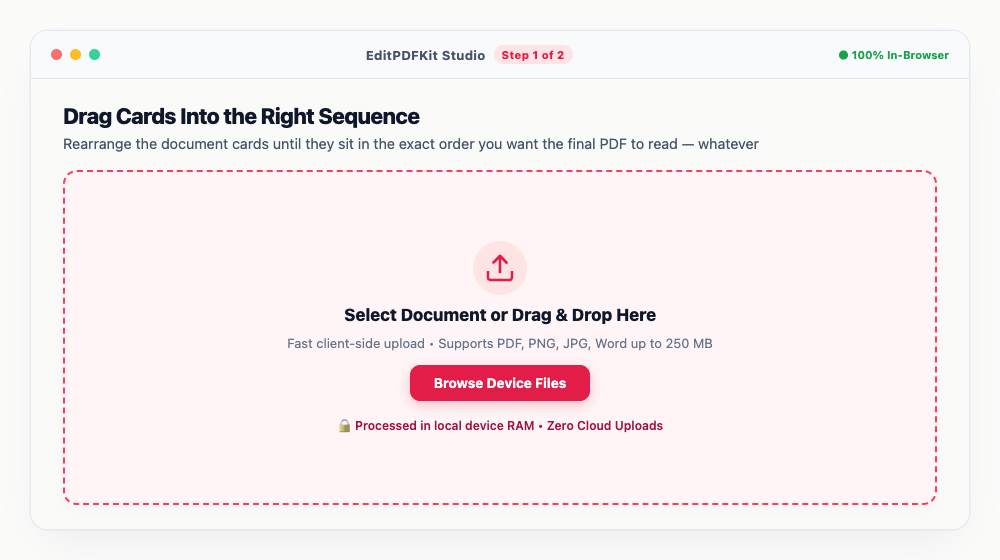
Holding Ctrl (Cmd on a Mac) while clicking lets you grab several files from a folder in one go.
- 2
Drag Cards Into the Right Sequence
Rearrange the document cards until they sit in the exact order you want the final PDF to read — whatever's on screen is what gets merged.
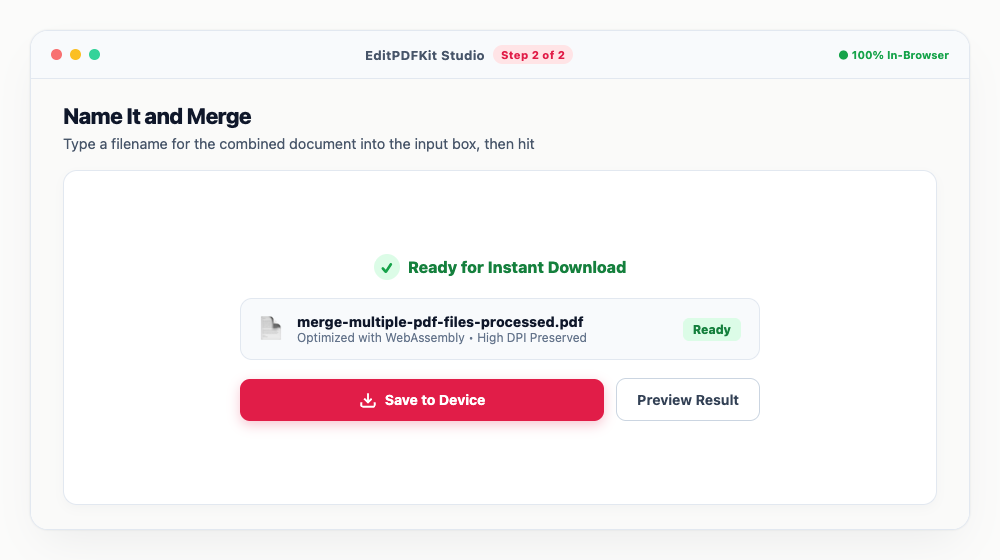
Grabbed the wrong file? A trash icon sits on each card for pulling individual documents back out.
- 3
Name It and Merge
Type a filename for the combined document into the input box, then hit 'Process & Save'.
There's no server round-trip here — the merge itself finishes in milliseconds, right in your browser.
Why use EditPDFKit for this
- Unlimited file combining: merge 2, 10, or 50+ PDFs into a single file
- Visual drag-and-drop reordering: arrange documents in the exact order desired
- Preserves original bookmarks, high-res graphics, and hyperlinks
- Zero file size caps: process large documents with no cloud upload timeouts
What Is Merging PDFs?
Merging PDFs means combining two or more separate PDF files into a single document, with every page from each source file concatenated together in a chosen order. It sounds trivial, but doing it right means the final page sequence has to match what you actually intended — a tax file with receipts out of order, or a legal case file with exhibits in the wrong sequence, causes real problems downstream even though the merge itself technically "worked."
Done properly, the operation is also lossless: a true merge concatenates each source document's existing page streams, images, and font data directly, without recompressing or flattening anything, so a 300-page scanned archive comes out with the exact same visual fidelity it went in with.
Who This Is Built For
Accountants, students, administrative staff, and legal teams organizing case files all do this repeatedly, often with a dozen or more source files at once, not as a one-off task. An accountant assembling a client's annual tax file needs dozens of scanned receipts and statements combined in chronological order into one submission-ready document. A legal team building a case file needs exhibits merged in a specific sequence that matches how they're referenced in a brief.
Students compiling scanned lecture handouts from a semester into one study document, and admin staff building a single combined file out of separately-scanned forms, hit the same underlying need: take several PDFs, put them in the right order, and end up with one clean file instead of a scattered folder of loose documents.
The Tools That Do the Work
Unlimited file combining means there's no artificial cap forcing you to merge in smaller batches — 2 files or 50+ all go through the same way. Visual drag-and-drop reordering lets you see the document cards and rearrange them into the exact final sequence before committing, catching an ordering mistake before it ends up in the downloaded file rather than after.
The merge preserves original bookmarks, high-resolution graphics, and hyperlinks rather than flattening them away, and because there's no cloud upload step, there's no file-size cap or timeout risk even when combining a particularly large batch of scanned documents.
What Makes This Quick
The whole workflow is three steps — gather your files, drag them into the right order, name and merge — with the merge itself finishing in milliseconds since there's no server round-trip involved. No account, no software install, and no per-merge fee standing between you and a combined document.
Because reordering happens visually with drag-and-drop cards rather than requiring you to rename files to control sort order (a common workaround with older desktop tools), there's no trick to learn — what you see arranged on screen is exactly what ends up in the final PDF.
Frequently asked questions
Is there a limit on the number of pages or file size?
Because EditPDFKit performs the merge locally inside your browser using WebAssembly and streams, there are no artificial size limits or file count caps.
Will merging PDFs lower the print quality of my scans?
No. The underlying page streams, images, and font dictionaries are concatenated losslessly without recompression.
Do I need to install any software to merge multiple pdf files into one document online?
No installation needed — the full process — merge multiple pdf files into one document online — runs directly inside your web browser using our merge pdf tool, powered by WebAssembly. Skip the account creation and extension install — it just works in the tab you have open.
Is this approach suitable for accountants?
Yes — this covers a real need for accountants, students, administrative staff, and legal teams organizing case files. Desktop, Android, or iOS — the process is the same, and your file never leaves the device.
Can I merge PDFs that have different page sizes, like A4 and Letter?
Yes. Each source document keeps its own page dimensions in the merged output — pages are not forced onto a single uniform size, so a mix of A4 receipts and Letter-size reports will combine cleanly without stretching or cropping.
What happens if two of my files have the same filename?
It doesn't matter — the merge only reads the file contents you dropped in, not the filenames, so duplicate names never cause a conflict. You choose one output filename for the final combined PDF before downloading.
Merging PDFs seems like a trivial task until you're doing it with a dozen files that need to land in a specific order and can't afford to lose any image quality along the way — which is exactly the case a drag-and-drop, lossless, unlimited-file merge tool is built for. Open the Merge PDF tool next time you need to assemble scattered documents into one clean, correctly-ordered file.
Pairs well with
Bates Numbering
Burn a prefixed, zero-padded number like DOC-00001 into a corner of every page, one increment per page.
Compare Two PDFs
Extract the text from an original and a revised PDF and read the line-by-line differences in one highlighted stream.
Compress PDF to 100KB
Reduce PDF file sizes under 100KB for government portals, exams, and job applications.
Related posts
PDF Editing
How to Edit Existing Text in a PDF and Add a Digital Signature
Document Security
How to Password Protect and Encrypt a PDF Document
Format Conversion
How to Convert iPhone HEIC and JPG Photos to PDF Documents
Document Combining
How to Combine Academic Transcripts, Degree Certificates and IDs into One PDF
Document Pagination
How to Add Unified Page Numbers to PDF Files (Page X of Y & Custom Formats)