
How to Extract Text and Tables from Scanned PDFs with Free OCR
Received a scanned contract or physical book PDF where you can't highlight, search, or copy text? Learn how to extract clean plain text, structured Markdown, and tabular CSV spreadsheets with EditPDFKit's text extraction intelligence.
A scanned contract, a photographed textbook page, or an old archived report that was never created as a "real" digital PDF has no underlying text layer at all — just a flat image of the page. That means you can't search it, can't highlight a sentence to quote it, and can't copy a paragraph into another document without manually retyping it word for word, which becomes a serious time cost for anyone digitizing more than a handful of pages (archivists processing historical records, researchers extracting citations from scanned journal articles, data entry teams transcribing paper forms).
OCR (Optical Character Recognition) solves the underlying problem by analyzing the pixel shapes in a scanned image and recognizing them as actual characters, producing real, selectable, copyable text where there was previously only an unstructured picture — but the output format you choose afterward matters just as much as the recognition accuracy itself.
Open PDF to Text / HTML now
Step by step
4 steps- 1
Load the Scanned File
Open PDF to Text and pick your file — the dual-pane workbench puts the original scan on the left and the extraction editor on the right, side by side.
Open PDF to Text / HTML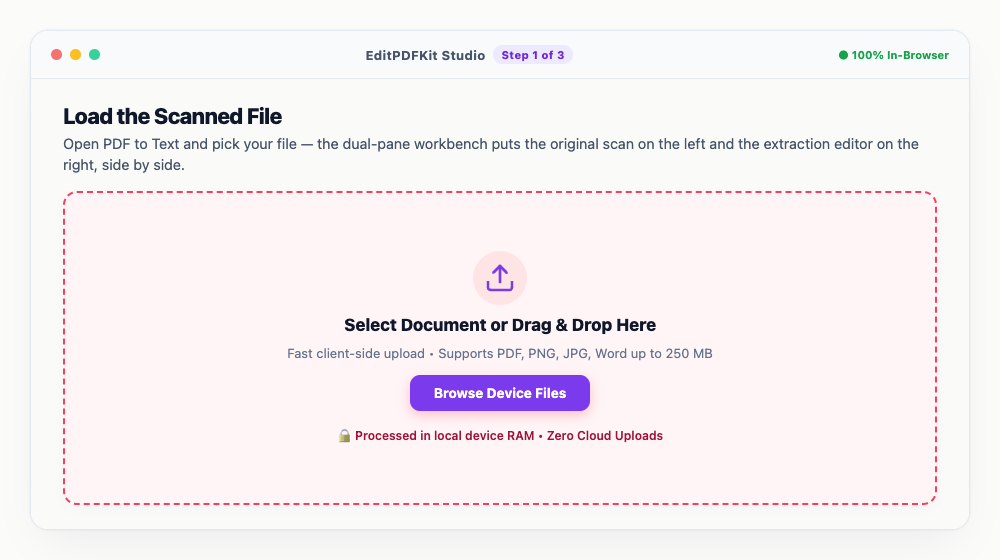
Zoom in on dense paragraphs or small print before trusting the extraction at a glance.
- 2
Pick the Format You Actually Need
Switch between 'Plain Text' (.txt), 'Markdown' (.md), 'JSON Tree', or 'Tables' (.csv) depending on where this content is headed next.
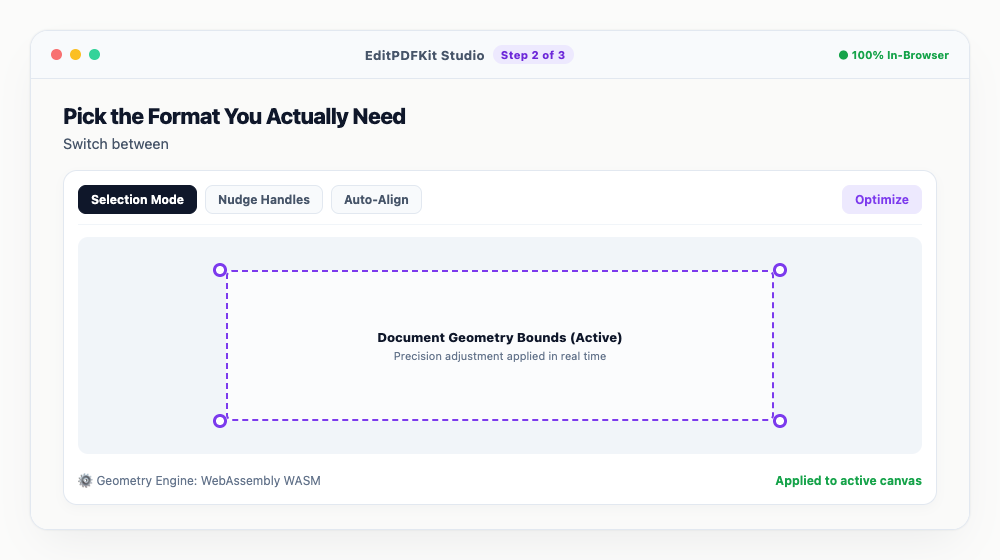
Markdown keeps headings, lists, and bold text intact — handy if you're pasting into Notion or Obsidian afterward.
- 3
Skim the Auto-Detected Entities
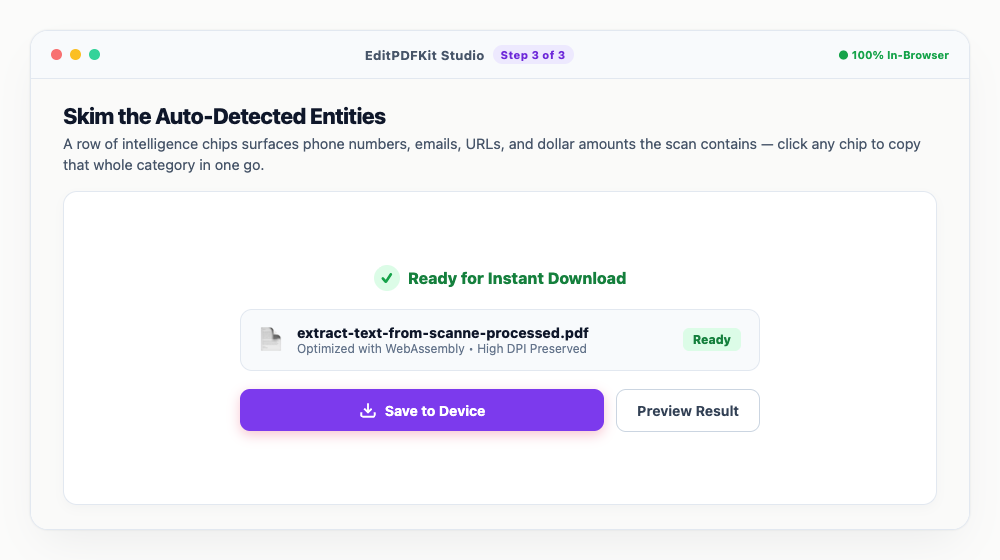
A row of intelligence chips surfaces phone numbers, emails, URLs, and dollar amounts the scan contains — click any chip to copy that whole category in one go.
Recurring OCR glitches (a letter misread repeatedly) are easiest to fix in bulk with the 'Find & Replace' bar rather than one at a time.
- 4
Grab Your Text or Save the File
'Copy Text' sends everything to your clipboard instantly, or 'Save' writes it out as a proper file on your device.
Spotted a table? 'Export CSV' drops it straight into a format Excel or Google Sheets opens without any cleanup.
Why use EditPDFKit for this
- Multi-format output: Plain Text (.txt), Markdown (.md), JSON tokens, and CSV table grids
- Built-in Find & Replace: clean up typos, names, or values across the entire extracted text
- Entity Scraper: automatically identifies emails, web links, dates, and financial amounts
- Split-pane viewer: inspect the original PDF page alongside the extracted text in real time
What Is OCR Text Extraction?
OCR, or Optical Character Recognition, is the process of analyzing the pixel shapes in a scanned or photographed document and recognizing them as actual text characters — turning a flat image that can't be searched, highlighted, or copied into real, selectable text. A scanned contract or a photographed textbook page has no underlying text layer at all; OCR is what creates one after the fact.
Getting usable results depends on two separate things: how accurately the characters are recognized, and which output format you extract into afterward — plain text, structured Markdown, or a proper CSV table — since the right format for a flowing paragraph is completely wrong for a financial table.
Who Typically Uses This
Researchers, archivists, data entry analysts, and students digitizing printed documents all face the same underlying bottleneck: converting a stack of scanned pages into something searchable without retyping it by hand. A researcher pulling citations out of a scanned journal article needs to quote exact passages, which is impossible without OCR turning the scan into copyable text first. An archivist processing historical records needs the content searchable in a database, not locked in flat page images.
A data entry analyst transcribing paper forms into a spreadsheet needs structured table extraction specifically, not prose. Students digitizing old lecture handouts or out-of-print textbook pages just want the content back into a format they can actually study from, search, and paste into notes.
The Features Behind This Workflow
Multi-format output covers every destination the extracted content might be headed to: plain text for a quick copy-paste, Markdown for pasting into Notion or Obsidian with headings and lists intact, JSON for structured data pipelines, and CSV for tables that need to open cleanly in Excel or Google Sheets. The built-in Find & Replace lets you batch-correct recurring OCR misreads — like a capital "O" read as a zero — across the entire document in one pass instead of hunting down each instance.
The Entity Scraper automatically surfaces emails, web links, dates, and financial amounts as clickable chips, letting you grab a whole category of data at once. A split-pane viewer keeps the original scan visible right alongside the extracted text, so you can verify accuracy without switching between two separate windows.
Why This Workflow Just Works
The process is four steps — load your scanned file, pick the output format you need, skim the auto-detected entities, and copy or save the result — with no software install and no account required. The dual-pane layout means you never have to guess whether the extraction matches the original; the scan sits right there for comparison.
Because it runs entirely in your browser once the page assets are loaded, there's no upload wait and no external API call sending your scanned document anywhere, which matters when the source material is a confidential contract or an unpublished research draft.
Frequently asked questions
Can I extract tables into Microsoft Excel?
Yes. Switch to the 'Tables' tab. If the PDF contains grid structures, each table is parsed into rows and columns and can be downloaded as a standard .csv spreadsheet.
Does the OCR work offline?
Yes! Once the webpage assets are loaded into your browser cache, processing executes locally on your CPU with zero external API calls.
Do I need to install any software to extract text and tables from scanned pdfs with free ocr?
No download is needed. The whole process — extract text and tables from scanned pdfs with free ocr — runs directly inside your web browser using our pdf to text tool, powered by WebAssembly. No browser extension or account is needed — just open the tool and go.
Is this approach suitable for researchers?
Yes — this is a common use case for researchers, archivists, data entry analysts, and students digitizing printed documents. The file never leaves your device, and this works the same on desktop, Android, and iOS.
Why does the extracted text have odd spacing or misread characters?
OCR accuracy drops on low-resolution scans, skewed photos, or unusual fonts. Use the 'Find & Replace' bar to batch-correct recurring artifacts (like '0' read as 'O'), and re-scan at a higher resolution if the source document allows it.
Can I extract text from a multi-column academic paper or newspaper layout?
Yes. The extraction engine detects column boundaries before reading order, so text from multi-column PDFs is pulled out in the correct left-to-right, top-to-bottom reading sequence rather than jumbling columns together.
Turning a flat scanned image into genuinely usable, searchable, structured text comes down to two separate steps that are easy to undervalue individually: accurate character recognition, and picking the right output format (plain text, Markdown, or CSV table) for what you're actually going to do with the result afterward. Open the PDF to Text tool next time a scanned document needs to become something you can actually search, quote, or import into a spreadsheet.
Pairs well with
AI to PDF
Pull the PDF document that Adobe Illustrator already wrote inside your .ai file back out as a standalone PDF.
ARW to PDF
Build a PDF proof sheet from Sony Alpha frames — and find out why the .ARW itself has to be developed before any PDF can hold it.
AVIF to PDF
Put AVIF images on PDF pages, with a straight account of what the re-encoding step costs — transparency, extra bit depth and HDR all go.
Related posts
Document Conversion
How to Convert PDF to Editable Word (DOCX) Without Losing Formatting
PDF Editing
How to Edit Existing Text in a PDF and Add a Digital Signature
Document Scanning
How to Scan Physical Documents into Clean PDFs with Your Phone Camera
PDF OCR
How to Make Scanned PDFs Searchable and Selectable with Free In-Browser OCR
Format Conversion
How to Convert iPhone HEIC and JPG Photos to PDF Documents