
How to Make Scanned PDFs Searchable and Selectable with Free In-Browser OCR
When you scan a physical document, your computer sees it as a flat picture—meaning you cannot search (Ctrl+F), highlight, or copy the text. EditPDFKit's OCR Studio adds an invisible text layer over the scans, making every word searchable while preserving the original visual appearance.
A scanned PDF is really just a photograph saved with a .pdf extension — your computer has no idea what any of the words on the page actually say, because as far as the file format is concerned, it's one big raster image sitting on a page, the same as a photo of a sunset would be. That's fine until you need to find a specific clause in a 40-page contract, pull a quote out of an old research paper, or copy an address out of a scanned form instead of retyping it by hand. Ctrl+F returns nothing, text selection just draws a rectangle, and the only way to "search" is to read every page yourself.
Optical Character Recognition closes that gap by analyzing the shapes in the scanned image and matching them against known letterforms, then stitching the result into an invisible layer of real, selectable text positioned exactly on top of each word's pixels. The visible page still looks like the original scan — same stamps, same slightly crooked lines, same coffee-stain if there is one — but underneath it, the document now behaves like a normal digital file for the purposes of searching and copying.
Open OCR PDF & Image to Text now
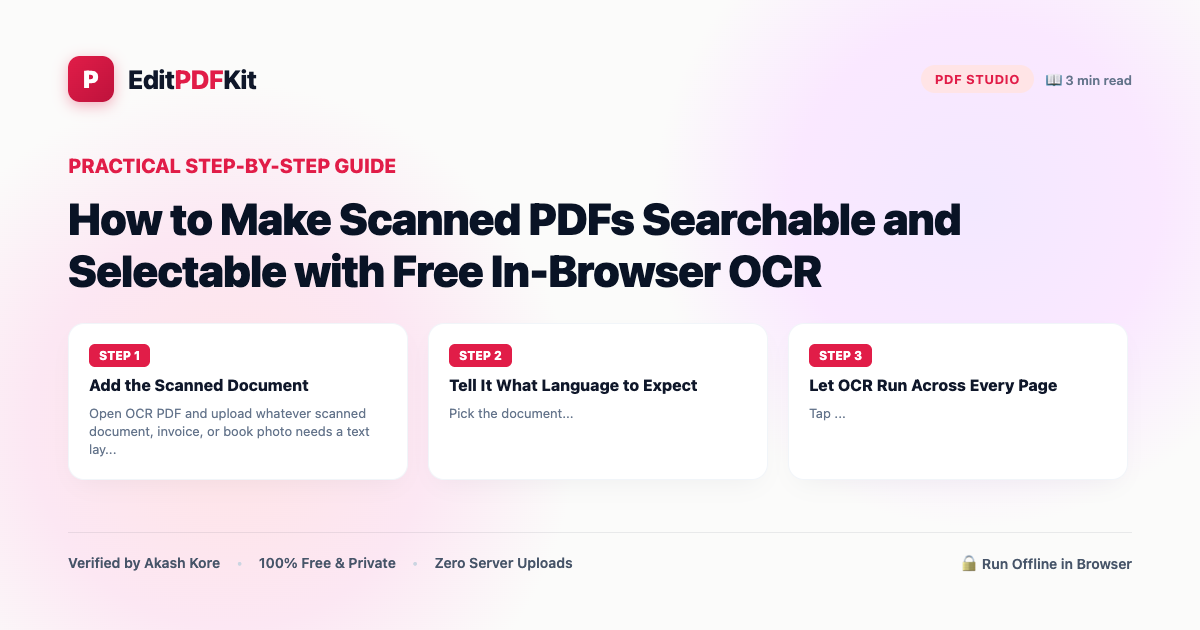
Step by step
4 steps- 1
Add the Scanned Document
Open OCR PDF and upload whatever scanned document, invoice, or book photo needs a text layer.
Open OCR PDF & Image to Text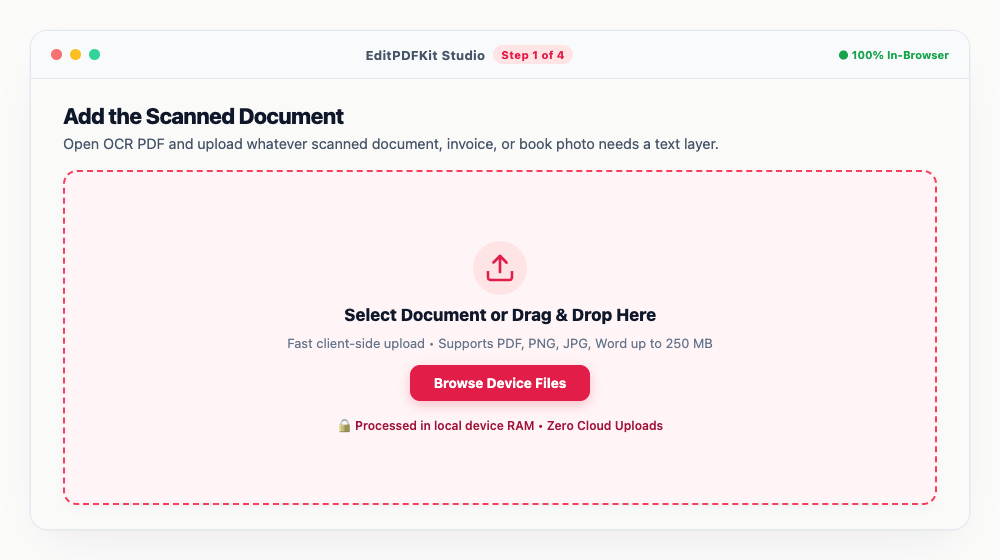
Pages that are right-side up going in give the recognition model a noticeably easier time.
- 2
Tell It What Language to Expect
Pick the document's primary language — English, Hindi, Spanish, and dozens more are supported — so the matching OCR model loads.
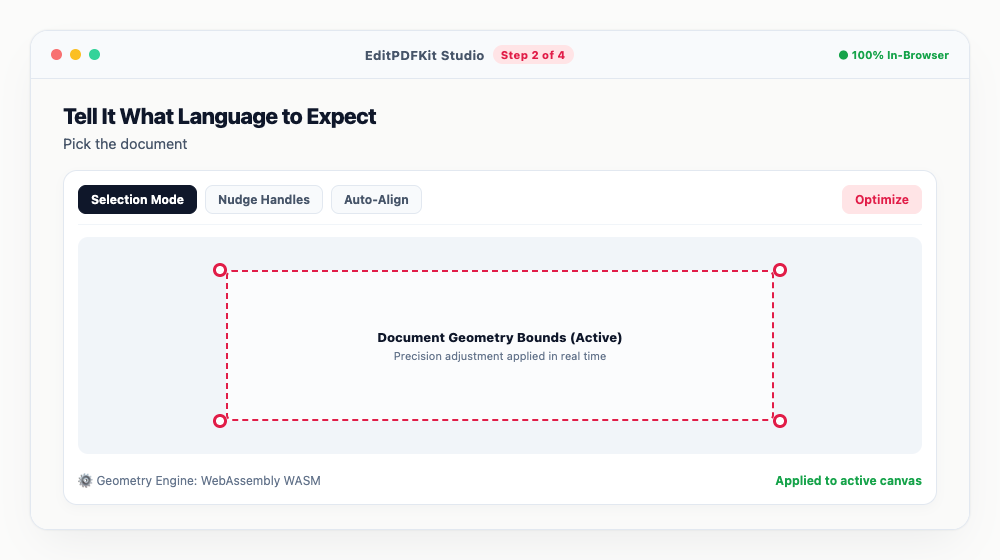
The underlying Tesseract WebAssembly engine covers a wide range of languages beyond just the common ones.
- 3
Let OCR Run Across Every Page
Tap 'Start OCR Processing' and watch the progress bar move through each page.
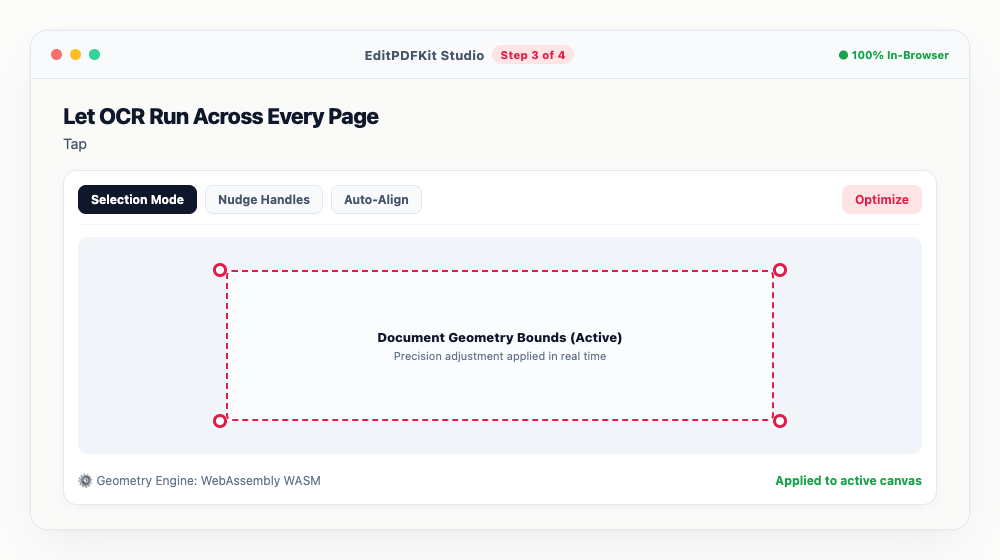
A few seconds per page is typical, all running on your own computer's processor.
- 4
Save the Now-Searchable PDF
Download the enhanced file, then test it by pressing Ctrl+F in any PDF viewer to confirm search actually works.
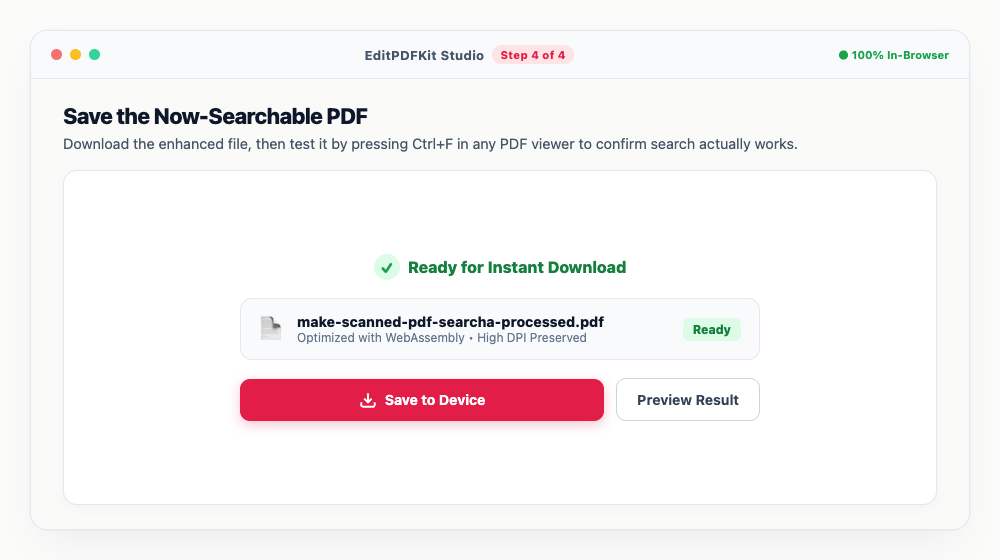
Copy-pasting text straight out of the scan into Word or Google Docs now works too, the same as any normal document.
Why use EditPDFKit for this
- Adds a searchable text layer over scanned images for instant Ctrl+F keyword searching
- Multi-language character recognition: English, Hindi, Spanish, French, German, and more
- Preserves the exact visual appearance, stamps, and layout of original scanned pages
- 100% Client-Side Privacy: confidential contracts and medical records never touch a cloud server
What Is Making a Scanned PDF Searchable?
Making a scanned PDF searchable means adding an invisible layer of real, selectable text positioned exactly on top of each word's pixels, without changing how the page looks. A scanned PDF is really just a photograph saved with a .pdf extension — your computer has no idea what any of the words actually say, which is why Ctrl+F returns nothing and text selection just draws a rectangle on a raw scan.
OCR closes that gap by analyzing the shapes in the scanned image, matching them against known letterforms, and stitching the result into a text layer underneath the visible page — the scan still looks exactly like the original, stamps and slight skew included, but now behaves like a normal digital file for searching and copying.
Who Typically Uses This
Researchers, legal teams, students scanning library books, and office administrators digitizing archives all need this specifically because flipping through pages manually doesn't scale. A researcher digitizing old scanned papers needs to search across dozens of documents for a specific term rather than reading each one in full. A legal team needs to find a specific clause in a 40-page scanned contract without reading the whole thing page by page.
A student scanning pages from a library book needs to copy a quote directly rather than retyping it by hand, and office administrators digitizing an archive of old paper records need the collection searchable going forward, not just stored as a pile of unindexed scanned images.
The Features Behind This Workflow
Adding a searchable text layer over scanned images enables instant Ctrl+F keyword searching in any standard PDF viewer, no special software required to read the result. Multi-language character recognition covers English, Hindi, Spanish, French, German, and more, so the tool isn't limited to a single language's documents.
The process preserves the exact visual appearance, stamps, and layout of the original scanned pages — nothing about how the document looks changes, only what you can do with it. And because the OCR model runs entirely client-side, confidential contracts and medical records never touch a cloud server during recognition.
Why This Workflow Just Works
The process is four steps: add the scanned document, pick its language, let OCR run across every page, and save the now-searchable PDF. A few seconds per page is typical, running entirely on your own computer's processor with a visible progress bar as it works.
There's no account or software install needed, and testing the result is as simple as pressing Ctrl+F in any PDF viewer afterward — if the search finds your word, it worked.
Frequently asked questions
What does 'searchable PDF' mean?
A searchable PDF contains both the original scanned image and an invisible underlying text layer aligned with the image words. You can search words with Ctrl+F and copy text with your mouse.
Can OCR recognize handwriting?
OCR works best on printed typography, typed letters, and receipts. Clean, block-letter handwriting can often be recognized, but cursive script may have lower accuracy.
Does EditPDFKit send my documents to third-party AI servers for OCR?
No. The OCR neural model runs entirely inside your web browser via WebAssembly. Your documents remain strictly on your local machine.
Turning a stack of scanned archives into something you can actually search through is less about recognizing every character perfectly and more about getting the vast majority of printed, typed content indexed so Ctrl+F finally works the way it should. The underlying scan stays exactly as it was — stamps, signatures, slight skew and all — with a searchable layer quietly doing the heavy lifting underneath. Run your next scanned PDF through the OCR tool before it disappears into a folder you'll never search through by hand.
Pairs well with
Bates Numbering
Burn a prefixed, zero-padded number like DOC-00001 into a corner of every page, one increment per page.
Compare Two PDFs
Extract the text from an original and a revised PDF and read the line-by-line differences in one highlighted stream.
Compress PDF to 100KB
Reduce PDF file sizes under 100KB for government portals, exams, and job applications.
Related posts
OCR & Text Extraction
How to Extract Text and Tables from Scanned PDFs with Free OCR
Document Scanning
How to Scan Physical Documents into Clean PDFs with Your Phone Camera
PDF Editing
How to Edit Existing Text in a PDF and Add a Digital Signature
PDF Management
How to Merge Multiple PDF Files into One Document Online
Visa & Job Portal Uploads
How to Compress a PDF Under 200KB for Visa, Job & Government Portals