
How to Crop Photos into Perfect Circles and Profile Avatars
Looking to create a circular headshot for LinkedIn, Twitter, Discord, or an employee badge? Learn how to crop your photos with exact aspect ratios and circular cutouts using EditPDFKit's interactive studio cropper.
Nearly every platform that displays a profile picture — LinkedIn, Discord, Slack, WhatsApp, Twitter/X — actually stores and accepts a square (1:1) image behind the scenes, then applies the circular mask on their own end at display time. That distinction matters because it means the actual cropping decision you need to get right isn't "crop to a circle" at all, it's "crop to a square with your face correctly centered" — get the square framing wrong (too close, off-center, or with the subject's head near an edge) and the platform's automatic circular mask will cut off exactly the part of the photo you most needed visible, regardless of how good the source photo was.
A circular preview overlay during cropping solves this directly: instead of cropping a square and hoping it looks right once a platform masks it into a circle later, you see the actual circular result live, while you're still adjusting the crop box.
Open Crop Image now
Step by step
4 steps- 1
Bring In the Portrait You're Framing
Open Crop Image and select whichever photo needs to become an avatar.
Open Crop Image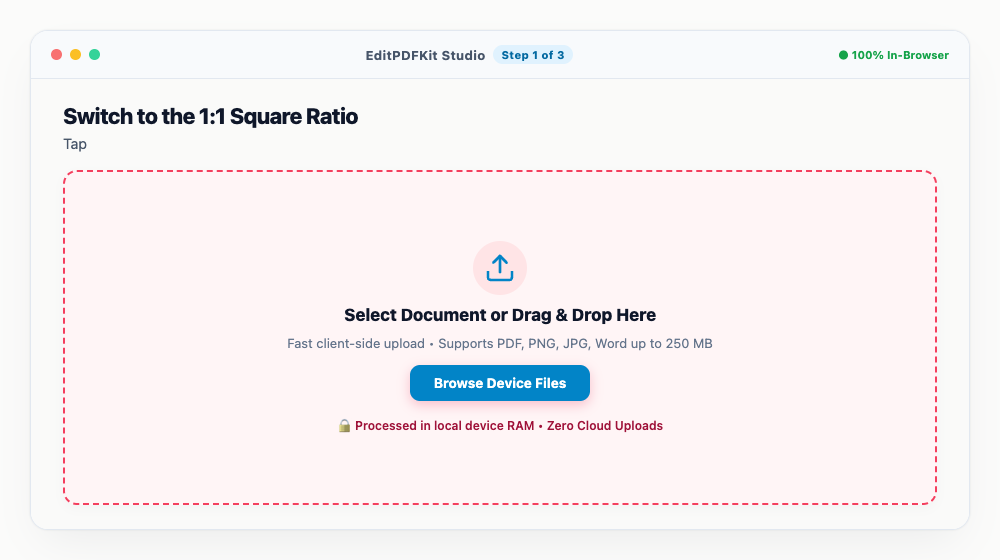
Starting from a higher-resolution original leaves you more room to zoom in without the result turning pixelated.
- 2
Switch to the 1:1 Square Ratio
Tap '1:1 (Square)' in the sidebar, then drag and resize the glowing bounding box until your face sits centered inside it.
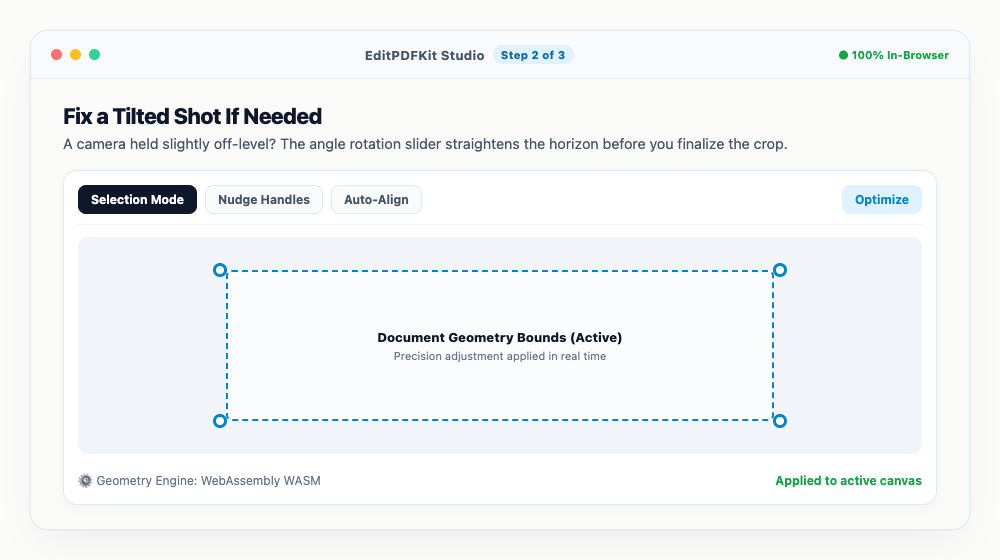
Lining your eyes up along the upper third gridline tends to read as a more natural, professional headshot.
- 3
Fix a Tilted Shot If Needed
A camera held slightly off-level? The angle rotation slider straightens the horizon before you finalize the crop.
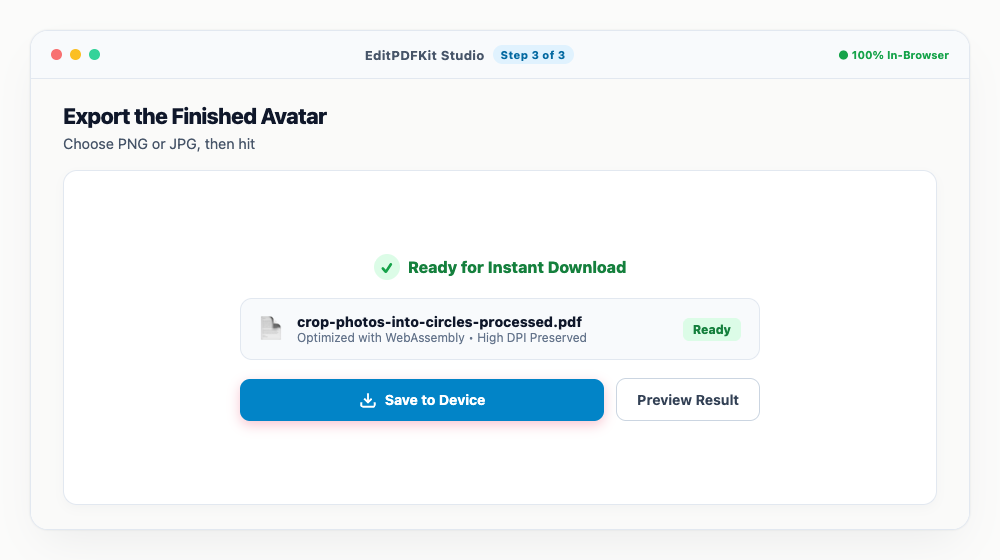
The crop box automatically stays inside the rotated photo's edges, so you won't end up with blank corner gaps.
- 4
Export the Finished Avatar
Choose PNG or JPG, then hit 'Save Image' — the result is ready to upload to your profile right away.
PNG is the one to pick if you want the space outside the circle to stay genuinely transparent.
Why use EditPDFKit for this
- Circular Avatar Preset: preview exactly how your photo will appear inside round profile frames
- Standard aspect ratio locks: 1:1 Square, 4:3 Classic, 16:9 Landscape, 9:16 Stories/Reels
- Angle Straighten tool: fix crooked horizons and tilted document scans
- High-DPI output: preserves maximum original pixel clarity with no forced downsampling
What Is Cropping a Photo Into a Circular Avatar?
Cropping a photo into a circular avatar means framing a square (1:1) crop so carefully that it still looks correctly composed once a platform applies its own circular mask on top. Nearly every platform that shows a profile picture — LinkedIn, Discord, Slack, WhatsApp, Twitter/X — actually stores and accepts a square image behind the scenes and masks it into a circle at display time, so the real skill isn't "crop to a circle," it's "crop to a square with the subject centered well enough that the circular mask doesn't cut off anything important."
Get the square framing wrong and the platform's automatic circle will clip exactly the part of the photo you most needed visible, no matter how good the original photo was.
When People Reach for This
Job seekers, social media managers, Discord/Slack users, and graphic designers all need this for slightly different reasons. A job seeker updating their LinkedIn headshot needs a professional-looking circular crop that doesn't clip their head or shoulders when the platform applies its mask. A social media manager producing consistent avatars across a brand's accounts needs every image framed identically so the circular crops look like a cohesive set.
Discord and Slack users setting a personal or community avatar need the same square-to-circle framing logic, just for a more casual context. Graphic designers preparing a batch of team headshots for a website's "About Us" page need every photo cropped to the same aspect ratio and centering before the site's own display template rounds them into circles.
Built-In Features That Help
The Circular Avatar Preset shows you exactly how your photo will look inside a round profile frame while you're still adjusting the crop — not a guess you only find out was wrong after uploading. Standard aspect ratio locks (1:1 Square, 4:3 Classic, 16:9 Landscape, 9:16 Stories/Reels) mean you're never eyeballing proportions by hand.
The Angle Straighten tool fixes a camera that was held slightly off-level before you finalize the crop, which matters for a profile photo where a crooked horizon is immediately noticeable. High-DPI output preserves maximum original pixel clarity with no forced downsampling, so a high-resolution source photo stays sharp in the final avatar.
Why This Approach Is Effortless
The whole process is four steps: bring in your photo, switch to the 1:1 square ratio and center your face, straighten it if the shot was tilted, and export. The live circular preview means you can see the final masked result before downloading, so there's no trial-and-error re-upload cycle on the platform itself.
No account or software install is needed, and exporting as PNG keeps the area outside the circle genuinely transparent if you need that for placement elsewhere, like a website header rather than relying on a platform's own masking.
Frequently asked questions
Does social media require a circular image file or a square one?
Most platforms (LinkedIn, Instagram, Twitter/X, Discord) accept square 1:1 image uploads and automatically mask them with a circular frame. Framing with EditPDFKit's 1:1 square ratio ensures none of your face gets cut off by the circle mask.
Can I batch crop multiple images to the same aspect ratio?
Yes, you can upload multiple images to the queue and quickly apply identical aspect ratio bounding boxes to each photo.
Do I need to install any software to crop photos into perfect circles and profile avatars?
No software download is necessary. The entire process — crop photos into perfect circles and profile avatars — runs directly inside your web browser using our crop image tool, powered by WebAssembly. It works without an account, an extension, or any download.
Is this approach suitable for job seekers?
Absolutely. This is a frequent need for job seekers, social media managers, discord/slack users, and graphic designers. Your file stays local throughout, on desktop, Android, or iOS alike.
Will cropping to a circle add a white background behind the rounded corners?
Export as PNG to keep the area outside the circle fully transparent. If you export as JPG instead, the corners outside the circle will be filled with a solid color since JPG has no alpha channel.
What aspect ratio should I use for a Discord or Slack avatar?
Both platforms display avatars as circles cropped from a 1:1 square source image, so pick the '1:1 (Square)' ratio preset and center your face in the middle of the frame before exporting.
Getting a clean circular avatar really comes down to framing the square crop correctly in the first place, since that's what every major platform actually stores and masks into a circle on its own — a live circular preview overlay while you crop removes the guesswork of whether your framing will survive that masking step intact. Open the Crop Image tool next time you need a profile picture that won't get awkwardly clipped once a platform rounds its corners.
Pairs well with
Barcode Generator
Generate a Code 128, EAN-13, UPC-A or Code 39 barcode as a PNG, with the number printed beneath.
Photo Collage Maker
Drop photos into a grid, filmstrip, spotlight, mosaic or tilted polaroid layout and export one picture.
Compress Image to 200KB
Bring a JPG or PNG under 200 KB without the face going blotchy — sized for exam-form photos and portal uploads.
Related posts
AI & Image Editing
How to Remove Image Backgrounds for Free with Instant Subject Cutouts
Image Resizing
How to Resize Photos & Signatures for Online Applications (US Visa, Passports & Forms)
Image Compression
How to Compress Images to 200KB (or Any Target Size) Without Quality Loss
Image Orientation & Correction
How to Rotate Sideways Photos & Scanned Certificates Upright Permanently
Image Stitching & Layout
How to Combine Multiple Photos Side-by-Side or Vertically into One Image