
How to Rotate Sideways Photos & Scanned Certificates Upright Permanently
Smartphone cameras frequently misread orientation sensors, causing photos taken in portrait mode to save as sideways landscape images. When you upload these sideways images to job portals, passport portals, or exam applications, they get rejected. EditPDFKit's Rotate Image tool permanently corrects the pixel matrix and resets EXIF orientation flags without re-compressing or degrading image quality.
You take a photo in portrait orientation, it looks perfectly upright on your phone's screen, and then the moment you upload that exact same file to some website's photo field, it appears rotated 90 degrees. Nothing happened to the image between those two moments — what happened is that your phone never actually rotated the pixel data in the first place. Instead, it saved the image sensor's raw landscape capture as-is and attached a small EXIF metadata flag telling compliant viewers 'display this rotated 90 degrees.' Your phone's gallery app respects that flag; plenty of websites, upload widgets, and older image libraries simply ignore it and show the raw, un-rotated pixels — which is why the same file can look correct in one place and sideways in another, with no difference between the files themselves.
Open Rotate & Flip Image now
Step by step
4 steps- 1
Drop In the Sideways Photo
Drag your photo or scanned certificate (JPG, PNG, WEBP, or HEIC) into the Rotate Image tool.
Open Rotate & Flip Image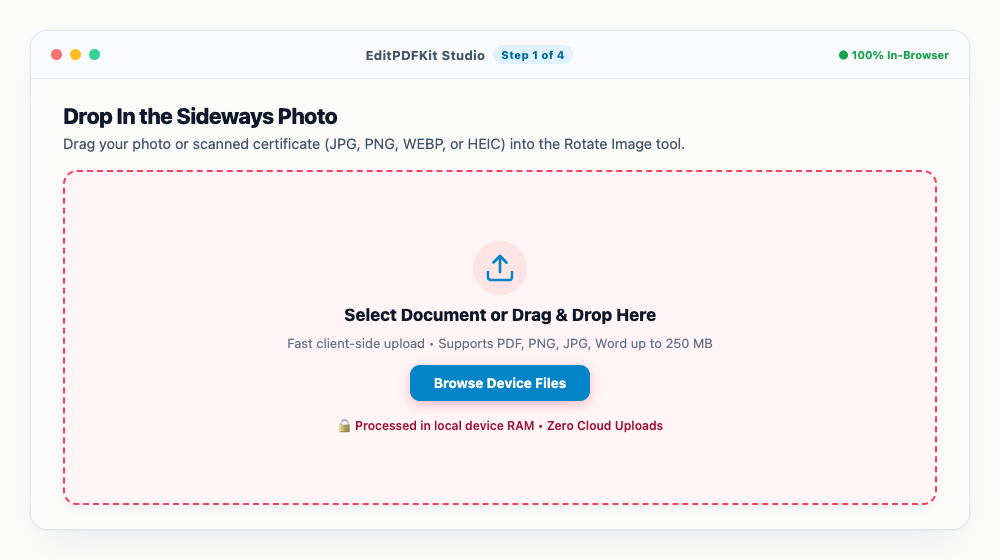
Grab a whole folder of sideways photos at once if you've got several needing the same fix — batch processing handles them together.
- 2
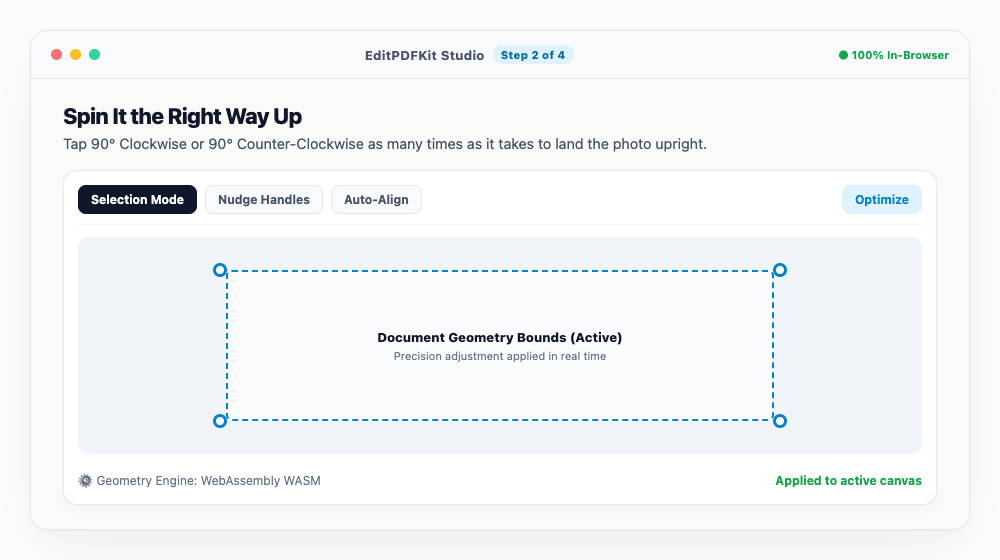
Spin It the Right Way Up
Tap 90° Clockwise or 90° Counter-Clockwise as many times as it takes to land the photo upright.
If the photo came out fully upside-down rather than sideways, the 180° Flip button gets there in one tap.
- 3
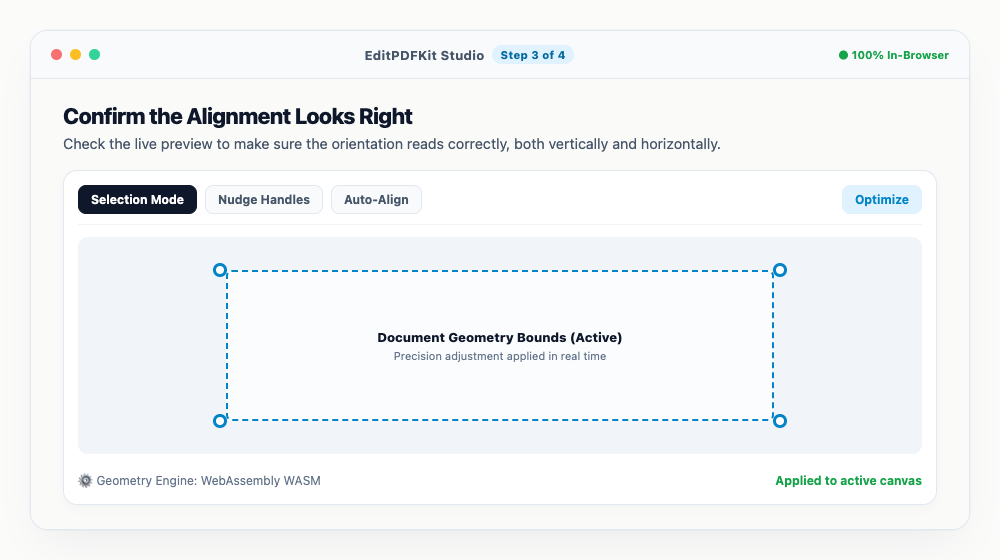
Confirm the Alignment Looks Right
Check the live preview to make sure the orientation reads correctly, both vertically and horizontally.
Signature and ID photos specifically should sit horizontally level — a slight tilt is often enough to fail portal verification.
- 4
Save the Corrected Image
Click 'Download Image' and the upright photo saves immediately, ready for government and job portal uploads.
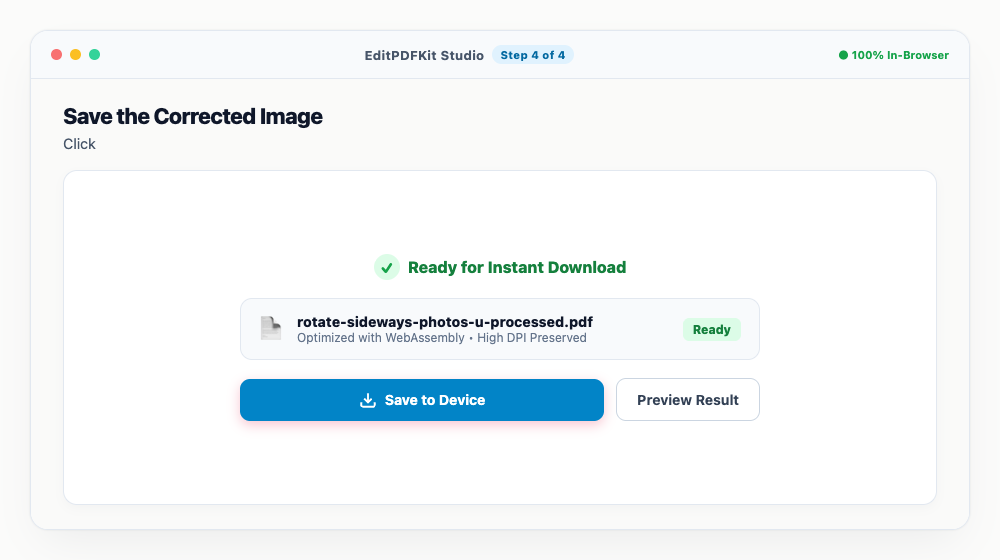
Batch-rotated photos download together as one ZIP, so you're not saving files one by one.
Why use EditPDFKit for this
- True Pixel Rotation: permanently rotates the image bitmap so it opens upright on any website or device
- Lossless Quality: rotates JPG, PNG, and WebP without compression artifacts or blurriness
- Fixes EXIF Orientation Glitches: rewrites camera orientation tags so social media and portals display it properly
- 100% Client-Side Privacy: personal ID photos and family snapshots never leave your device
What Is True Pixel-Level Image Rotation?
True pixel-level rotation means physically transposing an image's actual pixel data so it displays upright everywhere, as opposed to relying on a metadata flag (EXIF orientation) that merely tells compliant software how to display it. Phone cameras typically save the sensor's raw landscape capture as-is and attach an EXIF tag saying 'display this rotated 90 degrees' — your phone's gallery respects that flag, but plenty of websites, upload widgets, and older image libraries ignore it entirely, which is why the same file can look correct in one place and sideways in another. EditPDFKit's Rotate Image tool rewrites the pixel matrix itself, removing that dependency.
Who This Is Built For
Exam applicants uploading photos and signatures run into this constantly, since a sideways passport photo or signature submitted to a government or university portal is often an outright rejection rather than a minor cosmetic issue — these systems frequently use lightweight rendering that ignores EXIF orientation entirely. Smartphone users sharing pictures hit a milder version of the same problem on social media and messaging apps, while real estate agents uploading property photos need every image in a listing to display consistently regardless of which platform eventually renders it.
In every case, true pixel rotation guarantees the exact same visual result wherever the file ends up next.
The Tools That Do the Work
True Pixel Rotation permanently rotates the image bitmap itself so it opens upright on any website or device, with no dependency on whether that destination correctly reads EXIF metadata. Lossless Quality means JPG, PNG, and WebP files rotate without compression artifacts or added blurriness — the rotation is a direct pixel transposition, not a re-encode.
Fixes EXIF Orientation Glitches rewrites the camera's orientation tags directly so social media platforms and portals that do read EXIF also display the photo correctly, and batch processing handles a whole folder of sideways scans or photos together rather than one at a time.
What Makes This Quick
The workflow is four steps: drop in your photo or scanned certificate, spin it upright with a click, confirm the alignment in the live preview, then download. No account or software install is needed, batch-rotated photos download together as one ZIP instead of one by one, and since everything processes locally, personal ID photos and family snapshots never leave your device just to get rotated.
Frequently asked questions
Why do my photos look upright on my phone but appear sideways when uploaded to websites?
Smartphones store photos sideways and attach a tiny 'EXIF orientation tag' telling the phone screen to display it upright. However, many website portals ignore EXIF tags and display the raw sideways pixels. EditPDFKit physically rotates the pixel matrix so the image is upright everywhere.
Does rotating an image reduce its sharpness or file quality?
No. EditPDFKit performs lossless 90-degree vector pixel transposition, ensuring every pixel, color, and sharp edge remains 100% identical to the original.
Can I rotate iPhone HEIC photos directly?
Yes! EditPDFKit automatically reads and converts iPhone HEIC photos into universally supported high-resolution JPG or PNG files.
Do I need to install any software to rotate sideways photos & scanned certificates upright permanently?
No installation needed — the full process — rotate sideways photos & scanned certificates upright permanently — runs directly inside your web browser using our rotate image tool, powered by WebAssembly. Skip the account creation and extension install — it just works in the tab you have open.
Is this approach suitable for exam applicants uploading photos and signatures?
Yes — this covers a real need for exam applicants uploading photos and signatures, smartphone users sharing pictures, and real estate agents uploading property photos. Desktop, Android, or iOS — the process is the same, and your file never leaves the device.
Can I rotate a whole batch of scanned certificates at once?
Yes. Upload all the sideways scans together, apply the same 90°/180° rotation to the batch, and download every corrected file in a single ZIP archive instead of fixing each one individually.
A sideways photo is rarely a quality problem — it's almost always a metadata interpretation problem, which is exactly why fixing it needs to happen at the pixel level rather than relying on every downstream system to read an orientation flag correctly. Batch-rotating a stack of scanned certificates or ID photos together, then downloading them as one ZIP, turns what would be a tedious one-by-one fix into a single pass, all handled locally without any of those personal photos leaving your device.
Pairs well with
Barcode Generator
Generate a Code 128, EAN-13, UPC-A or Code 39 barcode as a PNG, with the number printed beneath.
Photo Collage Maker
Drop photos into a grid, filmstrip, spotlight, mosaic or tilted polaroid layout and export one picture.
Compress Image to 200KB
Bring a JPG or PNG under 200 KB without the face going blotchy — sized for exam-form photos and portal uploads.
Related posts
Image Cropping
How to Crop Photos into Perfect Circles and Profile Avatars
Image Resizing
How to Resize Photos & Signatures for Online Applications (US Visa, Passports & Forms)
Exam & Govt Portals
How to Compress a Passport Photo and Signature for Online Application Portals
Image Stitching & Layout
How to Combine Multiple Photos Side-by-Side or Vertically into One Image
Image Compression
How to Compress Images to 200KB (or Any Target Size) Without Quality Loss