
How to Compress a Passport Photo and Signature for Online Application Portals
Filling in an exam, recruitment, or visa application form? Application servers reject uploads outright if the passport photo falls outside roughly 20KB-50KB at 3.5cm x 4.5cm, or the scanned signature outside roughly 10KB-20KB at 4.0cm x 2.0cm. Here is how to crop and compress both files to the exact byte count in seconds on a phone or a PC, without them turning blurry.
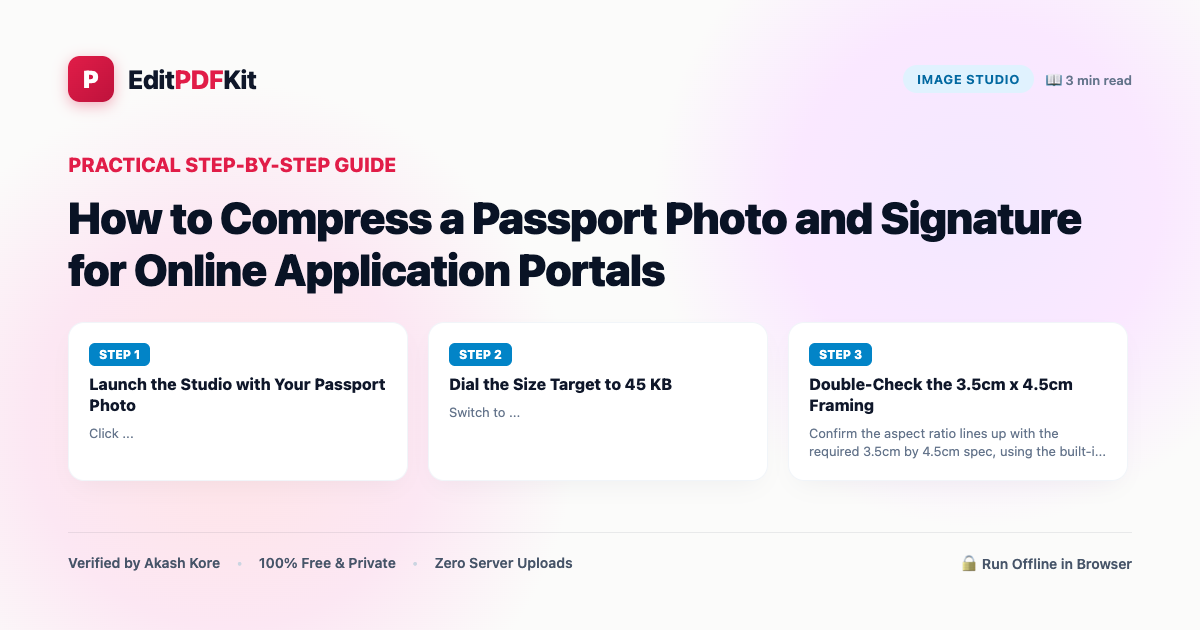
What makes these government portal uploads uniquely frustrating isn't just the file size cap — it's that the photo and signature specs demand an exact dimension *and* an exact byte-size window simultaneously, and most people's phones or basic editing apps only let them control one of those two things at a time. Crop a photo to the right 3.5cm x 4.5cm aspect ratio in a generic photo app and the file size comes out wherever it lands, often well over 50KB; chase the file size down with a quality slider instead and the crop drifts out of spec. Candidates end up round-tripping between a cropping app and a compression app three or four times, eyeballing the result each time, often still missing the window on the first portal submission attempt.
The fix is a tool that treats both constraints as one joint problem: lock the crop to the required aspect ratio first, then solve for the byte-size target within that fixed frame, rather than bouncing between two separate tools and hoping the numbers happen to line up.
Open Compress Image now
Step by step
5 steps- 1
Launch the Studio with Your Passport Photo
Click 'Launch Compress Image' above for the 50KB target pre-loaded, or upload your passport photo directly to get started.
Open Compress Image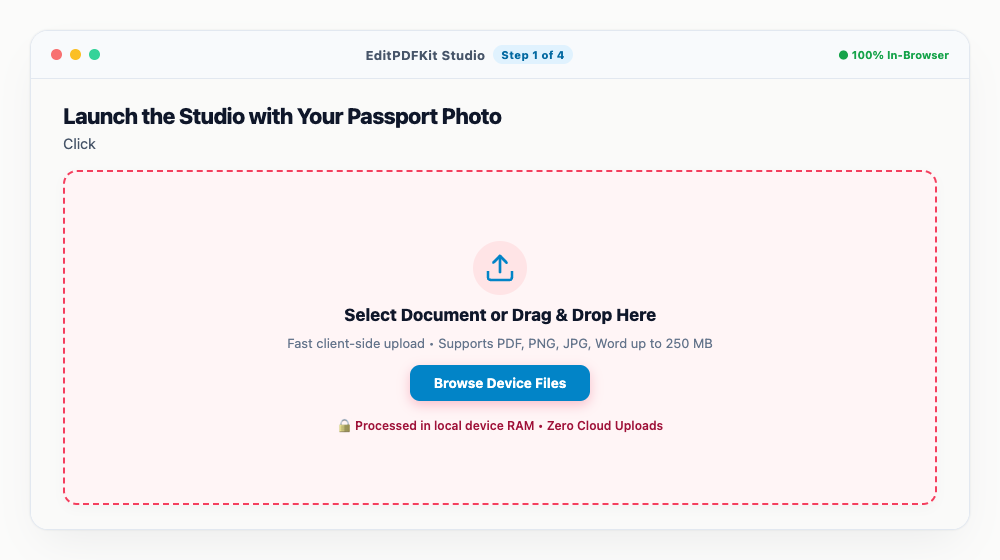
A plain white or light background with both ears visible keeps you aligned with what most application notifications ask for.
- 2
Dial the Size Target to 45 KB
Switch to 'Target Size' mode and type 45 KB — that sits comfortably above the 20KB floor and under the 50KB ceiling with room to spare.
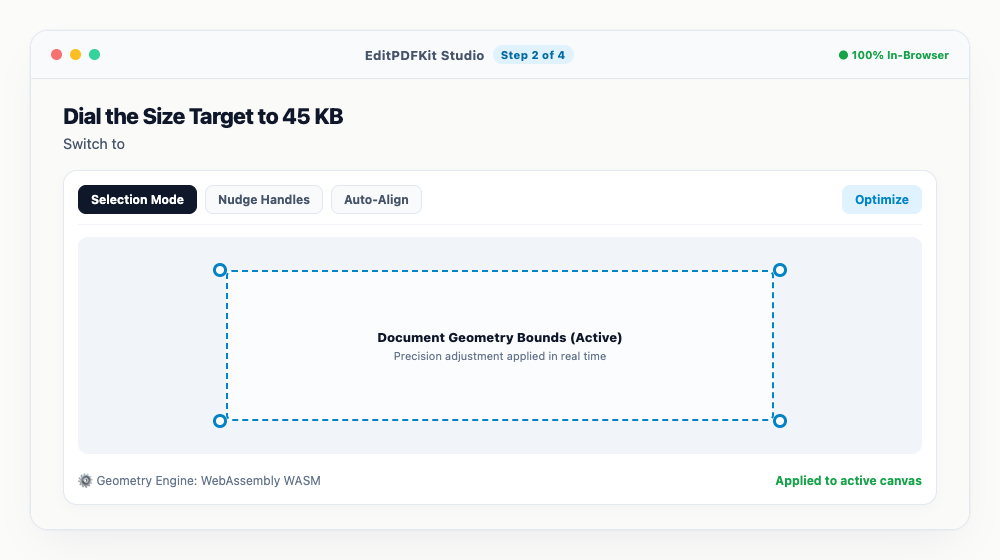
Don't aim right at 50KB; 45KB gives you buffer against how differently portals round file sizes.
- 3
Double-Check the 3.5cm x 4.5cm Framing
Confirm the aspect ratio lines up with the required 3.5cm by 4.5cm spec, using the built-in Crop tool to re-center your face if it drifted.
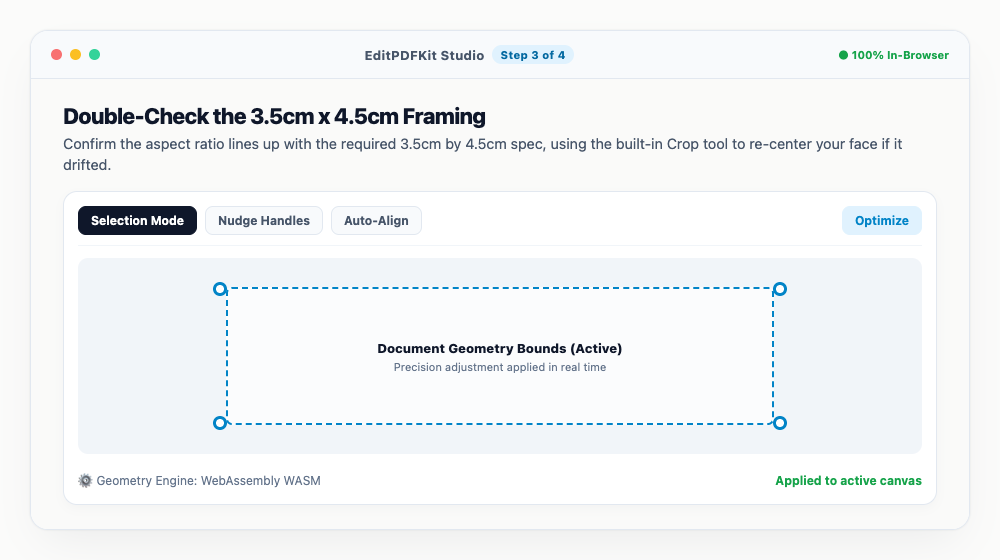
Most portal guidelines expect the face to fill roughly 70-80% of the frame.
- 4
Run the Signature Through at 15 KB
Upload your scanned signature — black or blue ink on clean white paper — set its target to 15 KB, and verify it lands near 4.0cm x 2.0cm.
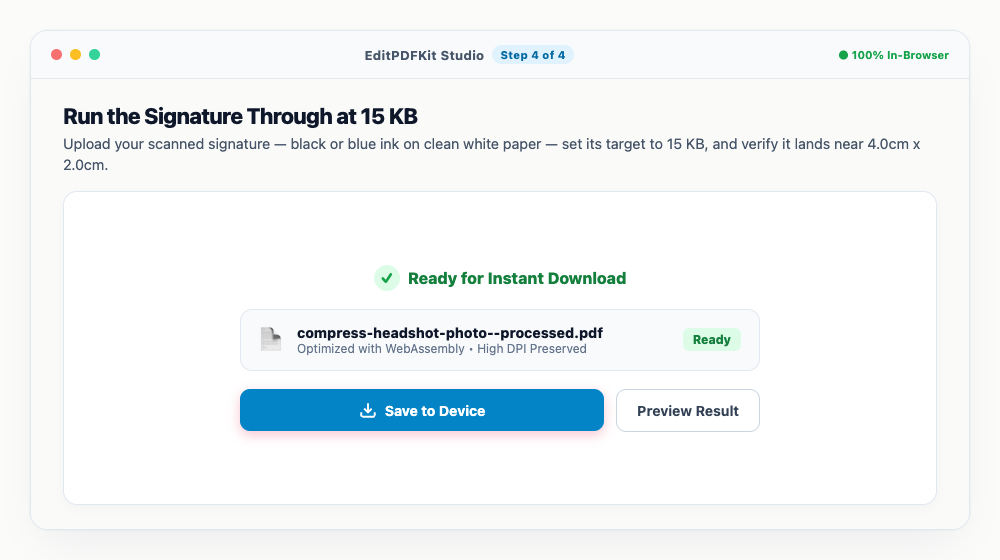
A grayish paper background responds well to the Image Adjust filter's brightness and contrast boost before compressing.
- 5
Download Both Files and Submit
'Download All' pulls both compliant JPGs down at once, ready to go straight into the portal's photo and signature upload fields.
Standard JFIF/JPEG headers are preserved throughout, so automated portal validators won't flag the file format itself.
Why use EditPDFKit for this
- Exact File Size Target: Lock passport photo directly to 40KB–50KB and signature to 15KB–20KB
- Built-in Dimensional Cropping: Easily trim images to 3.5cm x 4.5cm (photo) and 4.0cm x 2.0cm (signature)
- Zero Upload Blur: Smart bi-cubic compression maintains sharp facial features and clear signature ink
- Client-Side Privacy: Identity documents and photos are processed in your browser—never uploaded to foreign servers
What Is Compressing a Photo and Signature for Govt Portals?
This means producing a passport photo and a signature scan that hit an exact byte-size window (20-50KB for the photo, 10-20KB for the signature) AND an exact centimeter dimension (3.5cm x 4.5cm and 4.0cm x 2.0cm) at the same time — not just 'small enough,' but precisely within both constraints simultaneously. Most phones and basic photo apps only let you control one of those two things at once: crop to the right aspect ratio and the file size lands wherever it lands, or chase the file size with a quality slider and the crop drifts out of spec.
The actual task is solving both constraints together in one pass, which is why a dedicated dual-target tool exists instead of relying on a generic crop app plus a separate compressor.
Who Typically Uses This
Candidates applying through competitive exam boards, civil service and banking recruitment portals, railway and public-sector job sites, and university or visa forms hit this exact wall every application cycle. A candidate uploading an exam application needs the photo and signature both compliant on the first attempt, since a rejected upload close to a deadline can mean missing the application window entirely. Someone filling out several separate recruitment portals, each with a slightly different size window, needs to produce several compliant versions from the same source photo quickly.
Applicants navigating portals with strict, unforgiving validators — reject the file outright rather than auto-resizing it — need the spec met exactly before they even attempt to submit, not fixed through trial and error after a rejection.
The Features Behind This Workflow
The Exact File Size Target locks a passport photo directly to a 40-50KB window and a signature to 15-20KB, so you're not guessing at a quality percentage and hoping it lands in range. Built-in dimensional cropping trims to the exact 3.5cm x 4.5cm photo spec or 4.0cm x 2.0cm signature spec as part of the same workflow, rather than requiring a separate cropping app first.
Zero Upload Blur uses smart bi-cubic compression to keep facial features and signature ink sharp even at a small target size, and because everything runs client-side, your identity documents never get uploaded to a foreign server just to be resized — a real concern for government exam applications.
Why This Workflow Just Works
The whole process is five steps: launch with your photo pre-loaded, dial the size target to a safe buffer below the ceiling, confirm the crop framing, run the signature through at its own target, and download both files together. It works the same on a phone as a desktop, so you can snap a photo with your camera and compress it on the spot without transferring files between devices.
Because the crop and compression happen as one combined step rather than two separate tools, there's no round-tripping between apps — what used to take several attempts across different tools now finishes in one pass.
Frequently asked questions
What photo and signature sizes do these portals usually require?
Passport Photo must be in JPEG/JPG format, between 20 KB and 50 KB, with dimensions of approximately 3.5 cm (width) x 4.5 cm (height). Signature must be in JPEG/JPG format, between 10 KB and 20 KB, with dimensions of 4.0 cm (width) x 2.0 cm (height).
Why does the portal say 'File size is not within specified limit'?
This happens if your photo is even 1 byte over 50 KB (e.g. 50.2 KB) or under 20 KB. By setting EditPDFKit's exact target to 45 KB for photos and 15 KB for signatures, you ensure your file is safely within the acceptance window.
Can I do this directly on my mobile phone?
Yes. EditPDFKit works 100% in mobile browsers (Chrome, Safari, Firefox). You can snap a photo with your phone camera, crop, and compress immediately without downloading any app.
Do these portals accept PNG format photos?
No. The official Staff Selection Commission portal strictly enforces JPG/JPEG files. EditPDFKit automatically exports standard compliant JPEG format.
Do I need to install any software to compress photo and signature for standard digital, chsl & govt job portals?
No installation is required. This entire workflow — compress photo and signature for standard digital, chsl & govt job portals — runs directly inside your web browser using our compress image tool, powered by WebAssembly. There's nothing to download, no browser extension, and no account sign-up.
Is this approach suitable for aspirants applying for standard digital?
Yes. This exact workflow is built for aspirants applying for standard digital, chsl, mts, job portal, banking, rrb, and state government job recruitment portals. Every file stays on your own device, and the same workflow works on desktop, Android, and iOS.
Treating the crop and the compression as one combined step — instead of two separate tools you bounce between — is what turns this from a 20-minute trial-and-error chore into a one-pass task. Lock the dimensions first, dial in the size second, and you'll clear almost any government portal's photo and signature validator on the first submission.
Pairs well with
Barcode Generator
Generate a Code 128, EAN-13, UPC-A or Code 39 barcode as a PNG, with the number printed beneath.
Photo Collage Maker
Drop photos into a grid, filmstrip, spotlight, mosaic or tilted polaroid layout and export one picture.
Compress Image to 200KB
Bring a JPG or PNG under 200 KB without the face going blotchy — sized for exam-form photos and portal uploads.
Related posts
Image Resizing
How to Resize Photos & Signatures for Online Applications (US Visa, Passports & Forms)
Image Compression
How to Compress Images to 200KB (or Any Target Size) Without Quality Loss
Visa & Job Portal Uploads
How to Compress a PDF Under 200KB for Visa, Job & Government Portals
Signature Resizer
How to Resize Signature to 140x60 Pixels and Under 20KB for Exam Forms
AI & Image Editing
How to Remove Image Backgrounds for Free with Instant Subject Cutouts