
How to Remove Image Backgrounds for Free with Instant Subject Cutouts
Need transparent PNG cutouts for your e-commerce product listings, social media avatars, or graphic design projects? Learn how to automatically strip solid backgrounds, green screens, and complex backdrops without paying for expensive subscriptions.
Paid background-removal subscriptions (remove.bg, Adobe's cloud tools, Canva Pro) typically charge per-image credits or a monthly fee once you need more than a handful of free cutouts a month — a real cost for e-commerce sellers processing dozens of product photos a week, or a freelance designer running through client revisions. The manual alternative, the Magic Wand or Lasso tool in Photoshop or GIMP, works fine on flat solid-color backgrounds but falls apart on anything with fine detail at the subject boundary: hair strands, fur, semi-transparent fabric edges, or a product with reflective material. Getting those details clean by hand means zooming in and manually feathering the selection edge pixel by pixel, which can take longer than the rest of the edit combined.
An AI matting model changes the economics of that tradeoff. Instead of you manually tracing a boundary, the model is trained specifically to predict a soft alpha mask around complex edges — meaning fine hair and semi-transparent material get a properly graduated cutout instead of a hard, jagged line, without you spending time on manual selection work at all.
Open Background Remover now
Step by step
4 steps- 1
Bring In a Photo to Cut Out
Head to the Remove Background tool and add a JPG, PNG, or WEBP file — portraits, product shots, and high-contrast logos all cut out cleanly.
Open Background Remover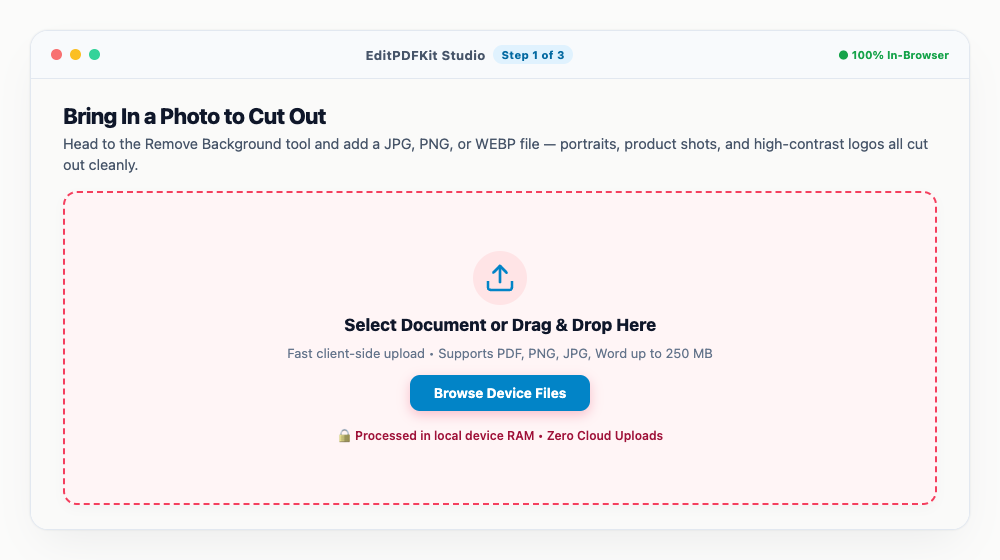
A subject with decent lighting and clear contrast against its backdrop gives the AI the cleanest edge to work with.
- 2
Check the Cutout for Fine Detail
The background disappears automatically with smooth, natural edges — zoom in and use the split slider to double-check tricky areas like hair strands or product corners.
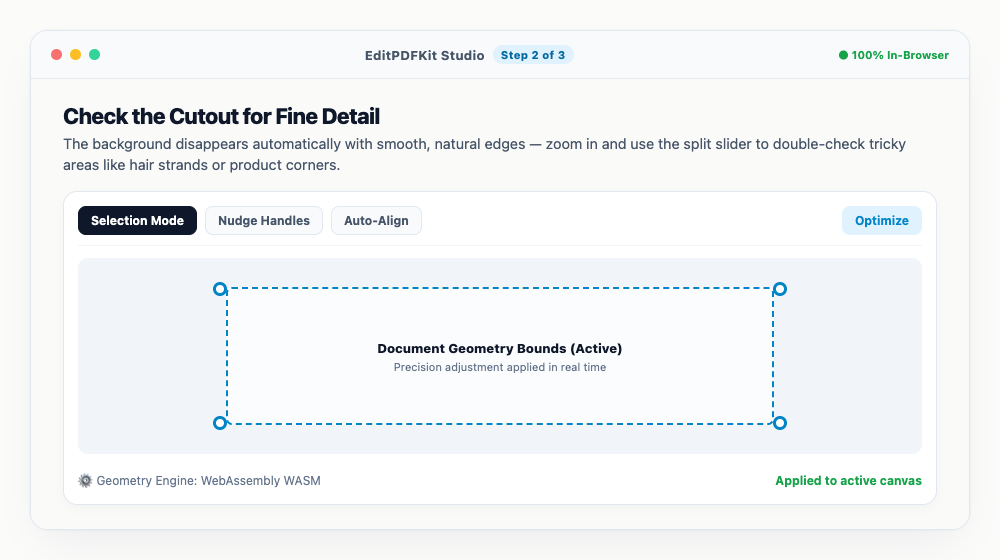
Drag the slider back and forth to flip between the original and the cutout in real time.
- 3
Pick a Transparent or Solid Backdrop
Leave the checkered canvas for a transparent PNG, or swap in studio white, product gray, or a brand color from the palette instead.
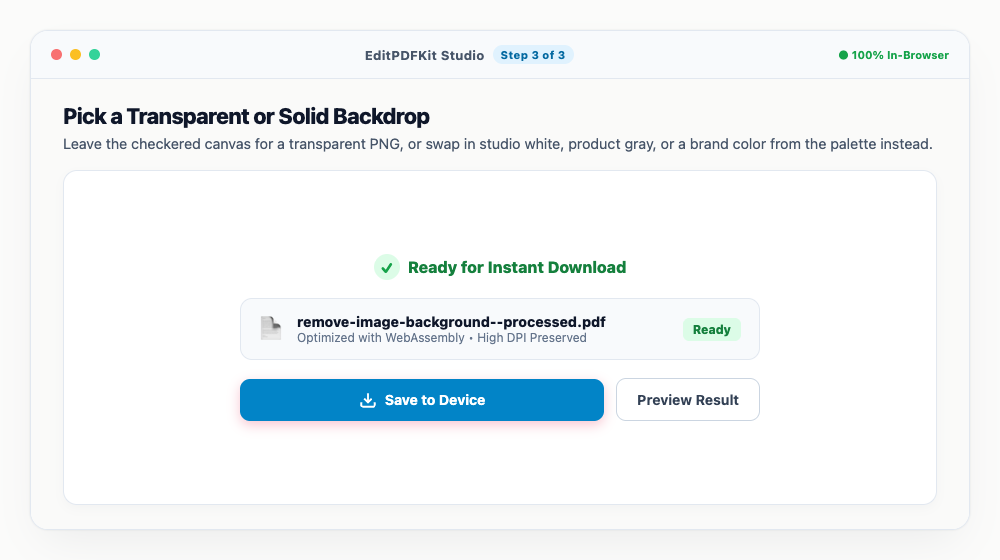
Amazon and eBay listings specifically require a pure white (#FFFFFF) backdrop, not just 'light.'
- 4
Export the Finished Cutout
'Save Cutout' downloads the crisp PNG to your device — or run a whole batch of product shots through together and export them all at once.
Stick with PNG (or WEBP) for the transparency; JPG has no alpha channel, so it can't hold a see-through background.
Why use EditPDFKit for this
- BiRefNet-Lite Neural AI: Bilateral Reference edge matting for fine hair, fur, and sharp product boundaries
- Custom replacement backdrops: leave transparent or replace with white, studio color, or gradient
- Sub-pixel edge defringing: removes color spill and halo borders around complex boundaries
- 100% Client-Side Privacy: files never leave your browser or touch remote servers
What Is AI Background Removal?
AI background removal is the process of using a trained neural network to automatically separate a photo's subject from its background and produce a transparent cutout — without you manually tracing a selection boundary with a lasso or magic wand tool. Instead of treating every pixel as either fully "subject" or fully "background" (a binary choice that breaks down on hair, fur, and semi-transparent edges), a matting model predicts a graduated alpha value per pixel, so fine detail at the boundary comes out looking natural instead of jagged.
For anyone used to manually feathering a selection edge pixel by pixel in Photoshop or GIMP, this replaces minutes of fiddly manual work with a cutout that's ready to inspect in seconds.
Real-World Scenarios
This is built for e-commerce sellers (Amazon, Shopify), graphic designers, students, and content creators who need clean cutouts regularly, not as a one-off. An Amazon or Shopify seller processing a batch of product photos needs every image on a consistent pure-white or transparent background to meet marketplace listing requirements, and doing that by hand for dozens of SKUs a week isn't realistic. A graphic designer pulling a subject out of a stock photo for a composite needs the hair and fabric edges to look believable, not hard-clipped.
Content creators and students making social media avatars, presentation graphics, or sticker-style cutouts run into the same core need — strip the background cleanly, fast, without paying a per-image fee every time a client asks for a revision.
What Makes This Possible
The BiRefNet-Lite neural model handles the hardest part of background removal — bilateral reference edge matting for fine hair, fur, and sharp product boundaries — automatically, producing a graduated alpha mask instead of a hard-clipped edge. Sub-pixel edge defringing then cleans up the residual color spill that bleeds from the old background into semi-transparent edge pixels, which is what causes the visible "halo" look in lower-quality cutouts.
Custom replacement backdrops mean you're not stuck with transparency: leave it transparent for a PNG overlay, or swap in studio white, a brand color, or a gradient directly in the tool, which matters since marketplaces like Amazon specifically require a pure white listing background rather than transparency.
What Makes This So Straightforward
There's no manual selection tool to learn — add your photo, and the background disappears automatically in four steps total, with a split-slider to double-check tricky areas like hair strands before you commit to a backdrop choice. No account, no per-image credit limit, no software install: it runs the same way in a browser tab whether you're cutting out one photo or batch-processing a whole product catalog.
Since the entire model runs client-side, there's also no upload wait — the cutout appears essentially instantly after you add the image, with no queue or processing fee standing between you and the result.
Frequently asked questions
Why is PNG required for transparent backgrounds?
The JPEG format does not support an alpha transparency channel. To keep the background transparent for overlays, logos, and stickers, the file must be saved as a PNG or WebP.
Is there a limit to how many images I can process?
No. EditPDFKit is completely free and runs directly on your machine's hardware, meaning there are no daily credits, token limits, or watermarks.
Do I need to install any software to remove image backgrounds for free with instant subject cutouts?
Nothing to install — this workflow — remove image backgrounds for free with instant subject cutouts — runs directly inside your web browser using our remove bg tool, powered by WebAssembly. No extension, no sign-up, and nothing to install beforehand.
Is this approach suitable for e-commerce sellers (amazon?
Yes, this workflow is commonly used by e-commerce sellers (amazon, shopify), graphic designers, students, and content creators. Nothing is uploaded, and the workflow is identical across desktop, Android, and iOS.
Will the AI accidentally cut off fine details like hair or fur?
The BiRefNet-Lite model is specifically tuned for fine-edge matting around hair strands, fur, and semi-transparent fabric edges. If a result looks imperfect, zoom into the split-compare view to double-check before exporting — most subjects with decent contrast against the backdrop produce clean edges on the first pass.
Can I replace the background with a solid color instead of leaving it transparent?
Yes. After the cutout is generated, pick a solid studio-white, gray, or custom brand color from the background palette instead of keeping the checkered transparent canvas — useful for Amazon/eBay listings that require a pure white (#FFFFFF) product background.
Whether you're prepping a batch of product photos for an Amazon listing or just want a clean transparent avatar for a profile picture, the combination of AI edge matting and a simple solid-background swap handles the hard part — the hair, fur, and semi-transparent edges — automatically, without a subscription or a manual selection tool. Run your next photo through the Remove Background tool and check the split-compare slider before exporting to make sure the edges look right for your specific use case.
Pairs well with
Barcode Generator
Generate a Code 128, EAN-13, UPC-A or Code 39 barcode as a PNG, with the number printed beneath.
Photo Collage Maker
Drop photos into a grid, filmstrip, spotlight, mosaic or tilted polaroid layout and export one picture.
Compress Image to 200KB
Bring a JPG or PNG under 200 KB without the face going blotchy — sized for exam-form photos and portal uploads.
Related posts
Image Cropping
How to Crop Photos into Perfect Circles and Profile Avatars
Watermarking
How to Add Custom Text and Logo Watermarks to Protect Your Work
Image Compression
How to Compress Images to 200KB (or Any Target Size) Without Quality Loss
AI Background Removal
How to Remove PNG Background Free with HD Transparent Download (Cutout Maker)
Passport Photo Maker
How to Make Passport Size Photos with Clean White Background at Home Free