
How to Convert WEBP and iPhone HEIC Photos to JPG Online Without Quality Loss
Ever downloaded an image only to find it's a .webp file that your photo editor can't open, or transferred iPhone photos saved as .heic that your Windows PC won't display? EditPDFKit converts them to universal, high-quality JPGs in seconds.
WebP and HEIC exist for good technical reasons — both compress noticeably smaller than JPG at equivalent visual quality, which is exactly why Google pushes WebP across the web and Apple made HEIC the default photo format on every iPhone since iOS 11. The catch is that "smaller and more efficient" came at the cost of universal support: a huge amount of older software, specific Windows photo viewers, some printing kiosks, and various upload forms simply don't know what to do with either format, and silently refuse to open or accept the file.
This creates a very specific, very common friction point: someone downloads a product image off a modern website and gets a .webp they can't drop into a PowerPoint deck, or an iPhone user AirDrops/emails photos to a Windows-using colleague who opens a folder full of files their photo app can't preview at all. JPG remains the one format nearly every piece of software from the last two decades can open without a second thought, which is why converting to it is usually the fastest way to make an image "just work" everywhere again.
Open Convert Image Formats now
Step by step
4 steps- 1
Drop In Your WEBP, HEIC, or PNG Files
Open Convert Image and add your files — one at a time or several together.
Open Convert Image Formats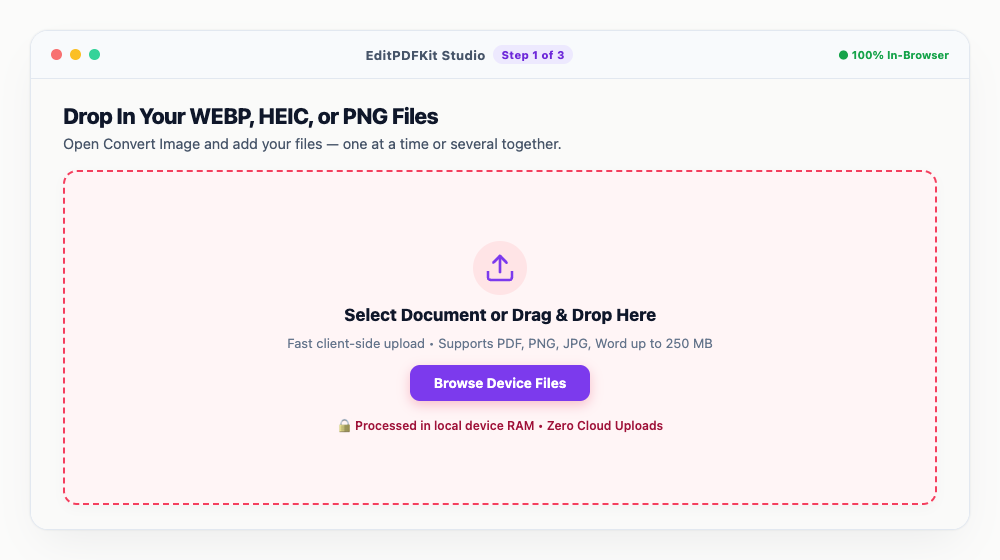
Clipboard images work too: Ctrl+V pastes a copied image straight into the canvas.
- 2
Set JPG as the Output
Pick 'JPG' from the format menu, then adjust the quality slider — 92% is a solid balance of sharpness and size for most photos.
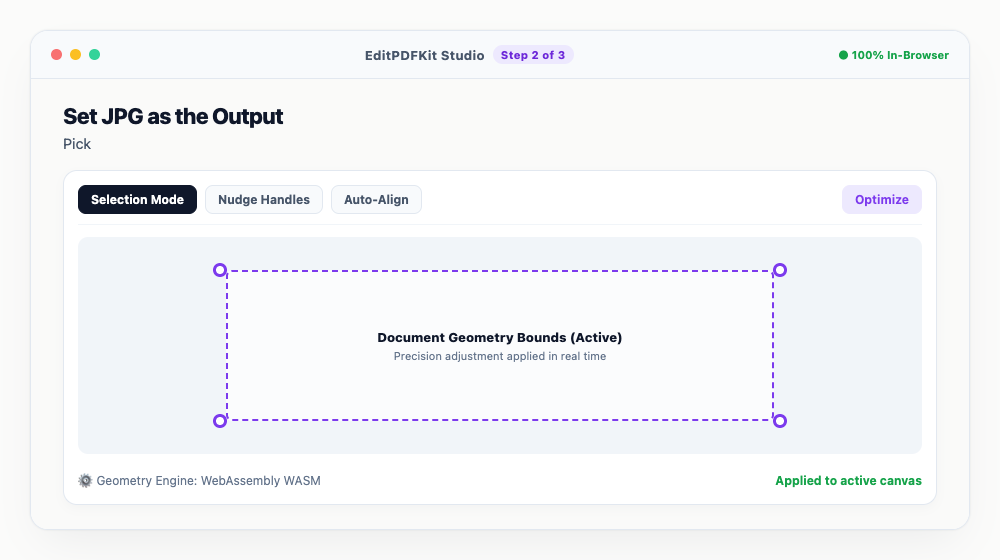
Need transparency instead? PNG's still an option here, as is modern WebP compression if that's actually what you want.
- 3
Check the Converted Thumbnails
A quick look at the previews confirms clarity, orientation, and color came through correctly.
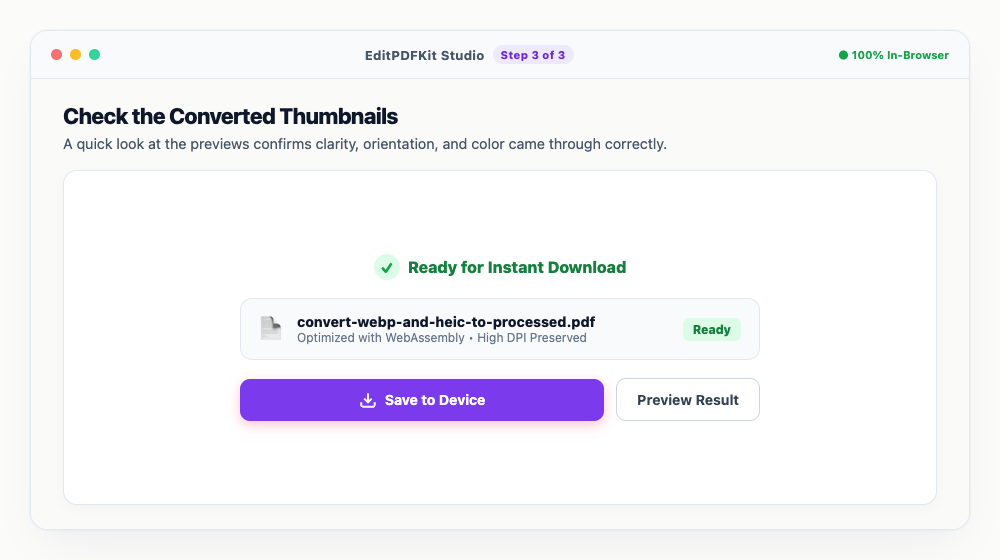
A phone photo landed sideways? The rotate tool fixes that right in the same screen.
- 4
Download the JPGs
'Save Converted Image' or 'Download All as ZIP' for a batch — either way, the files open cleanly in Photoshop, Word, or any upload portal now.
Still too large for a job application form? Run the output straight through Compress Image next.
Why use EditPDFKit for this
- Universal Compatibility: converts stubborn WebP and HEIC images into widely supported JPG format
- Retains crisp colors and resolution with zero pixelation or ugly compression artifacts
- Batch mode: convert up to 30 photos simultaneously and download all as a neat ZIP file
- 100% Client-Side Privacy: processed directly in your browser without uploading to the cloud
What Is Converting WEBP/HEIC to JPG?
Converting WEBP or HEIC to JPG means turning a newer, more efficient image format into the one format nearly every piece of software from the last two decades can open without a second thought. WebP and HEIC exist for good technical reasons — both compress noticeably smaller than JPG at equivalent visual quality, using prediction and compression techniques adapted from modern video codecs — which is why Google pushes WebP across the web and Apple made HEIC the default iPhone photo format.
The tradeoff is universal support: a lot of older software, specific Windows photo viewers, printing kiosks, and upload forms simply don't recognize either format and silently refuse to open or accept the file.
Typical Situations This Solves
Photographers, iPhone users transferring photos to PC, web designers, and office workers all hit this compatibility wall from different angles. A photographer downloading a product image off a modern website gets a .webp file they can't drop directly into a PowerPoint deck or older editing software. An iPhone user AirDropping or emailing photos to a Windows-using colleague sends a folder their photo app can't preview at all.
A web designer pulling assets from a design system exported in WebP needs them in JPG for a client deliverable that doesn't support the newer format, and office workers receiving HEIC photos from a colleague's iPhone need them converted before inserting into a document or presentation.
Features Worth Knowing About
Universal compatibility conversion turns stubborn WebP and HEIC images into widely supported JPG format that opens anywhere. The process retains crisp colors and resolution with zero pixelation or ugly compression artifacts, so you're not trading format compatibility for visible quality loss.
Batch mode converts up to 30 photos simultaneously and downloads them all as a neat ZIP file, useful for a whole folder of iPhone photos or downloaded web images at once. And because everything processes directly in your browser, there's no cloud upload involved regardless of batch size.
Why It Takes Almost No Effort
The process is four steps: drop in your WEBP, HEIC, or PNG files, set JPG as the output and adjust the quality slider, check the converted thumbnails, and download. Clipboard images work too — a copied image pastes straight into the canvas with Ctrl+V.
There's no software to install and no account required, and if a converted photo still needs to shrink further for something like a job application form, running the output through Compress Image next takes just a few more seconds.
Frequently asked questions
Why does my computer show WEBP images instead of JPG?
Modern websites use WebP to save bandwidth. However, many older image viewers, email clients, and desktop applications still require standard JPG or PNG files.
Can I convert Apple HEIC photos from my iPhone without an app?
Yes. Simply open EditPDFKit in Safari or Chrome on your iPhone or Mac, select your HEIC photos from your gallery, and convert them to standard JPG instantly.
Will converting HEIC to JPG reduce image sharpness?
Not when converted at high quality (90%+). EditPDFKit preserves the full sensor resolution and color reproduction of your original camera photos.
Neither WebP nor HEIC are "wrong" formats — they're genuinely more efficient, which is exactly why platforms default to them. But efficiency only helps if the file actually opens where you need it to, and JPG remains the safest bet when you're sending a photo somewhere you don't control. Converting takes a few seconds and keeps full resolution and color accuracy intact, so the next stubborn .webp or .heic file doesn't have to become a compatibility headache.
Pairs well with
AI to PDF
Pull the PDF document that Adobe Illustrator already wrote inside your .ai file back out as a standalone PDF.
ARW to PDF
Build a PDF proof sheet from Sony Alpha frames — and find out why the .ARW itself has to be developed before any PDF can hold it.
AVIF to PDF
Put AVIF images on PDF pages, with a straight account of what the re-encoding step costs — transparency, extra bit depth and HDR all go.
Related posts
Image Compression
How to Compress Images to 200KB (or Any Target Size) Without Quality Loss
Image Resizing
How to Resize Photos & Signatures for Online Applications (US Visa, Passports & Forms)
Format Conversion
How to Convert iPhone HEIC and JPG Photos to PDF Documents
Document Conversion
How to Convert PDF to Editable Word (DOCX) Without Losing Formatting
OCR & Text Extraction
How to Extract Text and Tables from Scanned PDFs with Free OCR