
How to Reduce Image Quality and File Size Online (Free Image Quality Reducer)
Whether you need to upload a smaller photo to a website, reduce image quality to meet strict KB limits, or optimize images for faster web performance, EditPDFKit's Image Quality Reducer allows you to visually adjust quality with real-time before/after comparison.
"Reduce image quality" sounds like it should mean the same thing as "reduce file size," but they diverge in an important way once you're trying to hit a specific target. Quality is a single input knob (a percentage from 1-100 fed to the JPEG/WebP encoder); file size is the output you actually care about, and the relationship between the two isn't linear or predictable from the number alone — a 70%-quality photo of a plain white document might be smaller than a 90%-quality photo of a busy, detailed scene, because the encoder's output size depends heavily on how much visual detail is actually in the image, not just the quality percentage you typed in.
That's why a quality slider alone leaves you guessing — drag it, check the resulting KB, drag it again if it's not close enough, repeat. A tool that shows both the slider AND a target-KB mode side by side lets you pick whichever framing matches what you're actually trying to accomplish: visually judging an acceptable tradeoff, or hitting an exact number a form requires.
Open Compress Image now
Step by step
4 steps- 1
Drop In the Image You're Shrinking
Open Compress Image and add your JPG, PNG, or WebP file to the workspace.
Open Compress Image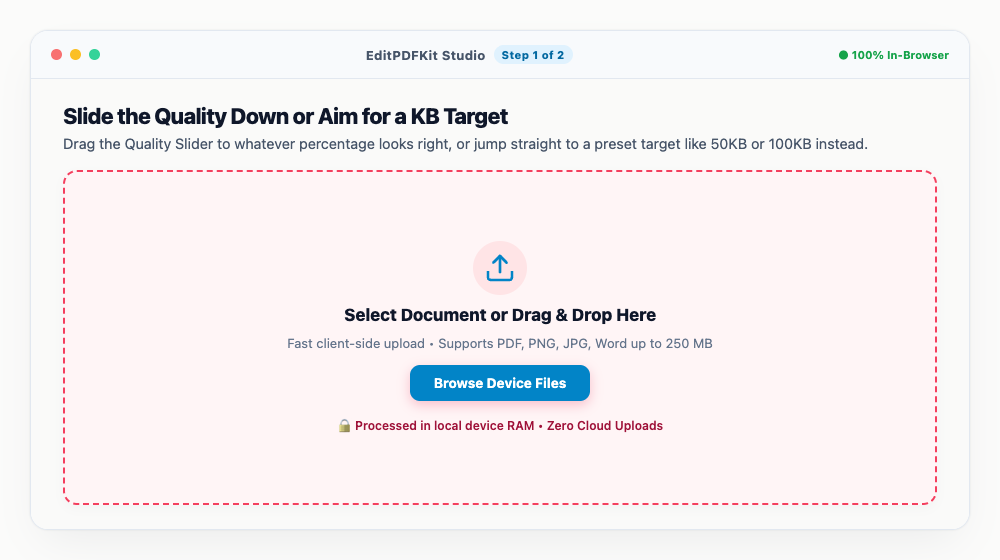
High-resolution camera photos and plain screenshots both work fine straight off the device.
- 2
Slide the Quality Down or Aim for a KB Target
Drag the Quality Slider to whatever percentage looks right, or jump straight to a preset target like 50KB or 100KB instead.
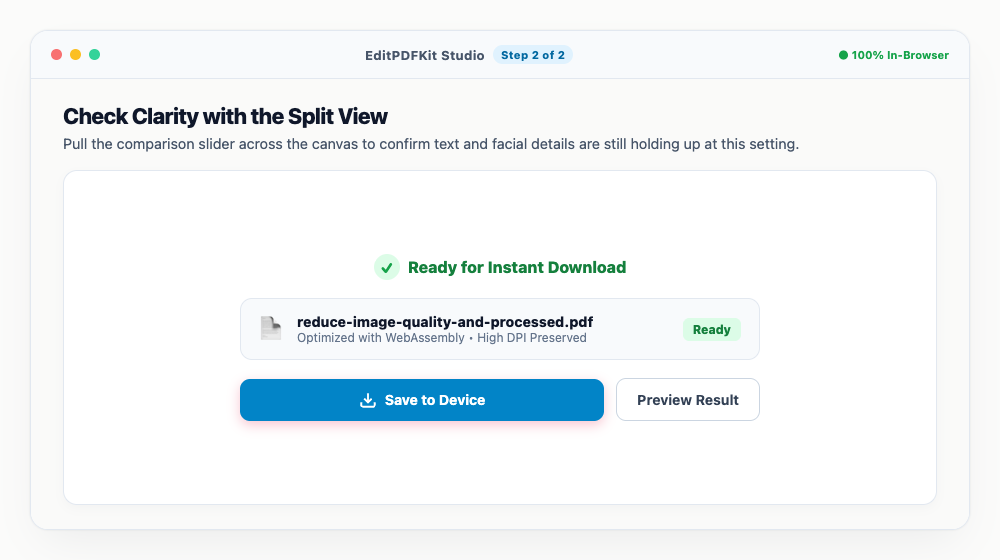
Watch the live file size readout update as you adjust — it tells you exactly what you're trading for what.
- 3
Check Clarity with the Split View
Pull the comparison slider across the canvas to confirm text and facial details are still holding up at this setting.
Invisible metadata gets stripped out as part of the same pass, ahead of any visible pixel reduction.
- 4
Save the Reduced File
'Save Compressed Image' downloads the optimized photo right away, with no watermark attached.
Working through several photos? Batch them and pull the whole set down together as one ZIP.
Why use EditPDFKit for this
- Visual Quality Slider: Adjust quality smoothly from 1% to 100% with live file size readout
- Target KB Preset solver: Automatically reduce quality to reach 20KB, 50KB, 100KB, or 200KB
- Zero Cloud Uploads: 100% in-browser processing preserves privacy for sensitive photos
- Batch Reducer: Reduce quality and file size for up to 30 photos simultaneously
What Is Reducing Image Quality to Cut File Size?
Reducing image quality means lowering the compression quality setting fed to the JPEG/WebP encoder, which in turn shrinks the resulting file size — but quality and file size aren't the same thing, and they don't relate linearly. Quality is a single input knob (1-100%); file size is the output you actually care about, and the relationship between them depends heavily on how much visual detail an image actually contains, not just the number you typed in.
A quality slider alone leaves you guessing at the resulting size; pairing it with a target-KB mode lets you either make a visual judgment call or hit an exact number a form requires.
Common Use Cases
Students applying to exam portals, web developers optimizing website speed, and anyone needing a free online image quality reducer all come at this from different angles. A student applying to an exam portal needs a photo under a strict KB ceiling and doesn't want to guess at quality percentages through trial and error. A web developer optimizing page load speed needs to shrink hero images and thumbnails to a size budget that keeps the site fast, often across dozens of images at once.
Anyone preparing a photo for an email attachment size limit, a forum upload cap, or a messaging app's compression needs the same core capability: get a smaller file without destroying the image's legibility.
Key Features That Make This Easy
The Visual Quality Slider adjusts smoothly from 1% to 100% with a live file size readout, so you see exactly what you're trading for what as you drag it. The Target KB Preset solver flips that around, automatically reducing quality to reach 20KB, 50KB, 100KB, or 200KB without you hunting for the right percentage manually.
Because processing happens 100% in-browser, there are zero cloud uploads — a meaningful privacy benefit for sensitive photos — and the Batch Reducer handles up to 30 photos simultaneously, useful for a web developer optimizing an entire image library at once rather than one file at a time.
Why It's Simple to Use
The whole process is four steps: add your image, slide the quality down or pick a KB target, check clarity with the split-view comparison, and save. There's no encoder settings or technical jargon to understand — the slider and the live size readout make the tradeoff visible as you adjust it.
No account or software install is needed, and working through a whole batch of photos is just as simple as doing one — select them all, apply the same setting, and download everything together as a ZIP.
Frequently asked questions
What does an image quality reducer do?
An image quality reducer optimizes the compression quantization tables and strips non-essential color variations and metadata, dramatically lowering the file size in kilobytes while retaining visual clarity.
Can I reduce image quality without making it visibly pixelated?
Yes. Setting quality between 75% and 85% typically reduces file size by 60% to 80% without any discernible loss in visual sharpness.
Is this image quality reducer completely free?
Yes, 100% free with unlimited conversions, no registration, and zero watermarks.
Do I need to install any software to reduce image quality and file size online (free image quality reducer)?
No installation needed — the full process — reduce image quality and file size online (free image quality reducer) — runs directly inside your web browser using our compress image tool, powered by WebAssembly. Skip the account creation and extension install — it just works in the tab you have open.
Is this approach suitable for students applying to exam portals?
Yes — this covers a real need for students applying to exam portals, web developers optimizing website speed, and anyone needing a free online image quality reducer. Desktop, Android, or iOS — the process is the same, and your file never leaves the device.
What's the difference between this and the Target KB mode in Compress Image?
They're the same engine viewed from two angles: drag the Quality Slider manually to see the resulting KB in real time, or type a Target KB number and let the solver pick the matching quality automatically — use whichever workflow matches how your form's requirement is phrased.
Does reducing quality strip EXIF or GPS data from my photo?
Yes, as a side effect — recompressing the image discards embedded EXIF and GPS metadata along with redundant color data, which adds a small privacy benefit on top of the smaller file size.
Quality and file size are related but not interchangeable — one is an input, the other is the output you actually care about. Whichever mode fits your situation, the goal is the same: the smallest file that still looks right, reached without a dozen rounds of trial and error.
Pairs well with
Barcode Generator
Generate a Code 128, EAN-13, UPC-A or Code 39 barcode as a PNG, with the number printed beneath.
Photo Collage Maker
Drop photos into a grid, filmstrip, spotlight, mosaic or tilted polaroid layout and export one picture.
Compress Image to 200KB
Bring a JPG or PNG under 200 KB without the face going blotchy — sized for exam-form photos and portal uploads.
Related posts
Image Compression
How to Compress Images to 200KB (or Any Target Size) Without Quality Loss
Image Resizing
How to Resize Photos & Signatures for Online Applications (US Visa, Passports & Forms)
Exam & Govt Portals
How to Compress a Passport Photo and Signature for Online Application Portals
AI & Image Editing
How to Remove Image Backgrounds for Free with Instant Subject Cutouts
Image Cropping
How to Crop Photos into Perfect Circles and Profile Avatars