
How to Convert Excel (XLSX) to PDF Without Cutting Off Columns or Tables
Converting large Microsoft Excel spreadsheets (.xlsx or .xls) to PDF often results in a formatting nightmare: wide financial models and data tables get sliced down the middle, spilling 2 columns onto a second page. EditPDFKit's Excel to PDF tool automatically calculates table widths, fits columns onto single pages, and supports landscape orientation for clean, executive-ready PDF reports.
Open a wide financial model in Excel — forty columns of monthly figures across several years — hit 'Save as PDF' straight from Excel's default print settings, and the result is almost always the same disappointing outcome: column 23 onward gets sliced off and dumped onto a second (or third, or fourth) page, with no indication from the original sheet of where that split would land until you're staring at the broken output. Excel's native PDF export uses whatever print area and page orientation the sheet happens to be set to, which is rarely configured with 'this needs to print as one coherent page' in mind, because most spreadsheets are built for screen viewing and editing, not for print layout.
Getting a wide table to actually fit on one page means solving a genuine layout problem: scaling font size, column width, and margins together so the full table width matches the page width, rather than just hoping the default settings happen to work.
Open Excel to PDF now
Step by step
4 steps- 1
Bring In Your Workbook
Drop your .xlsx or .xls file into the Excel to PDF tool — if it has several worksheets, they'll all come along into one unified PDF.
Open Excel to PDF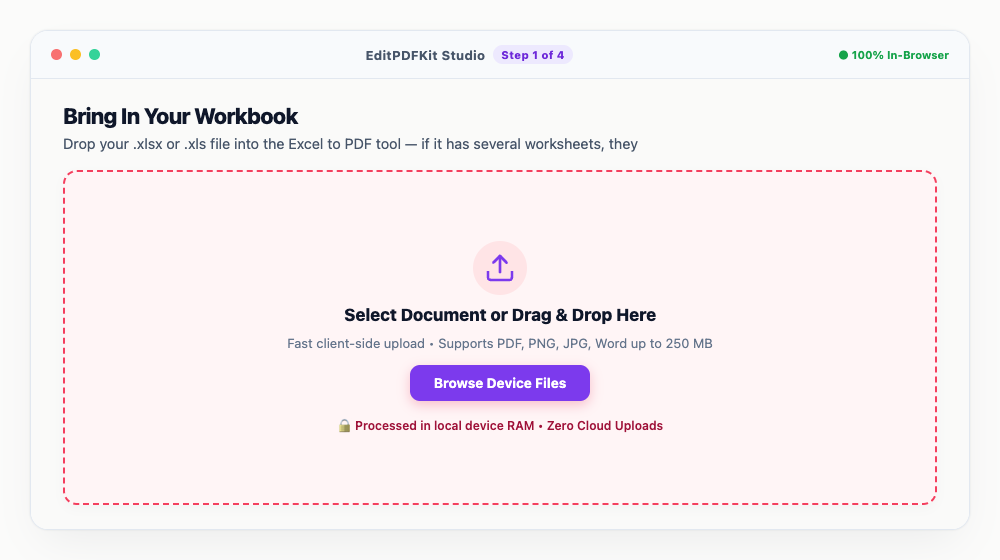
Multi-sheet workbooks convert into one continuous multi-page PDF rather than separate files, so nothing needs stitching together afterward.
- 2
Choose How the Columns Should Fit
Switch to Landscape orientation if your sheet is wide, and turn on 'Fit All Columns on One Page' so nothing gets awkwardly split across page breaks.
Wide financial tables almost always read better landscape than portrait — it gives the columns room to breathe.
- 3
Check the Table Before Exporting
Look over the preview for cell alignment, border lines, and number formatting like currency symbols or decimal places.
If you want visible table borders in the final PDF, make sure gridlines are switched on before converting.
- 4
Convert and Save the Report
Click 'Convert to PDF' and the finished, publication-ready report compiles and downloads.
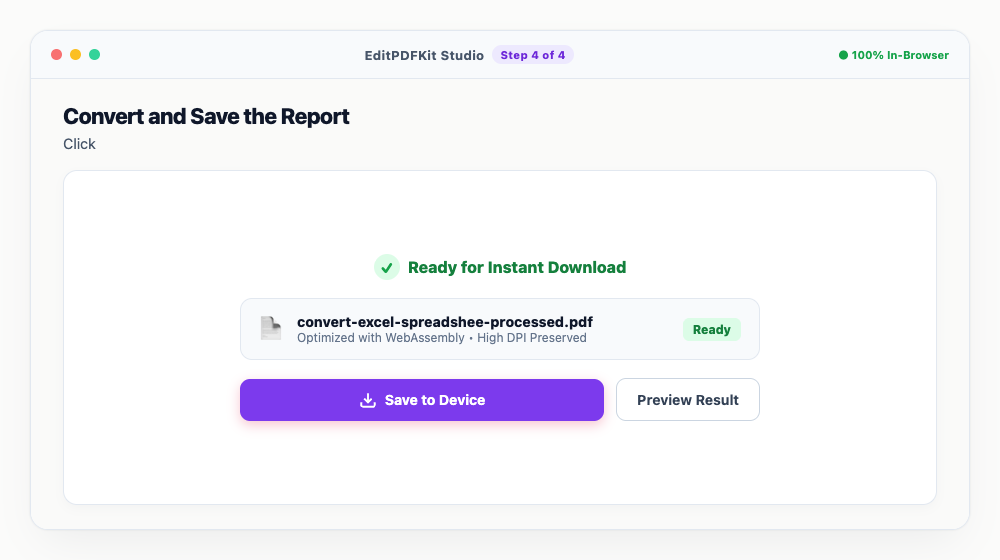
The output is clean enough to print, email to stakeholders, or file away for archival as-is.
Why use EditPDFKit for this
- Fit-to-Page Algorithm: automatically scales wide spreadsheets so all columns fit on a single sheet width
- Landscape & Portrait Orientations: toggle between orientation layouts with one click
- Preserves Formulas & Formats: keeps cell colors, borders, date formats, and bold headers clean
- 100% Private Financial Data: payroll and financial models are processed locally without cloud leaks
What Is Fit-to-Page Excel to PDF Conversion?
Fit-to-page conversion means scaling a wide spreadsheet's font size, column width, and margins together so the full table width matches the printed page width, rather than letting columns spill onto a second page uncontrolled. Excel's default 'Save as PDF' uses whatever print area and orientation the sheet happens to be set to, which is rarely configured for clean output — the most common result is column 23 onward getting sliced off and dumped onto a following page. EditPDFKit's Excel to PDF tool calculates actual column content width and lays out the page specifically to avoid that split.
Who Typically Uses This
Accountants sharing balance sheets and financial analysts distributing models both deal with wide tables spanning many monthly or yearly columns that need to read as one coherent page, not a document broken across several. HR managers exporting payroll sheets face a similar structural problem, while project leads sharing Gantt charts need wide timeline tables to stay intact for a report to make sense at a glance.
In every case, the underlying need is the same: a spreadsheet built for screen viewing and editing has to become something that reads cleanly as a printed or shared document, which Excel's own default export rarely handles well on its own.
The Features Behind This Workflow
The Fit-to-Page Algorithm automatically scales wide spreadsheets so every column fits on a single sheet width, and switching between Landscape & Portrait Orientations takes one click rather than digging through print setup menus. Preserves Formulas & Formats means cell colors, borders, date formats, and bold headers all carry through exactly as they appeared in the original workbook, since number formatting like '$1,250.00' versus a plain '1250' communicates real meaning that a naive export would otherwise flatten away.
Multi-sheet workbooks also convert into one continuous multi-page PDF automatically, so nothing needs manual stitching afterward.
Why This Workflow Just Works
The process is four steps: load your workbook, choose orientation and fit-to-page settings, check the preview for alignment and formatting, then convert and download. No account or install is required, and because the entire conversion happens locally in your browser, a payroll sheet or an unreleased financial model never has to be uploaded anywhere just to become a shareable, print-ready PDF.
Frequently asked questions
How do I prevent Excel from splitting my table columns across two pages?
In the EditPDFKit conversion settings, enable 'Fit All Columns on One Page' and select 'Landscape' mode. This automatically scales font sizes and cell padding so the table spans the full width of one page.
Can I convert multi-sheet Excel workbooks into a single PDF?
Yes! You can choose to convert all worksheets in your workbook sequentially into a single unified multi-page PDF document.
Are my confidential company financial spreadsheets safe?
100% safe. EditPDFKit executes spreadsheet parsing and vector PDF rendering locally in your browser. Confidential revenue numbers and salaries are never sent to external servers.
Do I need to install any software to convert excel (xlsx) to pdf without cutting off columns or tables?
No download is needed. The whole process — convert excel (xlsx) to pdf without cutting off columns or tables — runs directly inside your web browser using our excel to pdf tool, powered by WebAssembly. No browser extension or account is needed — just open the tool and go.
Is this approach suitable for accountants sharing balance sheets?
Yes — this is a common use case for accountants sharing balance sheets, financial analysts distributing models, hr managers exporting payroll sheets, and project leads sharing gantt charts. The file never leaves your device, and this works the same on desktop, Android, and iOS.
Will my currency symbols and date formats stay intact in the PDF?
Yes. The converter reads each cell's applied number format — currency symbols, decimal places, and date patterns — directly from the workbook, so a cell showing "$1,250.00" or "09/22/2026" renders the same way in the output PDF.
A financial report that arrives with half its columns cut off looks unprofessional at best and is genuinely unusable at worst if the missing columns held figures someone actually needed. Converting with landscape orientation and fit-to-page enabled from the start avoids the problem entirely, and because the conversion happens locally in your browser, a payroll sheet or an unreleased financial model never has to be uploaded anywhere just to become a shareable PDF.
Pairs well with
AI to PDF
Pull the PDF document that Adobe Illustrator already wrote inside your .ai file back out as a standalone PDF.
ARW to PDF
Build a PDF proof sheet from Sony Alpha frames — and find out why the .ARW itself has to be developed before any PDF can hold it.
AVIF to PDF
Put AVIF images on PDF pages, with a straight account of what the re-encoding step costs — transparency, extra bit depth and HDR all go.
Related posts
PDF to Excel
How to Convert PDF Tables to Editable Excel (XLSX) Without Messy Formatting
Word to PDF
How to Convert Word (DOCX) to PDF Without Formatting Shift or Font Changes
Email PDF Compressor
How to Compress Large PDF Documents Under 25MB for Email Attachments (Gmail & Outlook)
Document Conversion
How to Convert PDF to Editable Word (DOCX) Without Losing Formatting
OCR & Text Extraction
How to Extract Text and Tables from Scanned PDFs with Free OCR