
How to Convert Word (DOCX) to PDF Without Formatting Shift or Font Changes
Sending a Word document to a client or recruiter often leads to formatting glitches, missing fonts, and misaligned margins. Converting DOCX to PDF locks your fonts, line breaks, and page layout permanently so it looks flawless on every screen.
A .docx file doesn't actually contain your fonts — it references them by name and trusts whatever computer opens the file to have a matching font installed. If you carefully formatted a resume in a licensed font like Calibri Light or a custom serif, and the recruiter's computer doesn't have that exact font, Word silently substitutes something else: line lengths shift, page breaks land in different places, and a resume that fit perfectly on one page suddenly spills onto a second. The same applies to custom margins, table borders, and header/footer positioning — all of it is reconstructed live by whatever version of Word (or Google Docs, or LibreOffice) opens the file, with no guarantee it matches what you saw while writing it.
A PDF sidesteps this entirely because it's a fixed-layout format: every character's exact position, every font's actual outline (not just its name), and every line and table border gets baked permanently into the file at conversion time. Nothing is "re-rendered" by the viewer — a PDF opened on a Linux machine with zero fonts installed looks pixel-identical to the same file opened on the Mac it was created on.
Open Word to PDF now
Step by step
4 steps- 1
Bring In Your Word File
Open Word to PDF and drag your .docx document into the browser.
Open Word to PDF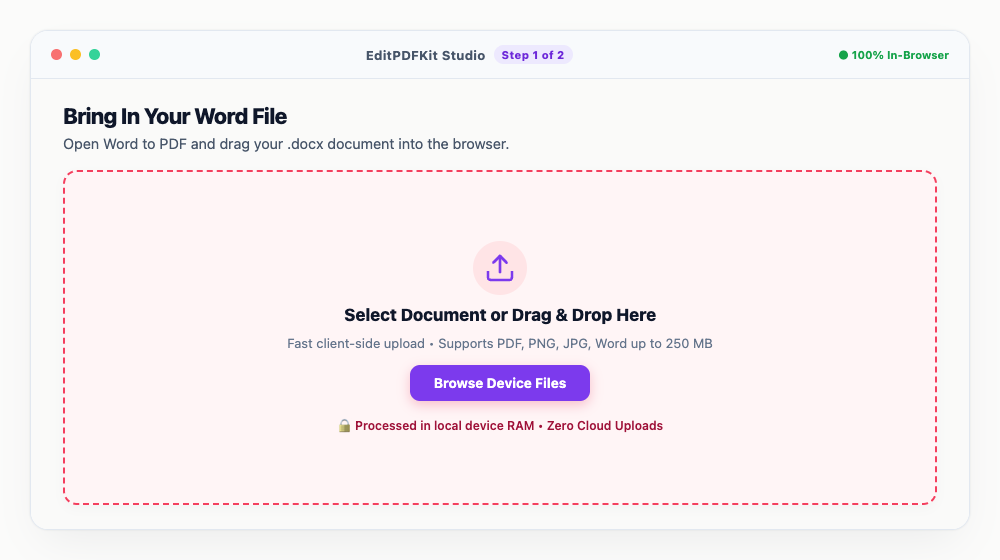
Files from Microsoft Word, Google Docs, Apple Pages, or LibreOffice all convert the same way.
- 2
Let It Parse the Document's Structure
The engine reads headings, bullet points, font styles, and table borders to carry everything across faithfully.
Standard margins and typography carry over automatically — no manual adjustment needed on your end.
- 3
Convert to PDF
'Convert to PDF' compiles the document into a standard, ISO-compliant PDF file.
The output is immediately ready for printing or for adding a digital signature afterward.
- 4
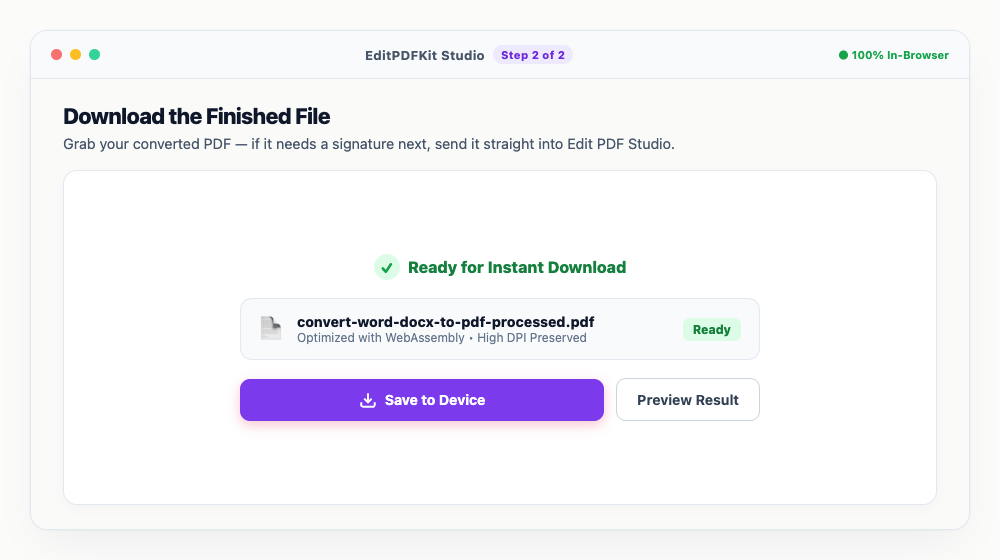
Download the Finished File
Grab your converted PDF — if it needs a signature next, send it straight into Edit PDF Studio.
Applying to a job portal with a size cap? Run it through Compress PDF to get under 200KB afterward.
Why use EditPDFKit for this
- Locks fonts, header margins, and table alignments exactly as you designed them
- Ensures your resume or contract looks identical on Windows, Mac, iPhone, and Android
- Generates lightweight, compact PDFs optimized for email attachments and portal uploads
- 100% Free and Private: processed with zero third-party software installation required
What Is Converting Word to PDF Without Formatting Shift?
Converting Word to PDF without formatting shift means locking a .docx file's fonts, margins, line breaks, and table alignment permanently into the output so it looks identical on every device, instead of letting the layout re-render differently depending on what fonts and Word version happen to be installed on the viewer's machine. A .docx file doesn't actually contain your fonts — it references them by name — so if the recipient's computer lacks the exact font you used, Word silently substitutes something else and line lengths, page breaks, and even page count can shift.
A PDF sidesteps this because it's a fixed-layout format: every character's position and every font's actual outline gets baked into the file at conversion time, so nothing is re-rendered by the viewer afterward.
When People Reach for This
Job seekers submitting resumes, authors preparing manuscripts, and students submitting dissertations all need their document's appearance to be guaranteed, not just hoped for. A job seeker submitting a resume needs it to look identical whether the recruiter opens it on a corporate laptop, a phone's mobile Office app, or Google Docs — a shifted page break or substituted font can read as carelessness even though the content was never touched.
An author preparing a manuscript for submission needs consistent formatting across every reviewer's device, and a student submitting a dissertation to a university portal needs to guarantee the exact page layout the formatting guidelines required, not whatever the receiving system's software happens to render.
Built-In Features That Help
Locking fonts, header margins, and table alignments exactly as designed means there's no risk of a recipient's missing font quietly reshuffling your layout. The conversion ensures a resume or contract looks identical on Windows, Mac, iPhone, and Android, since the PDF format doesn't depend on what's installed on the viewing device.
It also generates lightweight, compact PDFs optimized for email attachments and portal uploads, so the converted file isn't unnecessarily large just because it preserved formatting faithfully — and no third-party software installation is required on your end to do any of it.
Why This Approach Is Effortless
The process is four steps: bring in your Word file, let the engine parse its structure, convert to PDF, and download. Files from Microsoft Word, Google Docs, Apple Pages, or LibreOffice all convert the same way, with standard margins and typography carrying over automatically — no manual adjustment needed on your end.
If the resulting PDF needs a digital signature or needs to clear a job portal's size cap afterward, sending it straight into Edit PDF Studio or Compress PDF skips a separate download-and-reupload step.
Frequently asked questions
Why should I convert DOCX to PDF before emailing?
Different devices have different installed fonts and Word versions. A DOCX file can look broken on another computer, whereas a PDF looks 100% identical on every device.
Can I convert documents created in Google Docs?
Yes. Simply download your Google Doc as a .docx file and convert it to a pristine PDF in seconds using EditPDFKit.
Are my resumes and private documents stored on your server?
No. EditPDFKit never saves or shares your uploaded documents. Your files remain confidential and protected.
If a document's final appearance matters — and a resume, a signed contract draft, or a dissertation chapter all qualify — converting it to PDF before you send it removes an entire category of "it looked different on my end" problems. The conversion takes seconds and the layout you see in the preview is exactly what the recipient will see, on any device, with any fonts installed or not. Run your next DOCX through the Word to PDF tool before it leaves your outbox.
Pairs well with
AI to PDF
Pull the PDF document that Adobe Illustrator already wrote inside your .ai file back out as a standalone PDF.
ARW to PDF
Build a PDF proof sheet from Sony Alpha frames — and find out why the .ARW itself has to be developed before any PDF can hold it.
AVIF to PDF
Put AVIF images on PDF pages, with a straight account of what the re-encoding step costs — transparency, extra bit depth and HDR all go.
Related posts
Document Conversion
How to Convert PDF to Editable Word (DOCX) Without Losing Formatting
PDF Editing
How to Edit Existing Text in a PDF and Add a Digital Signature
Spreadsheet Conversion
How to Convert Excel (XLSX) to PDF Without Cutting Off Columns or Tables
eBook Conversion
How to Convert EPUB & MOBI eBooks into Printable PDF Documents
Presentation Conversion
How to Convert PowerPoint (PPTX) Slides into Clean PDF Handouts