
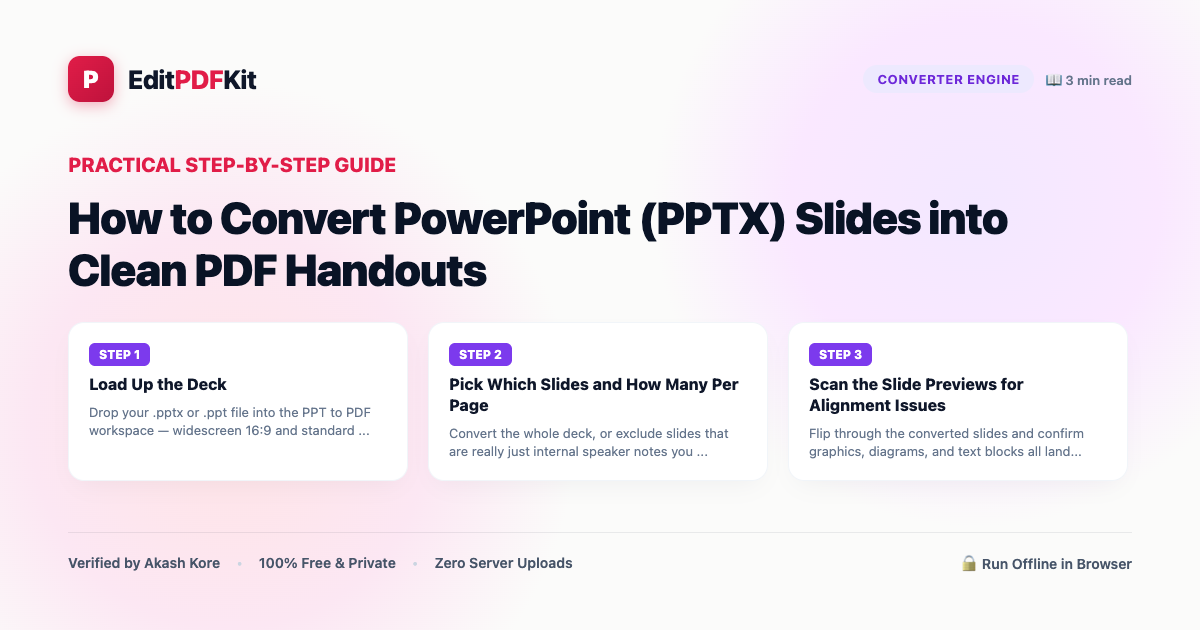
How to Convert PowerPoint (PPTX) Slides into Clean PDF Handouts
Sharing raw PowerPoint files (.pptx) with clients or students frequently leads to missing custom font warnings, shifted text boxes, and formatting errors on devices without Microsoft Office installed. Converting your presentation to PDF freezes slide layouts into universal vector documents that look identical on iPads, Windows PCs, MacBooks, and Android smartphones.
A presentation that looks polished on the machine it was built on can fall apart completely on someone else's — custom fonts silently fall back to generic system fonts, carefully kerned text boxes overflow their bounds, and that elegant typographic treatment on the title slide gets replaced by whatever font Windows or macOS happens to substitute when the original isn't installed. This isn't a bug in PowerPoint; it's a direct consequence of how the format works: a .pptx file references fonts by name but doesn't always embed the font data itself, so rendering depends on what's actually installed on the viewing machine. For a presenter walking into a conference room with an unfamiliar laptop, or a professor emailing lecture slides to students with wildly different devices, this is a real and recurring failure mode.
Open PowerPoint to PDF now
Step by step
4 steps- 1
Load Up the Deck
Drop your .pptx or .ppt file into the PPT to PDF workspace — widescreen 16:9 and standard 4:3 decks both convert the same way.
Open PowerPoint to PDF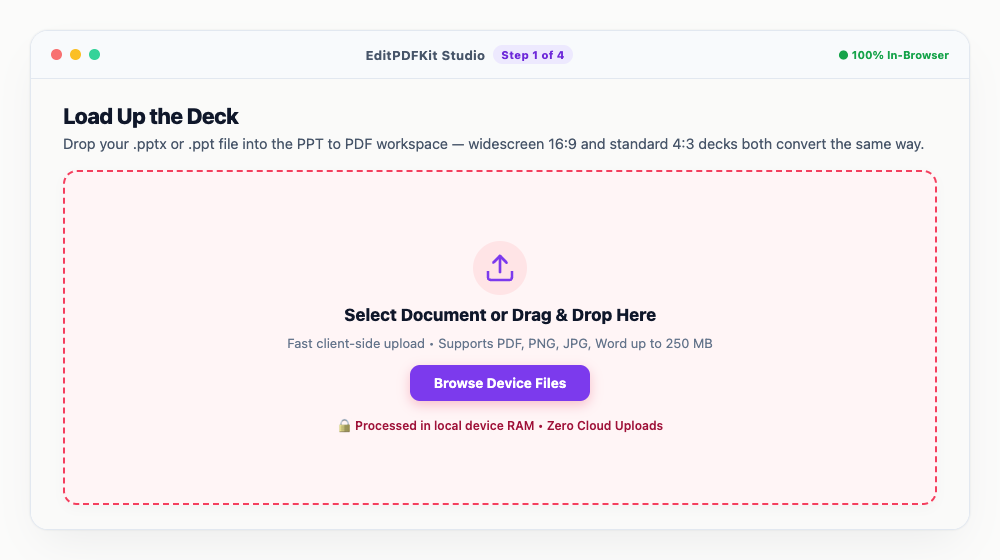
Whatever aspect ratio your slides were built in, that's the aspect ratio that carries through to the PDF.
- 2
Pick Which Slides and How Many Per Page
Convert the whole deck, or exclude slides that are really just internal speaker notes you don't want in the final document — and choose one slide per page for a full-screen viewing PDF, or multiple per sheet for a printable handout.
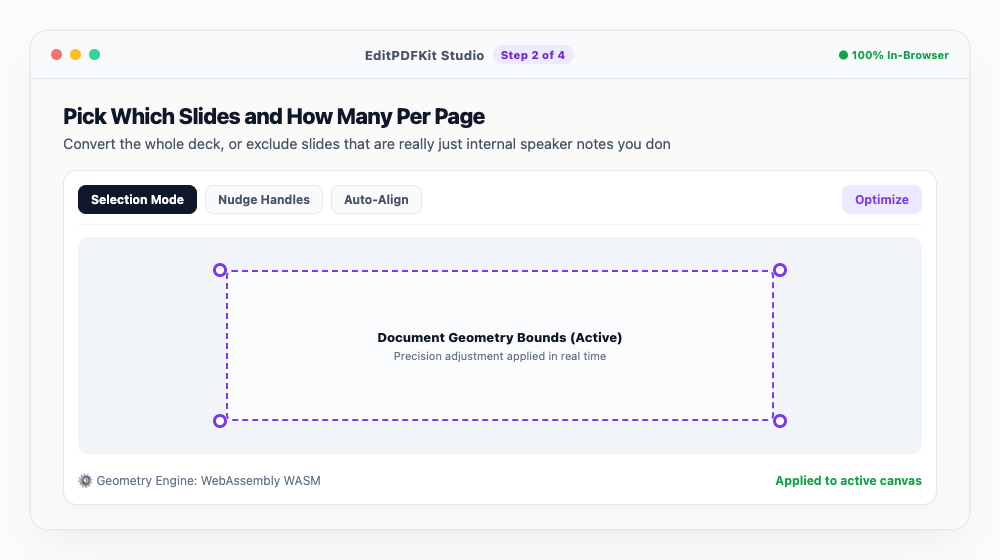
Lecture handouts usually work best with 2 or 4 slides per page; full presentations should stay at 1 per page.
- 3
Scan the Slide Previews for Alignment Issues
Flip through the converted slides and confirm graphics, diagrams, and text blocks all landed cleanly where they belong.
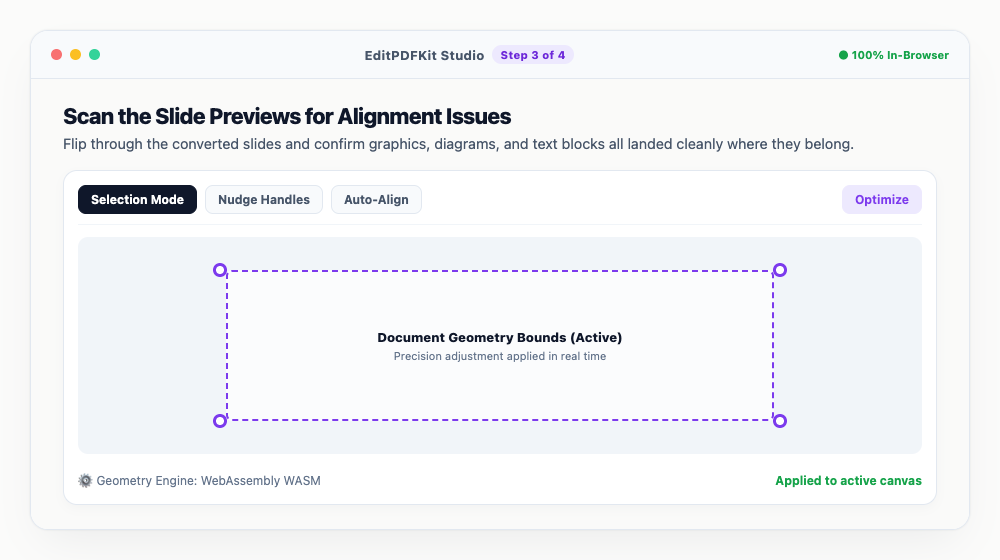
Images come through at full resolution, so anything meant for projector display stays sharp.
- 4
Download the Finished Deck
Click 'Convert to PDF' and the universal slide deck downloads in seconds.
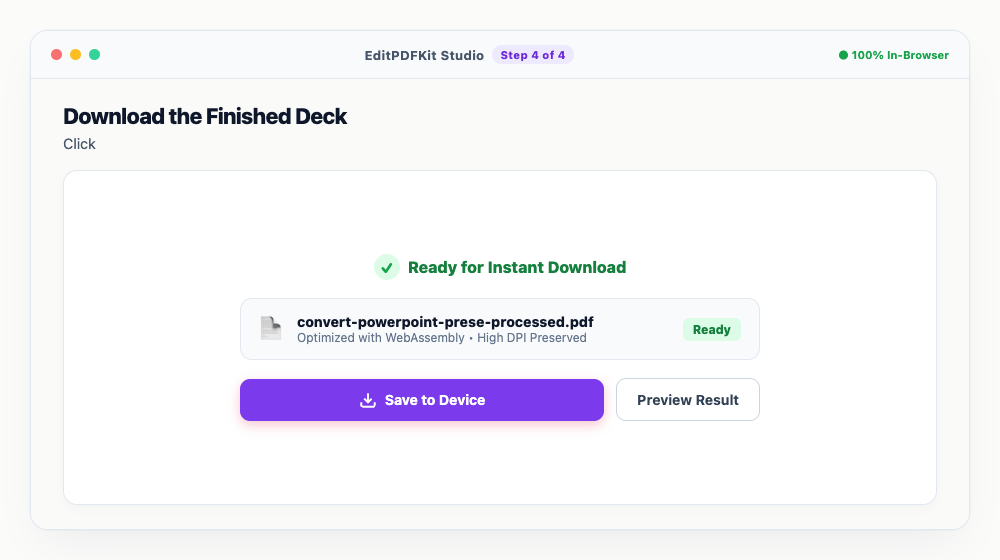
It's ready to present full-screen straight from any standard PDF reader, no PowerPoint installation required.
Why use EditPDFKit for this
- Zero Formatting Shift: vector slide layouts, custom shapes, and images are locked into place
- Font Preservation: embedded fonts are rendered accurately without falling back to generic typefaces
- Universal Viewing: recipients can open the PDF immediately without needing PowerPoint or Office 365
- 100% Private Client Presentations: pitch decks and confidential roadmaps remain completely local
What Is PowerPoint to PDF Conversion?
Converting PowerPoint to PDF means freezing a dynamic, editable slide deck into a fixed, universal document where every font, shape, and layout is baked in permanently, rather than referenced and re-rendered based on whatever software opens it. A .pptx file references fonts by name but doesn't always embed the font data itself, so the exact appearance depends on what's installed on the viewing machine — which is why a deck that looks polished on the machine it was built on can shift fonts or break layout entirely on someone else's. PDF conversion bakes the exact glyph shapes directly into the document instead.
Real-World Scenarios
Keynote speakers walking into a conference room with an unfamiliar laptop need their slides to look identical regardless of what's installed on that machine, while university professors distributing lecture notes need students on wildly different devices — Chromebooks, iPads, Android phones — to all see the same layout. Students submitting project slides and sales executives emailing pitch decks both face the same underlying risk: a recipient without Microsoft Office installed, or without the exact fonts used, seeing something different from what was actually designed.
Converting before sharing removes this entire category of 'it looked fine on my computer' failures.
What Makes This Possible
Zero Formatting Shift means vector slide layouts, custom shapes, and images stay locked exactly in place, and Font Preservation ensures embedded fonts render accurately instead of silently falling back to a generic substitute. Universal Viewing lets any recipient open the PDF immediately without needing PowerPoint or Office 365 installed at all.
You can also choose how many slides land on each page — one per page for a full presentation-style PDF, or multiple per sheet for a paper-saving printed handout — which matters differently depending on whether the deck is headed to a screen or a printer.
What Makes This So Straightforward
The workflow is four steps: load your .pptx or .ppt file, choose which slides and how many per page, scan the preview for alignment, then download. No account or software is required beyond a browser, and there's no meaningful slide-count limit — a 10-slide deck and a 150-slide deck both convert the same way, with the whole process happening locally so a confidential product roadmap never has to touch a third-party server.
Frequently asked questions
Why should I convert PowerPoint slides to PDF before presenting or emailing?
PowerPoint presentations rely on the fonts installed on the host computer. If the conference laptop or client device lacks your fonts, text wraps and diagrams break. PDF locks fonts and graphics into fixed vectors so your presentation always looks flawless.
Will my slide animations or audio clips work in the PDF?
PDFs are static vector documents, meaning slide transitions and audio files are not playable. Each slide is captured in its final visual state, making it ideal for reading, printing, and distribution.
Is there a limit on how many slides I can convert for free?
No. You can convert presentations with 10 slides or 150 slides without any paywalls or limitations.
Do I need to install any software to convert powerpoint (pptx) slides into clean pdf handouts?
Nothing to install — this workflow — convert powerpoint (pptx) slides into clean pdf handouts — runs directly inside your web browser using our ppt to pdf tool, powered by WebAssembly. No extension, no sign-up, and nothing to install beforehand.
Is this approach suitable for keynote speakers?
Yes, this workflow is commonly used by keynote speakers, university professors distributing lecture notes, students submitting project slides, and sales executives emailing pitch decks. Nothing is uploaded, and the workflow is identical across desktop, Android, and iOS.
How do I create printable handouts with multiple slides per page?
In the slide range and layout step, choose a multi-slide-per-sheet option instead of 1 slide per page — this packs several slide thumbnails onto each printed page, which saves paper for classroom or conference handouts.
Converting to PDF before sending a deck anywhere outside your own machine removes an entire category of 'it looked fine on my computer' failures. Whether it's heading to a client's inbox, a printer for handouts, or a borrowed laptop at a conference podium, the layout and fonts travel with the file instead of depending on what's installed wherever it's opened — and since conversion happens locally, an unreleased product roadmap or a confidential pitch deck never needs to touch a third-party server to make that trip.
Pairs well with
AI to PDF
Pull the PDF document that Adobe Illustrator already wrote inside your .ai file back out as a standalone PDF.
ARW to PDF
Build a PDF proof sheet from Sony Alpha frames — and find out why the .ARW itself has to be developed before any PDF can hold it.
AVIF to PDF
Put AVIF images on PDF pages, with a straight account of what the re-encoding step costs — transparency, extra bit depth and HDR all go.
Related posts
PDF to Presentation
How to Convert PDF Presentations into Editable PowerPoint (PPTX) Slides
Email PDF Compressor
How to Compress Large PDF Documents Under 25MB for Email Attachments (Gmail & Outlook)
Word to PDF
How to Convert Word (DOCX) to PDF Without Formatting Shift or Font Changes
Document Conversion
How to Convert PDF to Editable Word (DOCX) Without Losing Formatting
OCR & Text Extraction
How to Extract Text and Tables from Scanned PDFs with Free OCR