
How to Compress Large PDF Documents Under 25MB for Email Attachments (Gmail & Outlook)
Email providers strictly reject oversized documents: Gmail blocks attachments over 25MB, and Microsoft Outlook (Exchange) caps them at 20MB. EditPDFKit's client-side compression engine lets you shrink 50MB–100MB documents down to email-ready sizes without touching text sharpness or uploading sensitive business data to the cloud.
A PDF can balloon well past email size limits for a reason that has nothing to do with its page count: embedded raster images. A single high-resolution architectural rendering, a scanned contract saved at full camera resolution, or a pitch deck full of uncompressed photos can each weigh tens of megabytes on their own, and a 15-page document built from several of them easily crosses Gmail's 25MB ceiling or Outlook's 20MB cap — at which point the email either bounces outright or gets silently converted to a cloud-storage share link, which not everyone's recipient inbox or corporate security policy is comfortable clicking.
The instinct to "just compress the PDF" sometimes raises a separate worry: will the compression blur the body text along with the images? It doesn't have to, because PDF text and raster images are stored as entirely separate data types internally — text as mathematical vector outlines, images as pixel grids — which means a compression pass can selectively downsample just the embedded images while leaving the vector text completely untouched at any zoom level.
Open Compress PDF now
Step by step
4 steps- 1
Drop In the Oversized PDF
Open Compress PDF and bring in your heavy presentation, portfolio, or scan — files up to 200MB process locally without issue.
Open Compress PDF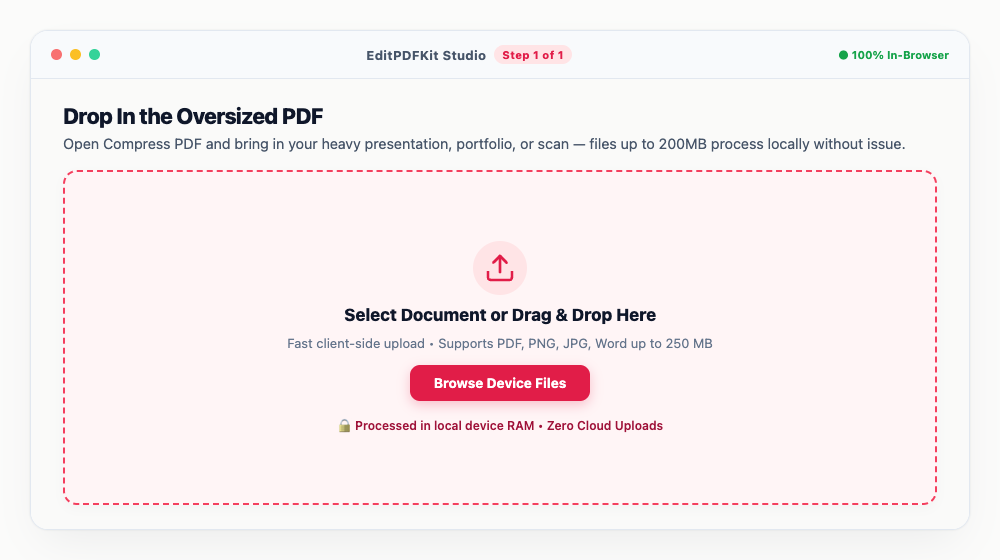
An interactive fillable form should go through Flatten PDF first to strip invisible form overhead before you compress it.
- 2
Pick a Compression Level
'Medium' (150 DPI) suits most email attachments, 'Light' (300 DPI) keeps things print-ready, and 'Heavy' (72 DPI) is for files already north of 80MB.
Medium typically shaves 40-60% off the file size with nothing visibly different on a laptop or phone screen.
- 3
Confirm You're Under the Limit
Check the instant size readout against Gmail's 25MB ceiling or Outlook's 20MB cap, so your email doesn't get auto-converted into a Drive or OneDrive link.
Still a touch over? Switch to Heavy compression, or split the document into two parts and send it across two emails.
- 4
Download and Attach
'Download Compressed PDF' hands you a file ready to attach directly in Gmail, Apple Mail, or Outlook — no bounce, no delay.
Saving straight to your offline browser vault works too, if you'd rather skip the download step for now.
Why use EditPDFKit for this
- Bypasses Gmail (25MB) and Outlook (20MB) attachment bounce rejections automatically
- Vector Typography Protection: text is preserved as mathematical curves so contracts remain razor-sharp
- DPI Optimization: selects the ideal downsampling level (300 DPI Light, 150 DPI Medium, 72 DPI Heavy)
- Zero Cloud Uploads: confidential contracts, tax returns, and pitch decks stay 100% on your device
- Tool-Chaining Friendly: combine with Flatten PDF or Split PDF for extreme size reductions
What Is Compressing a PDF for Email?
Compressing a PDF for email means shrinking its embedded images down to a resolution that keeps the whole file under a provider's attachment ceiling — Gmail's 25MB limit, Outlook's 20MB cap — without touching the document's text, which is stored as mathematical vector outlines entirely separate from pixel data. Most oversized PDFs aren't large because of page count; they're large because of a handful of embedded images saved at far higher resolution than the document actually displays.
A photo captured at a modern phone's full resolution and dropped into a page that only shows it at a few inches wide carries many times more pixel data than it needs, and that compounds quickly across a multi-image document.
Who This Is Built For
Corporate executives, architects, graphic designers, job applicants, lawyers, and students sending email attachments all hit provider size limits at inconvenient moments. A corporate executive emailing a board presentation full of high-resolution charts needs it under Outlook's cap without the slides looking noticeably degraded. An architect sending a rendering-heavy portfolio needs the images compressed enough to email directly rather than forcing the recipient to click a cloud-storage link.
A job applicant emailing a portfolio or resume with embedded images needs it to arrive as an attachment, not bounce back with an oversize rejection. Lawyers and students sending scanned multi-page documents or reports face the identical constraint: shrink the file without visibly degrading the content that matters.
The Tools That Do the Work
The compressor automatically bypasses Gmail's 25MB and Outlook's 20MB attachment bounce rejections by targeting a size comfortably under both. Vector typography protection keeps text preserved as mathematical curves so contracts and reports remain razor-sharp regardless of how aggressively images are compressed.
DPI optimization selects the ideal downsampling level — 300 DPI Light, 150 DPI Medium, or 72 DPI Heavy — depending on how image-dense the document is, and because everything runs client-side, confidential contracts, tax returns, and pitch decks stay 100% on your device throughout.
What Makes This Quick
The process is four steps: drop in the oversized PDF, pick a compression level, confirm you're under the limit using the instant size readout, and download. Files up to 200MB process locally without issue, so there's no separate server-side size restriction to worry about beyond the email provider's own cap.
No software install or account is needed, and if a single compression pass still isn't enough, chaining with Flatten PDF or Split PDF handles the more extreme size-reduction cases without leaving the browser.
Frequently asked questions
What are the exact email attachment limits for major providers?
Gmail enforces a strict 25MB total attachment limit. Microsoft Outlook and Office 365 cap attachments at 20MB by default. Yahoo Mail and Apple Mail cap files at 25MB and 20MB respectively. Compressing below 20MB ensures your email reaches any recipient worldwide without bouncing.
Will compressing my PDF make the text look blurry or pixelated?
Never. PDF text and fonts are stored as mathematical vector paths, not pixels. Our compression engine only optimizes embedded raster photos and strips unneeded metadata—your text remains 100% vector-sharp at any zoom level.
Which compression level should I choose: Light, Medium, or Heavy?
Use Light (300 DPI) if you plan to print the document on high-end office printers. Use Medium (150 DPI) for 95% of business emails, resumes, and client proposals. Use Heavy (72 DPI) when you need maximum size reduction to hit strict portal or email limits.
What should I do if my compressed PDF is still too large for email?
If Heavy compression doesn't get your PDF below 25MB, use our Split PDF tool to divide the document into two sections (e.g. Pages 1-15 and Pages 16-30) and send them across two emails, or flatten form fields with Flatten PDF.
Do I need to install any software to split pdf pages into separate files or extract selected pages free?
No software download is necessary. The entire process — split pdf pages into separate files or extract selected pages free — runs directly inside your web browser using our split pdf tool, powered by WebAssembly. It works without an account, an extension, or any download.
Is this approach suitable for lawyers?
Absolutely. This is a frequent need for lawyers, students, accountants, and office professionals handling multi-page pdf documents. Your file stays local throughout, on desktop, Android, or iOS alike.
An oversized email attachment is almost always an image-resolution problem wearing a "PDF is too big" disguise, and the fix doesn't touch the text at all — vector type stays exactly as sharp after compression as before. Pick Medium compression as your default for ordinary business attachments, reserve Light for anything print-bound, and fall back to Heavy or splitting the file only when a document is unusually image-dense. Either way, it all happens locally, so a confidential contract or financial report never has to pass through a third-party server just to shrink it down for email.
Pairs well with
Bates Numbering
Burn a prefixed, zero-padded number like DOC-00001 into a corner of every page, one increment per page.
Compare Two PDFs
Extract the text from an original and a revised PDF and read the line-by-line differences in one highlighted stream.
Compress PDF to 100KB
Reduce PDF file sizes under 100KB for government portals, exams, and job applications.
Related posts
PDF Optimization
How to Compress a PDF to Under 1MB Online Free (Without Blurry Text)
Visa & Job Portal Uploads
How to Compress a PDF Under 200KB for Visa, Job & Government Portals
Form Flattening & Locking
How to Flatten Fillable PDF Forms & Lock Annotations Before Submitting
PDF Splitting
How to Split PDF Pages into Separate Files or Extract Selected Pages Free
PDF Editing
How to Edit Existing Text in a PDF and Add a Digital Signature