
How to Compress a PDF to Under 1MB Online Free (Without Blurry Text)
Government employment portals, scholarship forms, and email systems often reject documents exceeding 1MB or 2MB. EditPDFKit enables you to compress multi-megabyte PDFs down below 1MB in your web browser while preserving razor-sharp text and crisp photographic assets without watermarks or server uploads.
A document scanned at a high resolution for archival quality, or exported with full-color embedded photos for a report, routinely balloons to 10-30MB — and then hits a wall the moment it needs to go anywhere that enforces a strict size cap. Government employment portals, scholarship application systems, and even plenty of corporate email servers reject attachments over 1MB or 2MB without much flexibility, which leaves applicants and office workers scrambling to shrink a file that was never designed to be that small in the first place. The naive fix — lowering image quality settings until the file size drops — often overcorrects, turning crisp printed text into a blurry, barely-legible mess, because it treats the whole document as one undifferentiated image rather than recognizing that text and photos need fundamentally different compression approaches.
Open Compress PDF now
Step by step
4 steps- 1
Drag the Oversized PDF Into the Compressor
Load your file into the Compress PDF workspace — it reads straight into your browser's memory, with no bytes ever leaving your device.
Open Compress PDF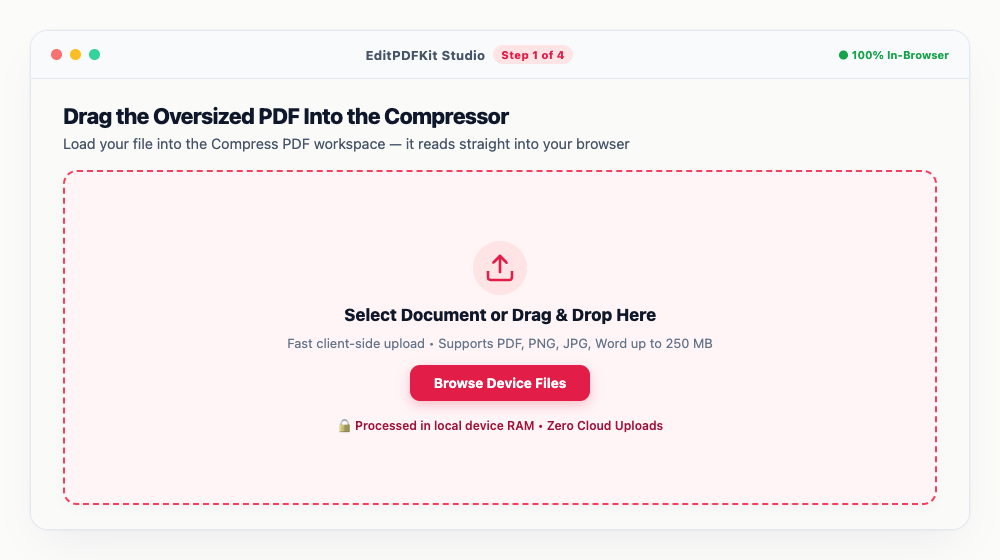
A PDF with interactive fillable fields compresses more reliably after a pass through Flatten PDF first, which strips the form scripts out of the way.
- 2
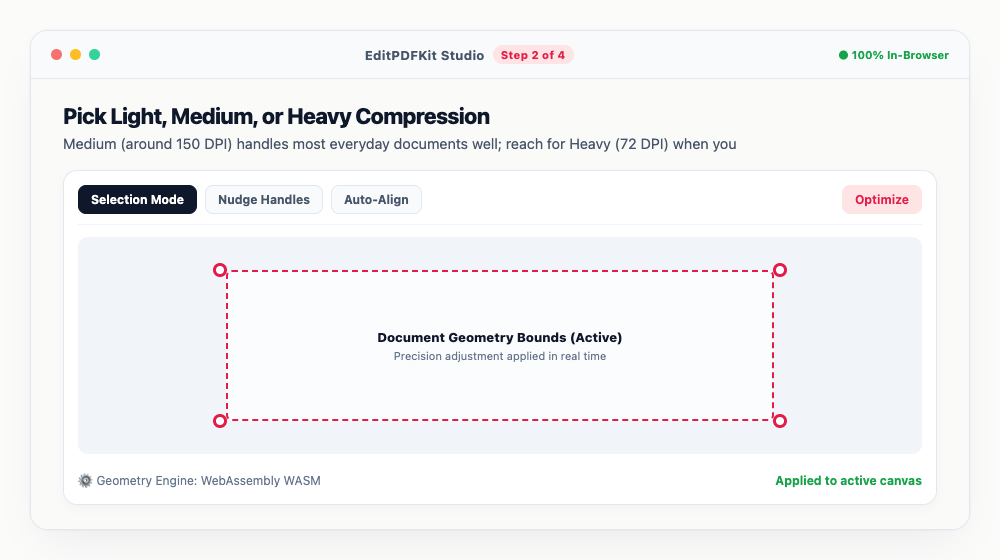
Pick Light, Medium, or Heavy Compression
Medium (around 150 DPI) handles most everyday documents well; reach for Heavy (72 DPI) when you're starting well above 15MB and need to land under a strict 1MB ceiling.
Heavy compression goes after embedded high-res photos specifically, while leaving text as sharp vector curves rather than degrading it too.
- 3
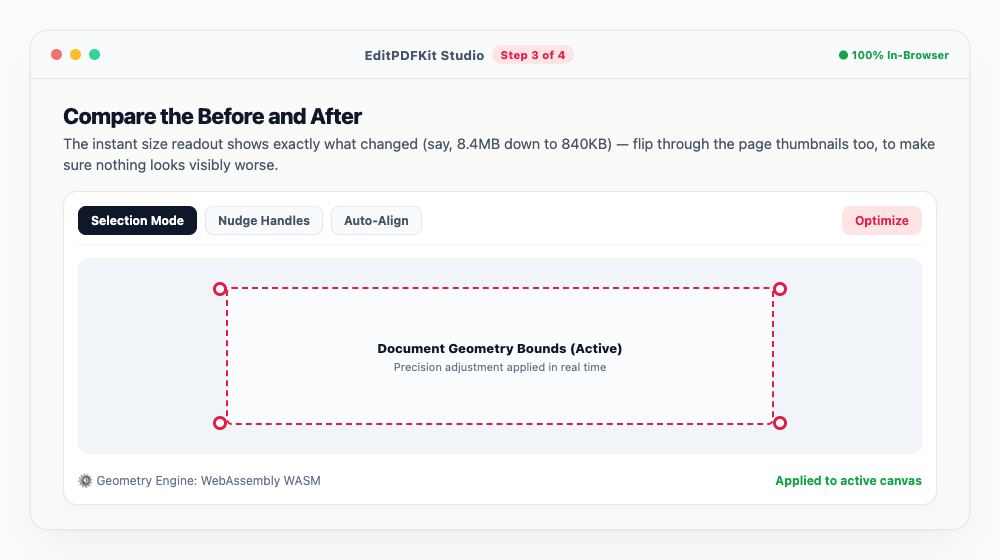
Compare the Before and After
The instant size readout shows exactly what changed (say, 8.4MB down to 840KB) — flip through the page thumbnails too, to make sure nothing looks visibly worse.
Still a bit over 1MB? Splitting the file with Split PDF, or dropping a redundant scanned page, usually closes the remaining gap.
- 4
Grab the Compressed File
Click 'Download Compressed PDF' and the optimized document saves, ready for whatever portal or inbox enforced the size limit in the first place.
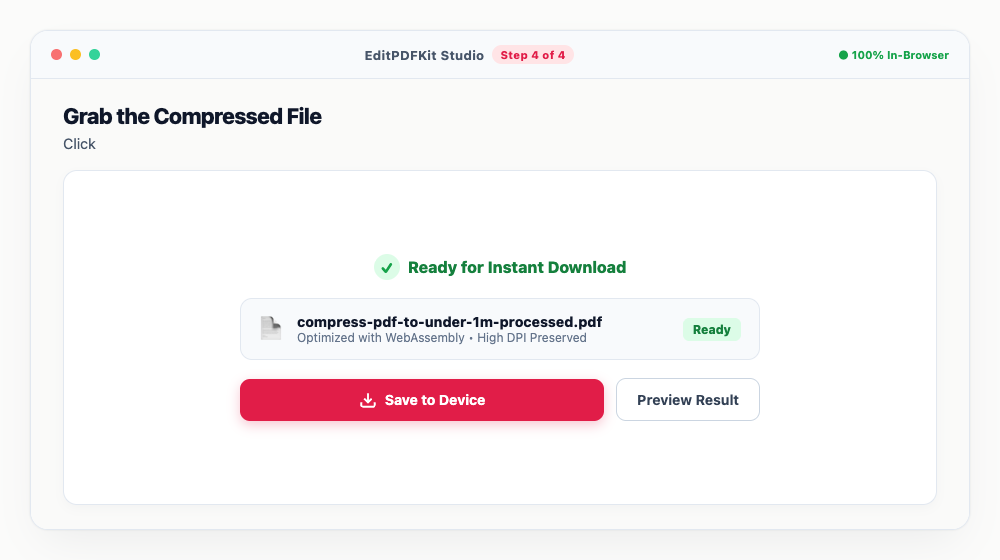
Stash a copy in your offline browser vault if you'll need quick access to it again from either mobile or desktop.
Why use EditPDFKit for this
- Target Under 1MB Compression: shrinks 10MB–50MB reports down to compliant portal sizes
- Vector Typography Protection: fonts and contracts remain 100% vector-sharp and printable
- DPI Optimization Engine: choose between Light (300 DPI), Medium (150 DPI), or Heavy (72 DPI)
- Zero Cloud Uploads: private bank statements, resumes, and medical files never leave your device
- Advanced Tool Chaining: combine with Flatten PDF or Split PDF for extreme size reduction
What Is DPI-Based PDF Compression?
DPI-based compression means treating a PDF's vector text and raster images as fundamentally different kinds of content that need different handling: vector text is mathematical glyph outlines that render crisply at any size and cost almost nothing in file size, while raster images — scanned pages, embedded photos — are actual pixel grids that carry a real size-versus-quality tradeoff. EditPDFKit's Compress PDF tool leaves vector text completely untouched and aggressively downsamples only the embedded images, which are almost always where the actual file size is coming from, targeting a specific DPI (dots per inch) rather than a blunt, uniform quality reduction.
Real-World Scenarios
Job applicants and students submitting university admissions forms routinely hit strict 1MB or 2MB upload caps with resumes or transcripts scanned at archival quality, far larger than any portal will accept. Researchers and paralegals both deal with reports and case files padded with high-resolution embedded photos or scans, while office professionals emailing documents run into corporate mail servers that reject oversized attachments outright.
In every case, the file was never designed to be this small — it was scanned or exported for quality, not for a specific size ceiling, which is exactly the gap this tool closes.
What Makes This Possible
The DPI Optimization Engine lets you choose Light (300 DPI, print-quality), Medium (150 DPI, the practical default for most business documents), or Heavy (72 DPI, for hitting strict 1MB caps) depending on how aggressive the size cut needs to be. Vector Typography Protection guarantees fonts and contract text stay 100% sharp and printable no matter which compression level you pick, since text is never touched.
Advanced Tool Chaining lets you combine compression with Flatten PDF or Split PDF for extreme size reduction when a document still won't fit after heavy compression alone.
What Makes This So Straightforward
The process is four steps: load your oversized PDF, pick Light, Medium, or Heavy, compare the before-and-after size readout, then download. No account or install is required, and because everything processes locally, resumes, bank statements, and medical files never have to leave your device just to shrink down to whatever size limit is blocking them.
Frequently asked questions
Will compressing my PDF to under 1MB make the text look blurry?
No. Unlike pixelated raster images, typography in PDFs is represented as mathematical vector outlines. Our compression engine downsamples embedded raster images and strips invisible metadata streams, leaving every paragraph, header, and signature crisp and sharp at any magnification.
Which compression level should you use: Light, Medium, or Heavy?
Light (20-30% reduction, 300 DPI) is best for portfolios and documents intended for high-res print. Medium (40-50% reduction, 150 DPI) is the optimal balance for 99% of business reports and resumes. Heavy (60-75% reduction, 72 DPI) is engineered to hit strict 1MB and 2MB upload caps.
Why is my PDF still over 1MB after Heavy compression?
If a document is packed with dozens of 600 DPI full-page color scans, even Heavy compression might result in a 2MB-3MB file. In this case, chain tools: first use Split PDF to divide the document into two sections, or use Flatten PDF to strip unneeded form elements.
Does compression affect hyperlinks, bookmarks, or form fields?
No. All hyperlinks, digital table-of-contents bookmarks, and form annotations remain fully functional after compression.
Do I need to install any software to compress a pdf to under 1mb online free (without blurry text)?
Nothing to install — this workflow — compress a pdf to under 1mb online free (without blurry text) — runs directly inside your web browser using our compress pdf tool, powered by WebAssembly. No extension, no sign-up, and nothing to install beforehand.
Is this approach suitable for job applicants?
Yes, this workflow is commonly used by job applicants, students submitting university admissions, researchers, paralegals, and office professionals. Nothing is uploaded, and the workflow is identical across desktop, Android, and iOS.
If a document is still over the limit after heavy compression, that's usually a sign the file has more embedded high-resolution scans than compression alone can reasonably solve, and chaining in Split PDF or Flatten PDF to remove redundant structure is the next step rather than cranking compression even further and sacrificing readability. Either way, resumes, bank statements, and medical files never have to leave your device to get compressed, since the entire DPI downsampling and re-encoding process runs locally in your browser.
Pairs well with
Bates Numbering
Burn a prefixed, zero-padded number like DOC-00001 into a corner of every page, one increment per page.
Compare Two PDFs
Extract the text from an original and a revised PDF and read the line-by-line differences in one highlighted stream.
Compress PDF to 100KB
Reduce PDF file sizes under 100KB for government portals, exams, and job applications.
Related posts
Email PDF Compressor
How to Compress Large PDF Documents Under 25MB for Email Attachments (Gmail & Outlook)
Visa & Job Portal Uploads
How to Compress a PDF Under 200KB for Visa, Job & Government Portals
Form Flattening & Locking
How to Flatten Fillable PDF Forms & Lock Annotations Before Submitting
PDF Splitting
How to Split PDF Pages into Separate Files or Extract Selected Pages Free
PDF Editing
How to Edit Existing Text in a PDF and Add a Digital Signature