
How to Flatten Fillable PDF Forms & Lock Annotations Before Submitting
Have you ever filled out an official government or job application form, saved it, and later discovered the recipient received a blank document? This happens because interactive form fields (AcroForms/XFA) are stored as separate dynamic widgets that many mobile viewers, email previewers, and automated portal screeners cannot render. Flattening locks form inputs, checkmarks, and signatures permanently into the base visual page.
You fill out a government application form carefully — every field, every checkbox, your signature on the last page — save it, and submit it through the portal's upload button. Days later you get a rejection notice: 'form submitted blank.' Nothing was actually wrong with how you filled it out; the problem is structural. Interactive PDF forms (AcroForms) store your typed answers as separate dynamic 'widget' objects layered on top of the static page, not as part of the page's permanent visual content. Many automated portal screeners, mobile PDF viewers, and even some email preview panes only render the static page layer and silently ignore the widget layer sitting on top of it — so from their point of view, the page genuinely is blank, even though it looks completely filled out on your own screen.
This is a completely different failure mode from a corrupted file or a wrong file format; the document is valid, it's just structured in a way that a chunk of common software doesn't fully support.
Open Flatten PDF now
Step by step
4 steps- 1
Add Your Completed Form
Choose the interactive PDF you've already filled out — text, checkboxes, signatures and all — and load it into the Flatten PDF tool.
Open Flatten PDF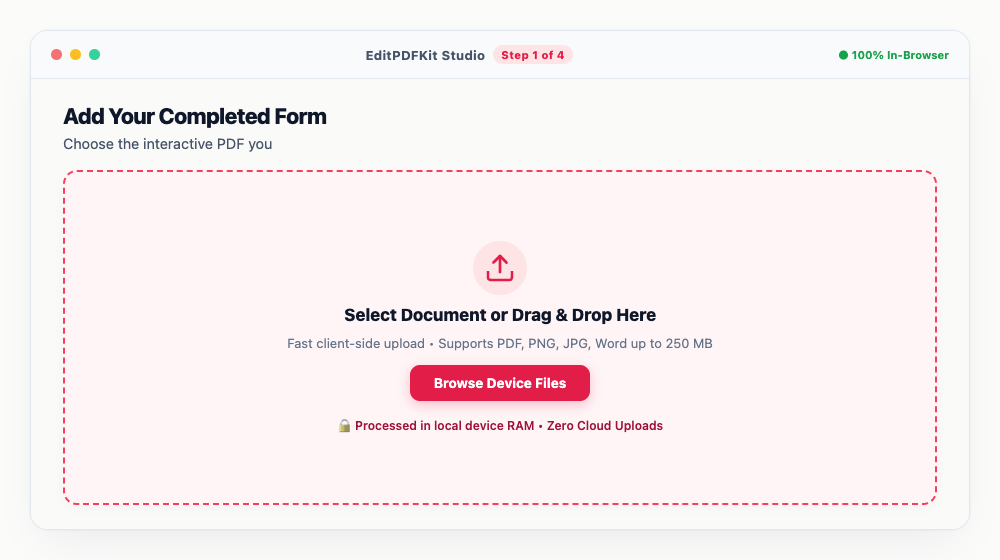
Give everything one last check for blank required fields before you upload; flattening locks in whatever state the form is currently in.
- 2
Let It Scan the Form Structure
The tool reads through the document and surfaces every form widget and annotation layer it finds, so you can see exactly what's about to get merged in.
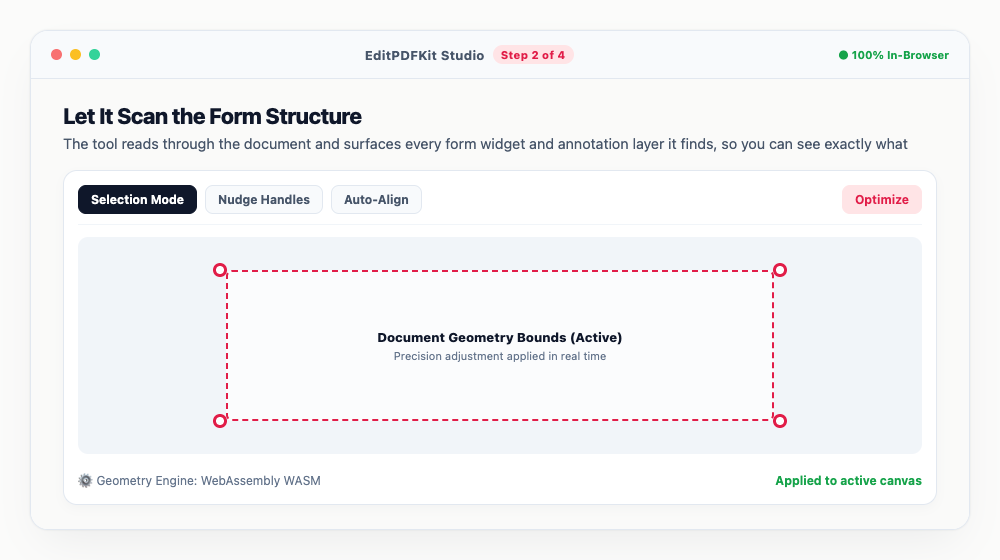
Page through the preview to confirm each entry lands visually where you expect it to.
- 3
Run the Flatten Operation
Press 'Flatten PDF.' Every interactive entry gets baked directly into the page's content stream, turning live form fields into permanent page content.
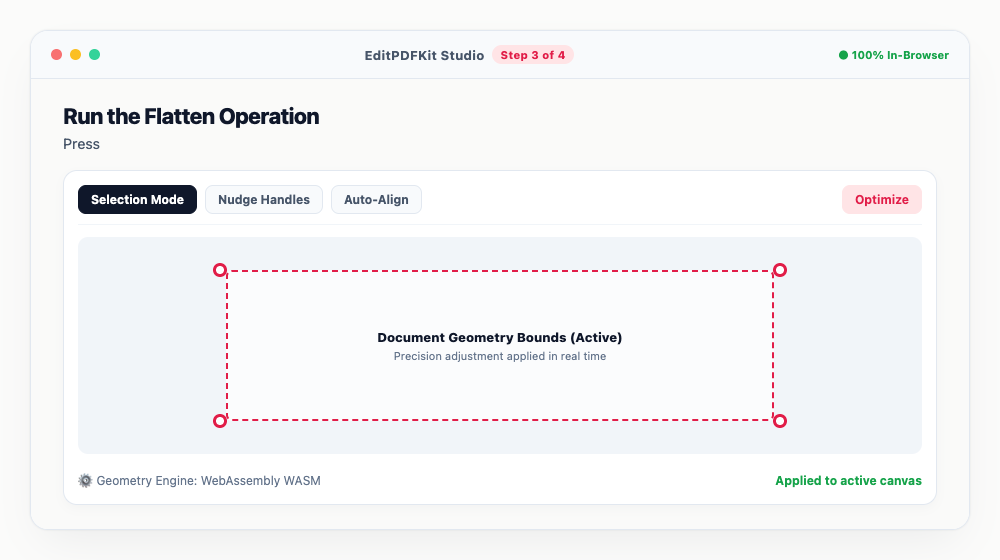
Once flattened, those fields become ordinary read-only graphics — there's no toggling them back to editable.
- 4
Grab Your Portal-Ready File
Download the flattened result — it's now safe to submit to government portals, visa systems, or university application servers that reject interactive forms.
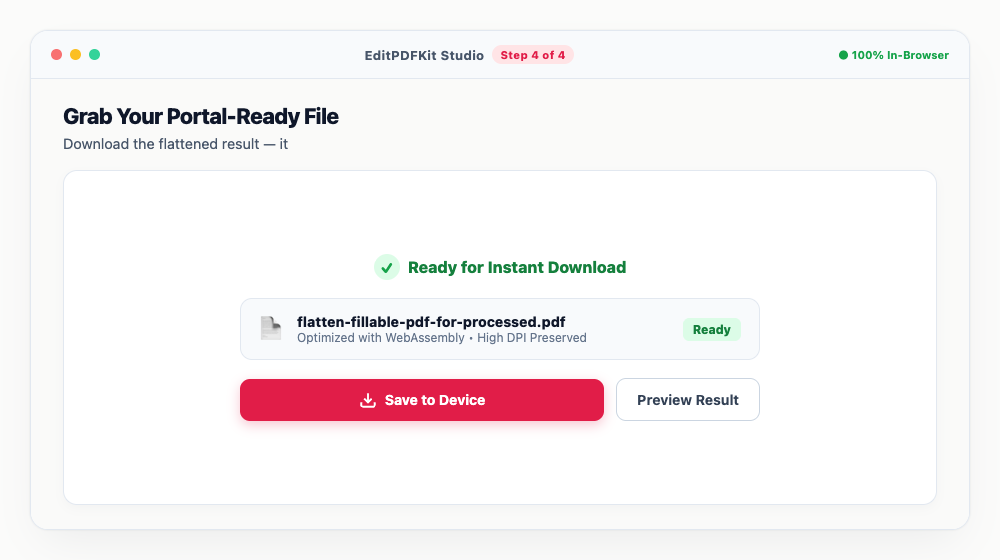
Open the downloaded file and try clicking where the fields used to be; nothing should respond, confirming the flatten worked.
Why use EditPDFKit for this
- Eliminates 'Blank Form' Glitches: converts interactive form widgets into permanent static vector artwork
- Locks Digital Signatures: prevents anyone from altering or deleting your filled inputs
- 100% Compatibility: guaranteed to display identically on iPhones, Android devices, Mac Preview, and Chrome
- Reduces File Size: removes bloated dynamic form scripts and widget dictionaries
What Is PDF Form Flattening?
Flattening means permanently merging every filled text field, checked box, and placed signature directly into a PDF page's own static content — the same layer that holds the form's original labels and borders — then removing the now-redundant interactive widget layer entirely. Interactive PDF forms (AcroForms) normally store your typed answers as separate dynamic widget objects layered on top of the page, not as part of the page's permanent visual content, which is exactly why many portal screeners that skip rendering that widget layer see the form as blank even though it looks completely filled out on your own screen.
Typical Situations This Solves
Visa applicants and job candidates filling government PDF forms are the most common group hitting this problem, since large institutional upload systems often use lightweight PDF libraries that read base page content efficiently but skip AcroForm widget rendering. Students submitting university admissions forms and tax filers run into the identical failure mode — a perfectly filled-out form that reads as blank the moment it reaches an automated screener.
The pattern is always the same: the form looks correct in your own PDF viewer, where interactive widgets render fine, but the gap appears specifically at the point of automated or bulk processing on the recipient's end.
Features Worth Knowing About
Flattening Eliminates 'Blank Form' Glitches by converting every interactive widget into permanent static vector artwork, so there's no separate form-data layer left for a screener to miss. It also Locks Digital Signatures in place, preventing anyone from altering or deleting your filled inputs after the fact.
100% Compatibility means the flattened result displays identically on iPhones, Android devices, Mac Preview, and Chrome, since there's no longer any dependency on whether a given viewer supports AcroForm rendering — and because the bloated dynamic form scripts and widget dictionaries get removed, the file size typically drops too.
Why It Takes Almost No Effort
The process is four steps and should be the very last thing you do before submission: load your already-completed form, let the tool scan its structure, run the flatten operation, then download. No account or software install is needed, and because flattening runs entirely in your browser, the fix applies the moment you click, leaving you with a portal-ready file that behaves like any ordinary static document everywhere it's opened next.
Frequently asked questions
Why did my government or visa portal say my application form was blank?
Most automated visa, university, and job portals use automated PDF screeners that do not render dynamic AcroForm widgets. Flattening merges your text directly into the page layer so automated systems can read your inputs without errors.
Can someone edit my responses after I flatten the PDF?
No. Flattening strips the interactive form fields and turns your answers into un-editable page graphics, preventing tampering.
Does flattening reduce the resolution of my document?
No. EditPDFKit performs vector flattening, meaning your text and vector lines stay 100% razor-sharp at any zoom level.
Do I need to install any software to flatten fillable pdf forms & lock annotations before submitting?
There's no app to install. This workflow — flatten fillable pdf forms & lock annotations before submitting — runs directly inside your web browser using our flatten pdf tool, powered by WebAssembly. No sign-up wall, no extension, and nothing additional to install.
Is this approach suitable for visa applicants?
Yes, this is commonly used by visa applicants, job candidates filling government pdf forms, students submitting university admissions, and tax filers. This runs the same way on desktop, Android, and iOS, with the file staying on your device the entire time.
Should I flatten before or after adding my signature to the form?
Add and position your signature first, then flatten last — flattening locks in whatever is on the page at that moment, so flattening too early would mean your signature never gets merged into the final static output.
Flattening is the last step before submission, never the first — fill out every field, sign where needed, double-check everything looks right, and only then flatten and download. Once that's done, the PDF behaves like any ordinary static document: viewable, printable, and readable identically everywhere, with your answers baked permanently into the page rather than sitting in a widget layer some portal might silently drop.
Pairs well with
Bates Numbering
Burn a prefixed, zero-padded number like DOC-00001 into a corner of every page, one increment per page.
Compare Two PDFs
Extract the text from an original and a revised PDF and read the line-by-line differences in one highlighted stream.
Compress PDF to 100KB
Reduce PDF file sizes under 100KB for government portals, exams, and job applications.
Related posts
Digital Signatures
How to Add a Digital Signature to PDF Contracts Online Free (Legally Compliant)
PDF Redaction & Sanitization
How to Black Out and Redact Sensitive Information in PDF Documents Permanently
Visa & Job Portal Uploads
How to Compress a PDF Under 200KB for Visa, Job & Government Portals
Document Pagination
How to Add Unified Page Numbers to PDF Files (Page X of Y & Custom Formats)
PDF Editing
How to Edit Existing Text in a PDF and Add a Digital Signature