
How to Split PDF Pages into Separate Files or Extract Selected Pages Free
Need to send only page 3 of a 50-page contract, or split a multi-chapter eBook into individual documents? EditPDFKit's Split PDF Studio lets you extract exact page ranges or burst all pages into individual PDFs in seconds, completely offline in your browser.
Sending someone a 50-page contract when they only need to review page 3 forces them to scroll through 49 pages of irrelevant content to find what matters, and it needlessly exposes the rest of the document's contents to a recipient who had no reason to see it. The usual workaround — opening the PDF in a viewer, manually selecting a page range, and using a print-to-PDF function to save just that range — works, but it's clunky, often mangles formatting on the saved pages, and offers no easy way to handle a non-consecutive selection like pages 1, 4, and 9 in one pass.
A dedicated split tool treats page selection as the primary interaction rather than an afterthought bolted onto a print dialog: a visual grid of thumbnails you click to select, arbitrary comma-and-range syntax for precise control, and either an instant single extracted PDF or a bulk "every page becomes its own file" mode for things like separating a scanned multi-document batch back into its individual components.
Open Split PDF now
Step by step
4 steps- 1
Bring In the Document You're Splitting
Open Split PDF and drag your file into the browser window, or browse for it from your device storage.
Open Split PDF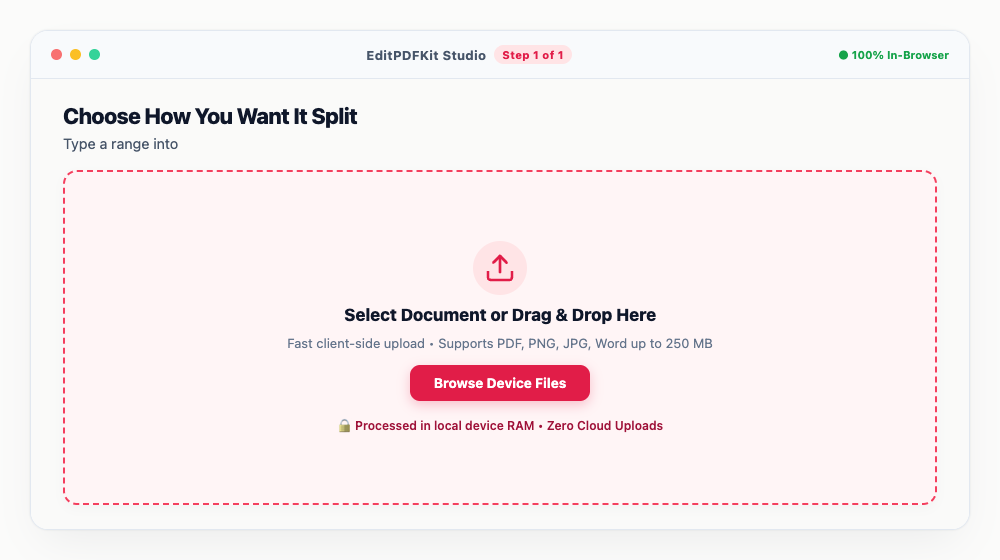
File size isn't really a constraint here — everything processes locally in your browser's own memory.
- 2
Choose How You Want It Split
Type a range into 'Extract Range' (2-5, say), or switch to 'Split Every Page' if you want each page broken out as its own file.
Clicking directly on the thumbnail previews works just as well as typing page numbers, if that's easier.
- 3
Double-Check What's Selected
Scan the highlighted thumbnails once more to confirm exactly the right pages are queued before you commit to the split.
Zoom in on any thumbnail first if you need to verify small print or a specific clause before extracting that page.
- 4
Download the Result
'Split PDF Now' generates the new files instantly — grab the resulting PDF or ZIP straight to your device.
Planning to feed these pages into the Editor or Merger next? 'Save to Privacy Vault' skips the download-and-reupload step entirely.
Why use EditPDFKit for this
- Extract custom page ranges (e.g. 1-3, 5, 8-12) or split every page into a standalone PDF
- Interactive visual thumbnail selector: click pages to select or deselect effortlessly
- Download extracted pages individually or package them into a single organized ZIP archive
- 100% Client-Side Privacy: your confidential documents never leave your device
What Is Splitting a PDF?
Splitting a PDF means pulling specific pages out of a larger document — either as one combined extract, or as individual standalone files per page — without touching the quality of the original content. Sending a 50-page contract when someone only needs page 3 forces them to scroll through 49 irrelevant pages and exposes content they had no reason to see.
The usual manual workaround, opening the file in a viewer and using print-to-PDF to save a range, works but often mangles formatting and offers no clean way to handle a non-consecutive selection like pages 1, 4, and 9 in one pass. A dedicated split tool treats page selection as the primary interaction instead of an afterthought bolted onto a print dialog.
Typical Situations This Solves
Lawyers, students, accountants, and office professionals handling multi-page PDF documents all run into this regularly. A lawyer sharing only the relevant clause of a long contract with opposing counsel needs just those pages extracted, not the entire confidential document forwarded. A student separating individual chapters out of a scanned multi-chapter textbook PDF needs each chapter as its own file for easier reference.
An accountant processing a batch of scanned receipts that got merged into one PDF during scanning needs them split back into individual files for expense-tracking software. Office professionals regularly extracting a signature page or a specific exhibit from a larger bundled document face the identical underlying need.
Features Worth Knowing About
Custom page range extraction (1-3, 5, 8-12) or full page-by-page splitting covers both the "I need these specific pages together" and "break every page into its own file" cases. The interactive visual thumbnail selector lets you click pages to select or deselect them, which is faster and less error-prone than typing page numbers for anything but the simplest range.
Downloading extracted pages individually or as one organized ZIP archive means you're never stuck manually renaming and organizing a batch of output files, and because processing runs entirely client-side, your confidential documents never leave your device during the split.
Why It Takes Almost No Effort
The process is four steps: bring in your document, choose a range or full split, double-check the highlighted thumbnails, and download. There's no page-count limit imposed by a server, since everything runs in your browser's own memory regardless of how large the source file is.
No software install or account is needed, and if you're feeding the extracted pages into another tool like the Editor or Merger next, saving to the Privacy Vault skips the download-and-reupload step entirely.
Frequently asked questions
Can I extract non-consecutive pages like 1, 4, and 9?
Yes. Simply type '1, 4, 9' into the page range field or click directly on those individual thumbnails in the visual page grid.
Does splitting a PDF reduce its original quality or blur text?
No. EditPDFKit performs lossless page extraction by preserving the original vector fonts, high-res images, and embedded form fields without re-compressing.
Is there a limit on how many pages I can split?
There are no arbitrary server limits. Because processing runs client-side via WebAssembly, you can split PDFs containing hundreds of pages without subscription fees.
Splitting a PDF is one of those tasks that should take seconds, not a workaround involving a print dialog. Select the pages you need, extract them losslessly, and share only what the recipient actually needs to see.
Pairs well with
Bates Numbering
Burn a prefixed, zero-padded number like DOC-00001 into a corner of every page, one increment per page.
Compare Two PDFs
Extract the text from an original and a revised PDF and read the line-by-line differences in one highlighted stream.
Compress PDF to 100KB
Reduce PDF file sizes under 100KB for government portals, exams, and job applications.
Related posts
PDF Management
How to Merge Multiple PDF Files into One Document Online
PDF Editing
How to Edit Existing Text in a PDF and Add a Digital Signature
Email PDF Compressor
How to Compress Large PDF Documents Under 25MB for Email Attachments (Gmail & Outlook)
Document Pagination
How to Add Unified Page Numbers to PDF Files (Page X of Y & Custom Formats)
PDF Rotation & Organization
How to Rotate Upside-Down Scanned PDF Pages Permanently (Without Adobe Acrobat)