
How to Convert EPUB & MOBI eBooks into Printable PDF Documents
eBooks in EPUB or MOBI formats are great for e-readers like Kindle or Kobo, but they cannot be easily printed, annotated with PDF markup pens, or cited with fixed page numbers. EditPDFKit's eBook to PDF tool transforms dynamic reflowable digital books into beautifully paginated A4 or Letter PDFs with fixed page numbering, chapter breaks, and table of contents.
EPUB and MOBI are 'reflowable' formats by design — the whole point is that the same file can adapt its text size and line wrapping to fit a phone screen, a Kindle's e-ink display, or a tablet, which is exactly what makes them pleasant to read on a device but genuinely unsuited to two very ordinary tasks: printing and citing by page number. There's no fixed 'page 47' in a reflowable EPUB the way there is in a PDF or a physical book, because the content just keeps reflowing to fill whatever screen it's displayed on — which is a real problem the moment you need to reference a specific page in an academic citation, print out a chapter to read with a highlighter, or mark up a page with a stylus the way you would a physical printout.
Open eBook to PDF now
Step by step
4 steps- 1
Hand Over the eBook File
Load your .epub, .mobi, or .azw file into the eBook to PDF tool.
Open eBook to PDF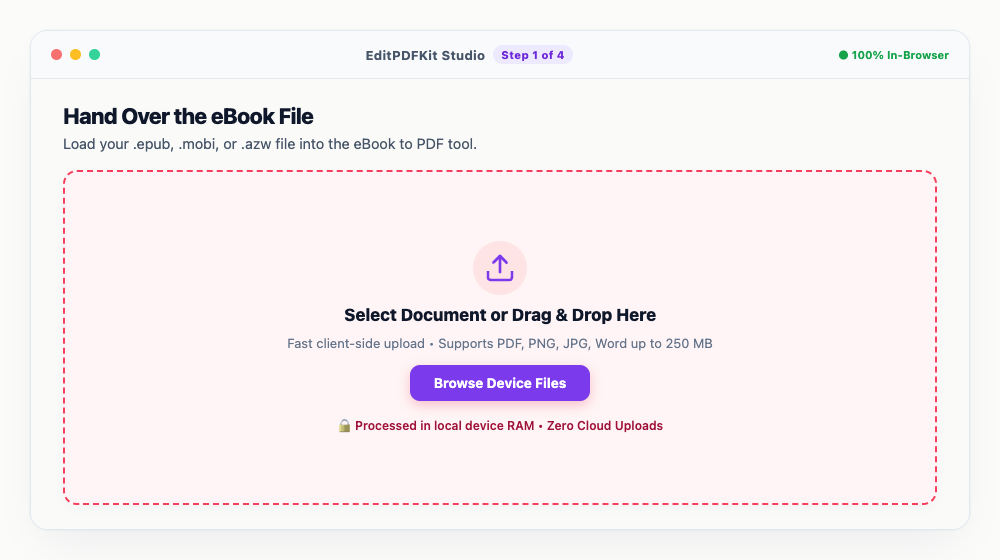
DRM-free eBooks, public domain classics, and open-access academic texts all work — DRM-locked files won't.
- 2
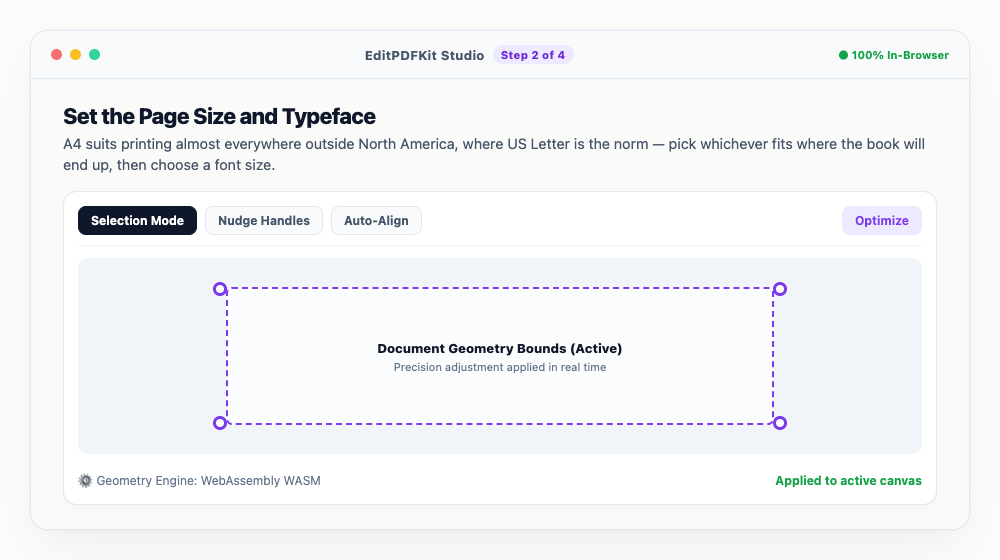
Set the Page Size and Typeface
A4 suits printing almost everywhere outside North America, where US Letter is the norm — pick whichever fits where the book will end up, then choose a font size.
A 12pt serif font like Times or Georgia reads closest to an actual printed paperback.
- 3
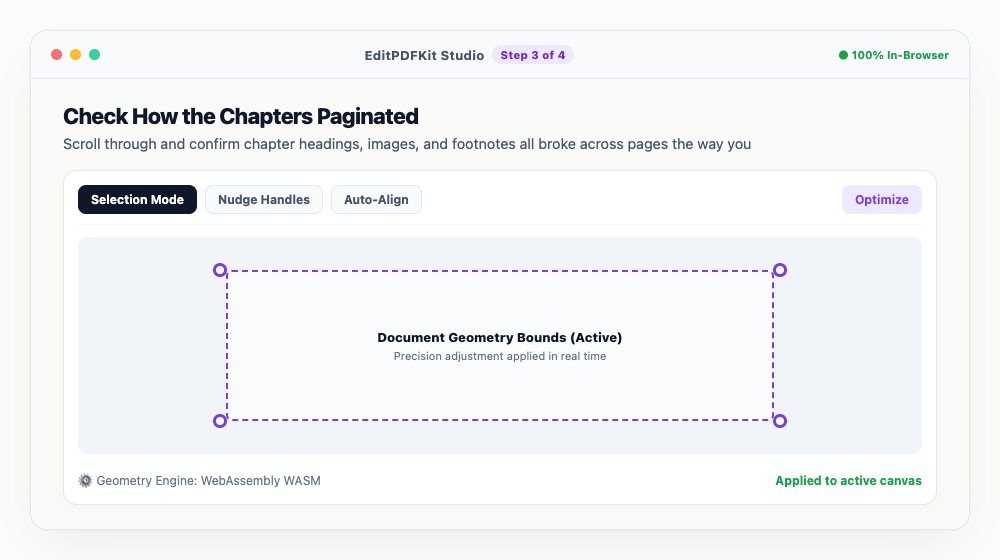
Check How the Chapters Paginated
Scroll through and confirm chapter headings, images, and footnotes all broke across pages the way you'd expect.
Major chapter breaks get their own page break automatically, so chapters don't run together mid-page.
- 4
Export the Print-Ready PDF
Click 'Convert to PDF' and the digital book compiles into a clean, permanent PDF.
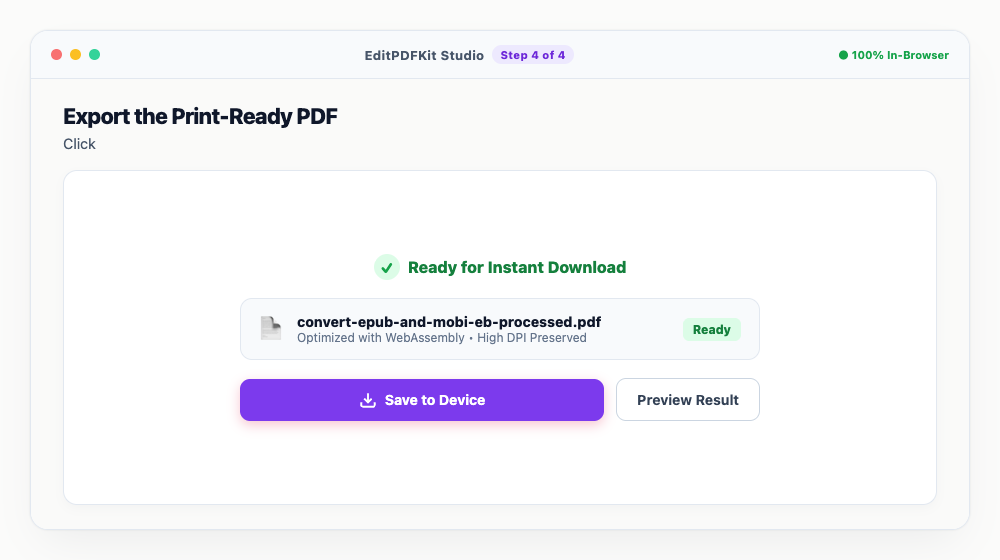
From here it opens in any PDF reader, takes stylus annotations, or prints chapter by chapter.
Why use EditPDFKit for this
- Fixed Page Pagination: converts reflowable EPUB chapters into standardized printable A4 or US Letter pages
- Chapter Breaks & Table of Contents: preserves book sections, headings, and chapter dividers
- Customizable Reading Fonts: choose font size and margins for comfortable desktop reading or printing
- 100% Private Client Conversion: read and convert personal eBooks with zero cloud storage
What Is eBook-to-PDF Conversion?
Converting an eBook to PDF means transforming a 'reflowable' format — one designed to adapt its text size and line wrapping to fit whatever screen displays it — into a fixed-layout document with standardized, consistent pagination. EPUB and MOBI have no fixed 'page 47' the way a PDF does, since the same chapter might span different page ranges depending on a reader's font size settings. EditPDFKit's eBook to PDF tool freezes that reflowable content into a specific A4 or US Letter layout with genuine, citable page numbers.
Typical Situations This Solves
Researchers citing academic books need a specific page number alongside a quote, which a reflowable EPUB simply can't provide consistently across different readers' devices. Students reading digital textbooks who want to print and annotate a chapter with a highlighter face the same reflowable-format limitation, while book club readers printing chapters and self-published authors formatting print proofs both need fixed pagination for entirely practical reasons.
In every case, the underlying need is the same: a format built for adaptive on-screen reading has to become something with a genuinely fixed page layout.
Features Worth Knowing About
Fixed Page Pagination converts reflowable EPUB chapters into standardized, citable A4 or US Letter pages, and Chapter Breaks & Table of Contents preserve the book's original section structure — EPUB and MOBI files store a structured internal table of contents, and a good conversion carries that over into the PDF's own bookmark panel so you can still jump directly to a chapter.
Customizable Reading Fonts let you set font size and margins for comfortable desktop reading or for printing, and DRM-free Kindle (.mobi/.azw) files work the same as standard EPUBs.
Why It Takes Almost No Effort
The process is four steps: load your eBook file, set page size and font, check how the chapters paginated, then export the finished PDF. No account or install is required, and because conversion runs entirely in your browser, this works just as well for a personal library of purchased eBooks as it does for open-access academic texts, with nothing uploaded to a third-party service either way.
Frequently asked questions
Can I convert Kindle (.mobi or .azw) books to PDF?
Yes, as long as the file is DRM-free. You can drop .mobi or .epub files and convert them into standard PDFs.
Does the converted PDF keep the table of contents?
Yes! Chapter titles and structural bookmarks are converted into PDF navigation bookmarks so you can jump to any chapter instantly.
Can I print the converted PDF on a regular home printer?
Yes. By selecting A4 or US Letter page dimensions during conversion, the PDF prints perfectly on any standard home or office printer.
Do I need to install any software to convert epub & mobi ebooks into printable pdf documents?
There's no app to install. This workflow — convert epub & mobi ebooks into printable pdf documents — runs directly inside your web browser using our ebook to pdf tool, powered by WebAssembly. No sign-up wall, no extension, and nothing additional to install.
Is this approach suitable for students reading digital textbooks?
Yes, this is commonly used by students reading digital textbooks, researchers citing academic books, book club readers printing chapters, and self-published authors formatting proofs. This runs the same way on desktop, Android, and iOS, with the file staying on your device the entire time.
Can I use a larger font size for easier on-screen reading?
Yes. The font size control in the page layout step applies to the whole book, so you can bump it up for comfortable desktop reading or keep it compact to reduce the total page count for printing.
Converting an eBook to PDF trades the flexible, device-adaptive reading experience of EPUB for something that prints cleanly, cites consistently, and annotates the same way a traditional book does — which is exactly the tradeoff you want for printing, citing, or marking up a text, even if it's not the format you'd choose for casual phone reading. Since the conversion runs entirely in your browser, this works just as well for a personal library of purchased eBooks as it does for open-access academic texts, with nothing uploaded to a third-party service in either case.
Pairs well with
AI to PDF
Pull the PDF document that Adobe Illustrator already wrote inside your .ai file back out as a standalone PDF.
ARW to PDF
Build a PDF proof sheet from Sony Alpha frames — and find out why the .ARW itself has to be developed before any PDF can hold it.
AVIF to PDF
Put AVIF images on PDF pages, with a straight account of what the re-encoding step costs — transparency, extra bit depth and HDR all go.
Related posts
Text & Document Conversion
How to Convert Plain Text, Notes, and Markdown to Clean Printable PDF
PDF OCR
How to Make Scanned PDFs Searchable and Selectable with Free In-Browser OCR
Email PDF Compressor
How to Compress Large PDF Documents Under 25MB for Email Attachments (Gmail & Outlook)
Document Conversion
How to Convert PDF to Editable Word (DOCX) Without Losing Formatting
OCR & Text Extraction
How to Extract Text and Tables from Scanned PDFs with Free OCR