
How to Convert Plain Text, Notes, and Markdown to Clean Printable PDF
Printing or sharing raw text files (.txt) often leads to awkward line wraps, cut-off margins, and lack of visual hierarchy. EditPDFKit's Text to PDF Studio turns raw notes, code logs, and Markdown documents into cleanly paginated, professional A4 or US Letter PDFs with live preview, custom fonts, margins, and optional line numbers.
A plain .txt file carries no concept of a page. There's no margin, no page break, no font — just a continuous stream of characters that your operating system's default text viewer wraps however it sees fit, which is rarely how you'd want it to look if you had to hand it to someone else or print it. Paste that same raw text into an email or a chat window and you often get the opposite problem: long unbroken lines that get mangled by whatever width the recipient's screen happens to be. Developers hit this constantly with server logs and config dumps; students hit it with Markdown notes that look clean in their editor but turn into a wall of asterisks and pound signs the moment they're shared anywhere else.
The underlying issue is the same in both cases: plain text and Markdown are built for editing, not for presentation, and turning either into something with real pagination, consistent margins, and readable typography means converting it into a format that actually has a notion of a 'page.'
Open Text to PDF now
Step by step
4 steps- 1
Get Your Text Into the Editor
Paste directly into the Text to PDF editor, or drop in a .txt or .md file from your device. Either way, the content lands in a live dual-pane view with a PDF preview updating on the right.
Open Text to PDF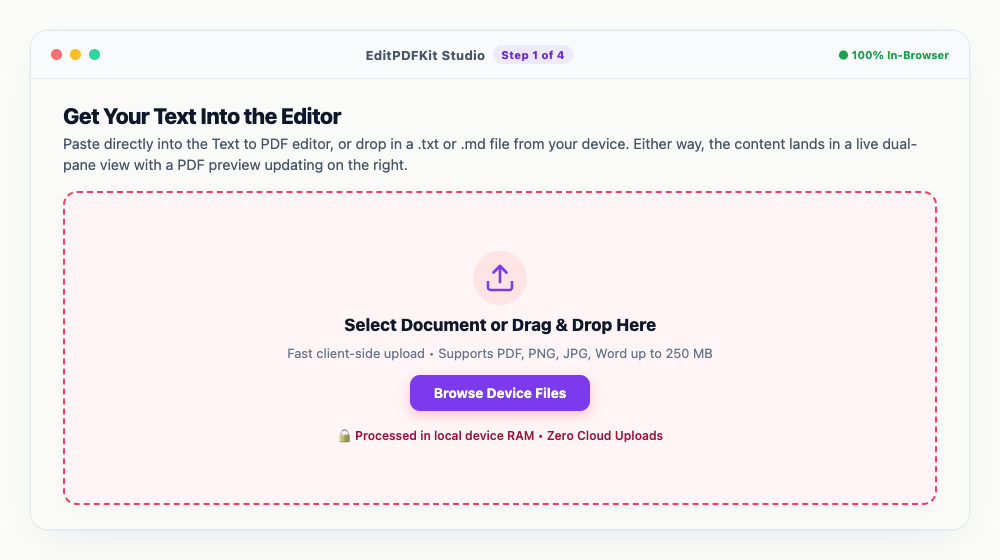
The toolbar above the editor applies Markdown syntax for you — select text and click Bold, Heading, or Quote instead of typing the symbols by hand.
- 2
Pick a Font That Matches the Content
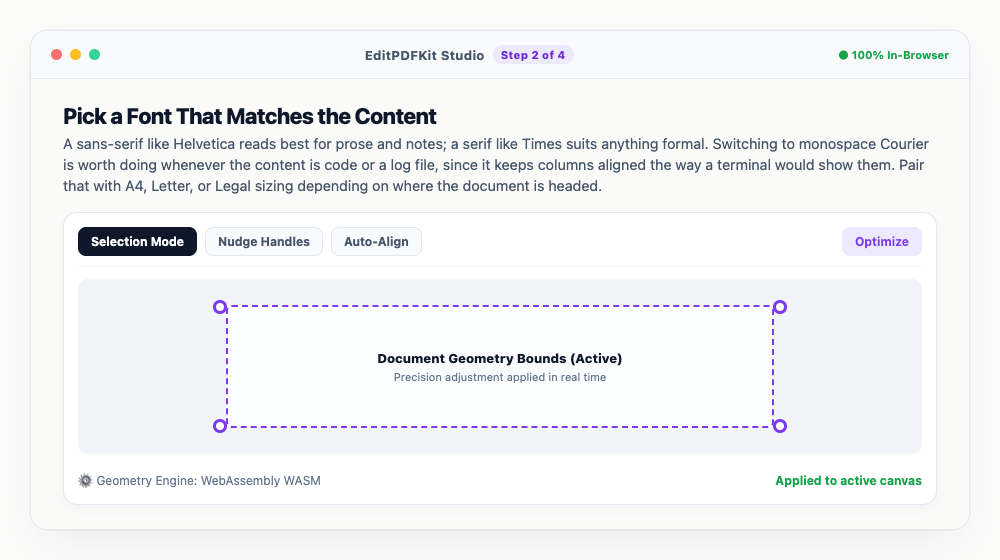
A sans-serif like Helvetica reads best for prose and notes; a serif like Times suits anything formal. Switching to monospace Courier is worth doing whenever the content is code or a log file, since it keeps columns aligned the way a terminal would show them. Pair that with A4, Letter, or Legal sizing depending on where the document is headed.
Flip on the line-numbering gutter alongside Courier if you're sharing something a reader needs to reference by exact line.
- 3
Dial In Margins and Page Numbering
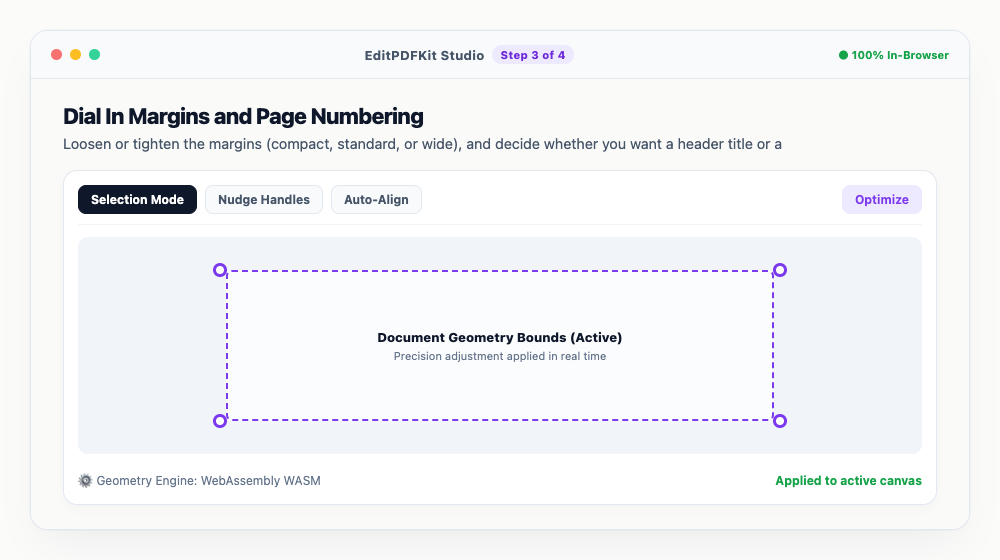
Loosen or tighten the margins (compact, standard, or wide), and decide whether you want a header title or a 'Page X of Y' footer running through the document.
Watch the preview pane as you adjust — it's the fastest way to catch an awkward page break before you've committed to it.
- 4
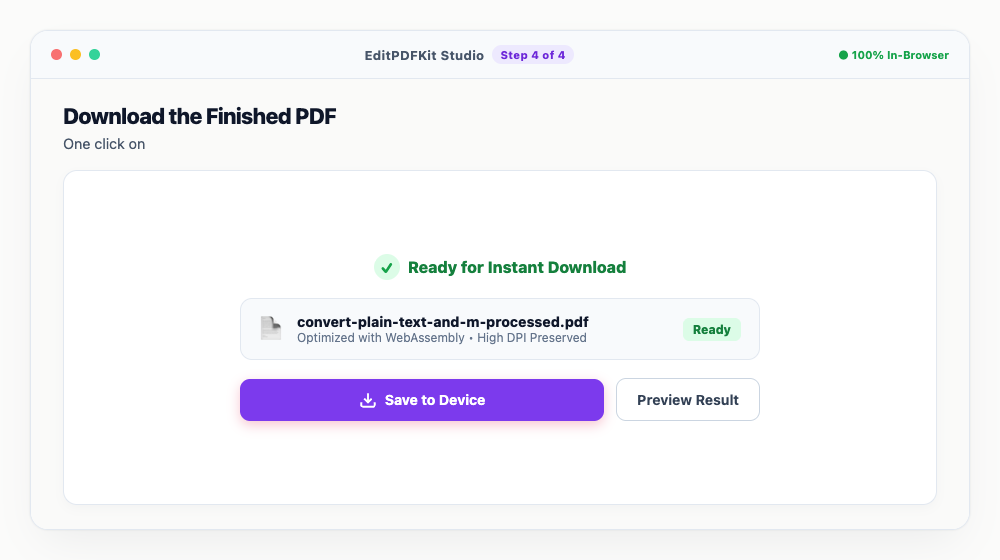
Download the Finished PDF
One click on 'Download PDF' and the formatted document saves straight to your device, fully paginated and ready to send or print.
Because the text is rendered as real vector glyphs rather than a flattened image, it stays sharp at any zoom level and remains fully searchable.
Why use EditPDFKit for this
- Dual-Pane Editor: live markdown formatting toolbar with real-time PDF canvas preview
- Multi-Format Ingestion: paste clipboard text or drop .txt, .md, .log, and .rtf files
- Developer Code Gutter: toggle optional line numbers for programming scripts and log files
- Professional Layout Options: select between A4, US Letter, and Legal with custom margins and headers
What Is Text-to-PDF Conversion?
Converting plain text or Markdown to PDF means taking a raw stream of characters — with no inherent concept of a page, margin, or font — and laying it out into a real paginated document with actual typography. A .txt file has no page breaks or heading styles of its own; a .md file encodes formatting as plain symbols (##, **, *) that only read as formatting to someone who already knows the convention. EditPDFKit's Text to PDF Studio parses that raw content and renders it into a genuine A4 or US Letter document with real headings, real bullet points, and consistent margins.
Who Typically Uses This
Developers converting server logs need monospace alignment so timestamps and indentation line up the way they would in a terminal, while students writing notes in Markdown want their headings and bullet lists to render as actual formatted structure rather than a wall of asterisks and pound signs once shared outside their editor. Writers formatting manuscripts and job applicants drafting cover letters both need the opposite problem solved: turning loose prose into something that looks deliberately typeset rather than dumped from a text box.
The common thread is that plain text and Markdown are built for editing, not for presentation — the moment that content needs to be printed, emailed, or handed to someone else, it needs real pagination and typography behind it.
The Features Behind This Workflow
The Dual-Pane Editor shows a live, real-time PDF preview updating as you type or paste, so you see the exact paginated result before committing to anything. Multi-Format Ingestion means you're not locked into one input method — paste directly from the clipboard or drop in .txt, .md, .log, or .rtf files and they all flow through the same pipeline.
The Developer Code Gutter adds optional line numbering specifically for programming scripts and log files, and Professional Layout Options let you pick A4, US Letter, or Legal sizing with custom margins and headers to match wherever the document is actually headed.
Why This Workflow Just Works
There's no software to install and nothing to configure beyond what's visible in the sidebar — paste your content, pick a font and page size, and download. The whole process is four steps, and because text renders as real vector glyphs rather than a flattened image, the output stays sharp at any zoom level and remains fully searchable. A private server log or an unpublished manuscript draft never has to be uploaded anywhere, since the entire pagination and rendering pipeline runs locally in your browser.
Frequently asked questions
Can I convert Markdown syntax into styled headings and bullet points?
Yes. When Markdown mode is enabled, markdown tags like #, ##, **, *, bullet lists, and blockquotes are automatically rendered into styled vector headings and paragraphs.
Does Text to PDF support code snippets with line numbers?
Yes! Simply toggle the 'Line Numbers' option in the sidebar to add a professional line-numbering gutter alongside your text, perfect for code submissions and server logs.
Are my confidential notes or transcripts stored on your servers?
Never. All text parsing, layout pagination, and PDF generation happen 100% locally in your browser memory using WebAssembly. No text is ever uploaded or transmitted.
Do I need to install any software to convert plain text, notes, and markdown to clean printable pdf?
No download is needed. The whole process — convert plain text, notes, and markdown to clean printable pdf — runs directly inside your web browser using our text to pdf tool, powered by WebAssembly. No browser extension or account is needed — just open the tool and go.
Is this approach suitable for developers converting server logs?
Yes — this is a common use case for developers converting server logs, students writing notes in markdown, writers formatting manuscripts, and job applicants drafting cover letters. The file never leaves your device, and this works the same on desktop, Android, and iOS.
Can I control the margins so printed pages don't cut off text?
Yes. Choose between compact, standard, and wide margin presets in the sidebar, and watch the live right-hand preview canvas to confirm nothing gets clipped before you export.
Converting text to PDF is a small, unglamorous step, but it's the difference between sending someone a wall of unformatted characters and handing them a document that looks like it was actually prepared for reading. Because the whole pipeline runs in your browser, there's no reason to route a private server log or an unpublished manuscript draft through a third-party service just to add page breaks and a decent font — open the tool, paste or drop your file, and the formatted PDF is ready in seconds.
Pairs well with
AI to PDF
Pull the PDF document that Adobe Illustrator already wrote inside your .ai file back out as a standalone PDF.
ARW to PDF
Build a PDF proof sheet from Sony Alpha frames — and find out why the .ARW itself has to be developed before any PDF can hold it.
AVIF to PDF
Put AVIF images on PDF pages, with a straight account of what the re-encoding step costs — transparency, extra bit depth and HDR all go.
Related posts
Study & Revision
How to Make Digital Handwritten Study Notes for Exams (Free PDF Export)
Word to PDF
How to Convert Word (DOCX) to PDF Without Formatting Shift or Font Changes
OCR & Text Extraction
How to Extract Text and Tables from Scanned PDFs with Free OCR
eBook Conversion
How to Convert EPUB & MOBI eBooks into Printable PDF Documents
Document Conversion
How to Convert PDF to Editable Word (DOCX) Without Losing Formatting